

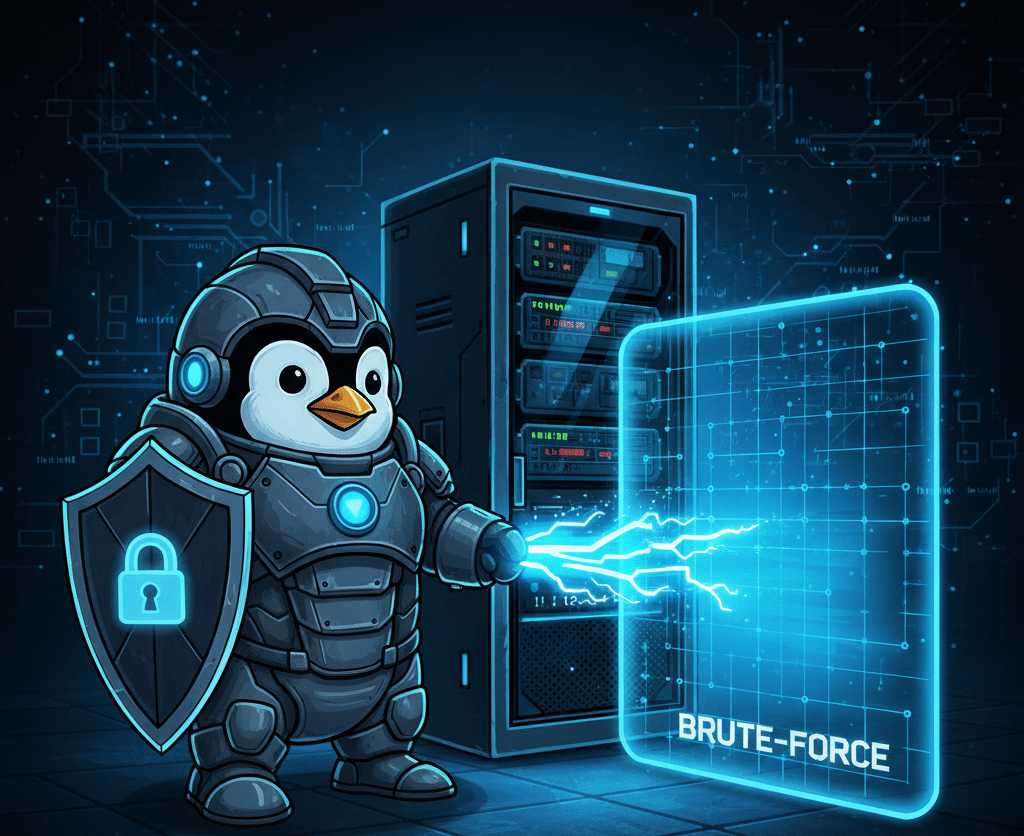
Hey there. So, you just spun up your first Linux server. Whether it's a DigitalOcean droplet, Azure Linux Vm and AWS EC2 instance for a class project, or a virtual machine on your laptop, that feeling of a clean, fresh install is awesome. You've got a blank canvas.
But here’s the thing: that "blank canvas" is also a wide-open target.
A default Linux installation is built for usability, not security. It’s like moving into a new house and leaving the front door unlocked, the windows wide open, and a neon sign flashing "Come on in!" This is where Linux server hardening comes in.
What is Linux server hardening and why is it needed?
In simple terms, Linux server hardening is the process of reducing your server's "attack surface."
Think about it. Every service that's running, every port that's open, and every user account that exists is a potential way for someone to get in. Hardening is the step-by-step process of locking down these potential entry points. It’s not a single "run this command" fix; it's a mindset and a series of actions you take to make your server as difficult as possible to compromise.
If you're a university student in a tech program or just starting your IT career, mastering these steps is what separates the hobbyists from the pros. Let's get started.
What are the most important first steps in securing a new Linux server?
Okay, before you even think about installing your cool new app, you need to do these four things. Seriously, do them right now.
- Update Everything (And I Mean Everything)This is the single most important, non-negotiable first step. That "new" image you just installed could be months old, and in that time, dozens of security holes (vulnerabilities) have been found and patched.
- On Debian/Ubuntu:
sudo apt update && sudo apt upgrade -y - On RHEL/CentOS/Fedora:
sudo dnf upgrade -y
- On Debian/Ubuntu:
- Stop Using the Root UserLogging in directly as root is like walking around with the master key to your entire building. If you mess up a command, you can destroy your system. If someone steals your key, they own everything. We're going to fix this in two parts.
- First: Create a new user for yourself.sudo adduser yourusernameSecond: Give that user "sudo" (admin) privileges. sudo usermod -aG sudo yourusername (for Debian/Ubuntu)sudo usermod -aG wheel yourusername (for RHEL/CentOS)
rootaccount and log back in asyourusername. From now on, you'll just typesudobefore any command that needs admin rights. - Remove Unnecessary SoftwareRemember that "attack surface" we talked about? Let's shrink it. A default server install often includes services you'll never use, like telnet (wildly insecure) or old mail servers.Which Linux services should be disabled or removed? Honestly, anything you don't 100% need. If you're running a web server, you probably don't need an FTP server. If you're not sure what something does, a quick Google search will tell you.
- Find out what's running:
sudo ss -tulpn - Remove what you don't need:
sudo apt remove package-name
- Find out what's running:
- Secure the Front Door (SSH)This is so critical it gets its own entire section. Let's do it right.

How do I secure SSH on a Linux server?
Secure Shell (SSH) is how you're remotely connecting to your server. It's the digital front door. Right now, that door is probably using a default lock (a password) and is on the default street address (port 22). Hackers run automated scripts that constantly knock on port 22, trying thousands of common passwords every minute.
We're going to change the lock and move the door.

All these settings are in one file: /etc/ssh/sshd_config.
Open it with your favorite editor: sudo vi /etc/ssh/sshd_config
Now, find and change the following lines. (If they have a # in front, remove it to "un-comment" the line and make it active).
| Setting | Recommended Value | Why It's a Big Deal |
PermitRootLogin | no | This is the most important one. It completely blocks the root user from logging in via SSH. Attackers know the username is root, so you've just eliminated 50% of their problem. |
PasswordAuthentication | no | This disables passwords entirely. We'll use SSH Keys instead. SSH keys are a pair of cryptographic files (public and private) that are thousands of times more secure than any password. |
Port | 2222 (or any high number) | The default port is 22. Changing it is "security by obscurity," but it's wildly effective at stopping 99% of dumb, automated bot attacks. (Just remember your new port!) |
X11Forwarding | no | This is for running graphical (GUI) apps over SSH. Your server doesn't have a GUI. Turn it off. |
ClientAliveInterval | 300 | This will automatically log out an idle session after 5 minutes (300 seconds). |
Before you save this file and log out: You must set up your SSH keys first, or PasswordAuthentication no will lock you out! There are great guides online, but the short version is:
- Generate a key on your local (home) computer:
ssh-keygen -t rsa -b 4096 - Copy the public key to your server:
ssh-copy-id yourusername@your_server_ip

Once your keys are set up and you've changed the config file, restart the SSH service:
sudo systemctl restart sshd
Warning: Before closing the current SSH session, please make sure all configurations are completed and that you are able to log in using the updated settings.
What firewall configuration is recommended for Linux servers?
Okay, our front door is secure. Now, let's build a wall. A firewall is a bouncer that decides which traffic is allowed to even talk to your server.
You don't need to be an iptables wizard anymore. The two most popular, modern tools are UFW and Firewalld.
For Ubuntu/Debian Users: UFW (Uncomplicated Firewall)
It's my favorite because the name says it all. It's just... uncomplicated.
- Allow your new SSH port first (CRITICAL!): sudo ufw allow 2222/tcp (Or whatever port you set)
- Allow other services you need:sudo ufw allow http (Port 80)sudo ufw allow https (Port 443)
- Turn it on: sudo ufw enable
That's it. UFW will automatically block all other incoming ports, keeping you safe.
For RHEL/CentOS/Fedora Users: Firewalld
Firewalld is the default and is a bit more complex, but very powerful. It uses "zones" (like "public," "trusted," "home").
- See your active zone: sudo firewall-cmd --get-active-zones
- Add your services permanently to the public zone: sudo firewall-cmd --zone=public --add-service=ssh --permanent (This knows about SSH, but if you changed the port, you'd do this instead: sudo firewall-cmd --zone=public --add-port=2222/tcp --permanent) sudo firewall-cmd --zone=public --add-service=http --permanentsudo firewall-cmd --zone=public --add-service=httpsa --permanent
- Reload the firewall to apply changes: sudo firewall-cmd --reload
How can I audit my server for vulnerabilities or misconfigurations?
This is where you get to feel like a real security pro. How do you know you didn't miss something? You run an audit.
The best tool for this, hands down, is Lynis.

Security scan with Lynis Image Source : https://cisofy.com/lynis/
Lynis is an open-source security auditing tool. It scans your entire system—from kernel settings to user passwords, software versions, and file permissions. It then gives you a detailed report of what it found, why it's a problem, and often, how to fix it.
- Install it: sudo apt install lynissudo dnf install lynis
- Run the audit: sudo lynis audit system
Grab a coffee. It'll take a few minutes. When it's done, it will give you a list of "Warnings" and "Suggestions." Go through them one by one. This is one of the best ways to learn Linux security best practices because it tells you the why.
Another great tool to run occasionally is chkrootkit, which scans for "rootkits"—nasty malware designed to hide its own presence.
How do I implement strong password and user account policies?
Even though we disabled password login for SSH, you still have passwords on your system (like your user's sudo password).
- Principle of Least Privilege: This is a core concept. Never give a user (or a program) more permissions than it absolutely needs to do its job. Your website's user (e.g.,
www-data) should not havesudorights. - Check for Lurkers: Take a peek at your
/etc/passwdfile. Do you recognize all the users who have a login shell (like/bin/bash)? - Password Expiry: For user accounts that must use passwords, you can force them to be changed. The chage command is your friend here.sudo chage -M 60 yourusername (This sets the maximum password age to 60 days).
How do I monitor and respond to suspicious activity?
Your server is now locked down and audited. The final step is to set up the security cameras. You need to know when someone is rattling your doorknobs.
Your New Best Friend: Fail2ban

This tool is a must-have. Fail2ban is an intrusion prevention software that actively monitors your log files (like /var/log/auth.log) for suspicious activity.
Remember those bots endlessly trying to log in? Fail2ban sees them. After, say, 3 failed login attempts, Fail2ban will automatically update your firewall and ban that attacker's IP address for 10 minutes, an hour, or even permanently.
It's beautiful. It stops brute-force attacks cold.
- Install it: sudo apt install fail2bansudo dnf install fail2ban
- Configure it for SSH:It works out of the box for SSH on most systems. You can create a new config file sudo nano /etc/fail2ban/jail.local and add specifics.Ini, TOML
[sshd] enabled = true port = 2222 maxretry = 3 bantime = 1hThis tells Fail2ban to watch the SSH daemon (on your new port!), ban an IP after 3 failed tries, and ban them for 1 hour. Restart the service (sudo systemctl restart fail2ban) and you're golden.
What are the best practices for patch management and automated updates?
We updated our server in step one, but that was manual. What about next week?
This is a hot debate. Some pros say never automate updates on a production server, because an update could break something. Others (like me, for my non-critical servers) say the risk of a zero-day exploit is higher than the risk of a broken patch.
For a university project or personal server, automated security updates are a smart move.
You Can Also Using Azure Update manager through the Azure Arc for this. More Information
- On Ubuntu/Debian, use the
unattended-upgradespackage. - On RHEL/Fedora, use the
dnf-automaticpackage.
You can configure them to only install security patches, which is the perfect middle ground.
What are the key best practices for different distributions and cloud servers?
This is where we get into the advanced stuff, specifically SELinux vs AppArmor and kernel hardening.
Think of these as internal security guards for your server's operating system. They are Mandatory Access Control (MAC) systems.
- AppArmor: Default on Ubuntu/Debian. It's considered the easier of the two. It works by creating "profiles" for applications (like your web browser) and restricting them to only the files and permissions they truly need.
- SELinux: Default on RHEL/Fedora/CentOS. It is incredibly powerful and fine-grained, but also notoriously complex. It works by applying security "labels" to every single file and process on the system.
My advice for a student? Be aware that they exist. Use the one that comes with your distribution (AppArmor for Ubuntu, SELinux for RHEL). And if your Lynis audit gives you suggestions for them, follow them!
Show Your Skills: Get Certified
You made it. You've gone from a default install to a truly hardened server. If you enjoyed this and are thinking about a career in IT, systems administration, or cybersecurity, proving your skills is the next step.
Here are a few of the top-tier certifications that employers in the USA look for:
- CompTIA Linux+: This is the perfect vendor-neutral starting point. It proves you understand Linux, its architecture, and its administration inside and out. It's the ideal first cert for a tech student.
- Get Info Here: https://www.comptia.org/certifications/linux
- Red Hat Certified System Administrator (RHCSA): This is the gold standard for the enterprise world. Red Hat is a massive player in corporate Linux, and this cert is famous for being 100% hands-on. You don't answer multiple-choice questions; you are given a live server and a list of tasks to complete. Passing this proves you can do the job.
- Get Info Here: https://www.redhat.com/en/services/certification/rhcsa
Conclusion: It's a Process, Not a Project
Phew. That was a lot, but you've just completed a 101-level course in server security.
Remember, hardening isn't something you do once and forget. It's a continuous process. You'll need to monitor your logs, apply your patches, and re-run your audits. But by following these steps, you've slammed the door on 99% of the automated attacks out there and built a solid foundation for a secure system.
What's your number-one hardening tip? Did I miss a tool you love? Drop a comment below—I'd love to hear how you keep your servers locked down.





No comments yet. Be the first to share your thoughts!