

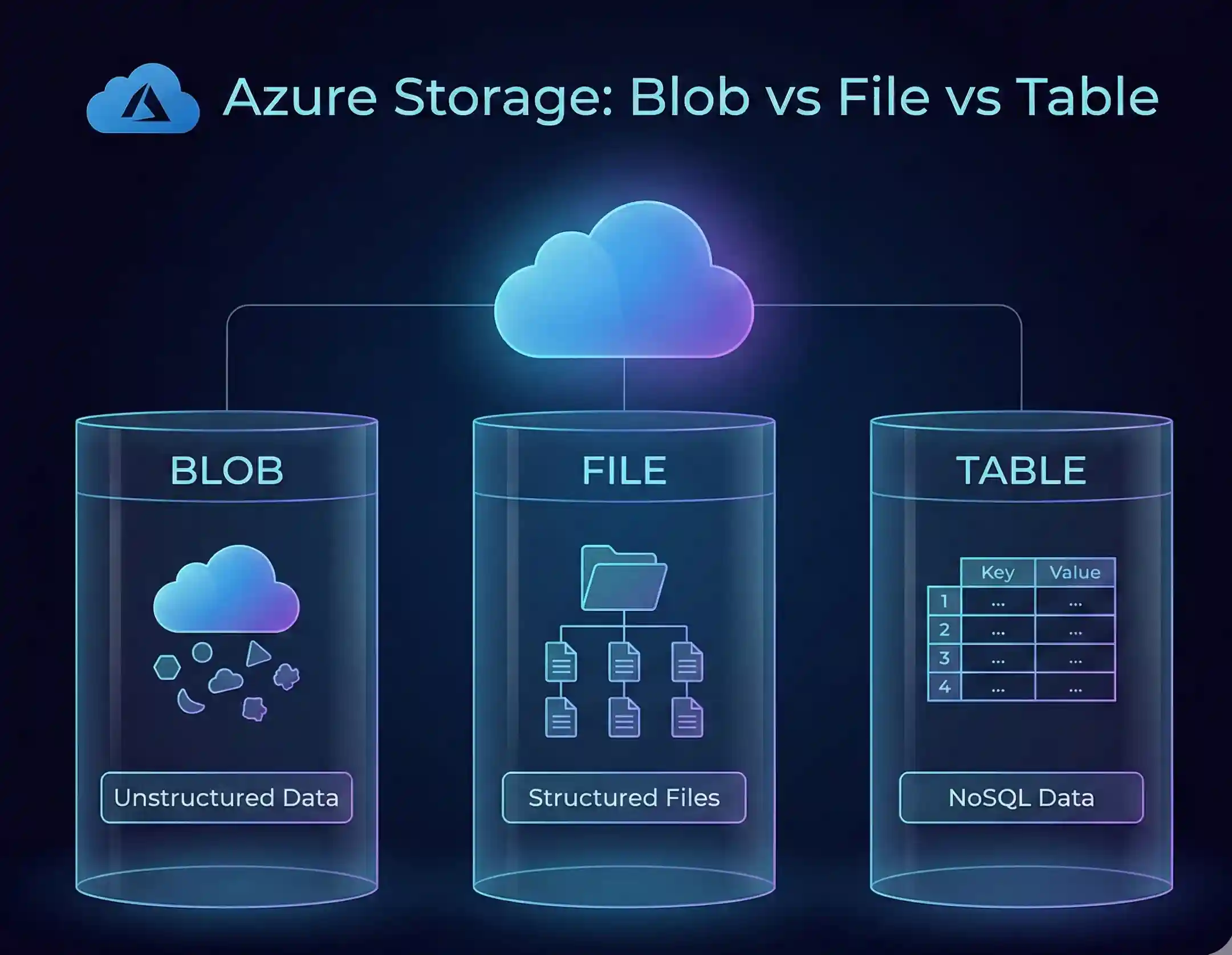
Quick Answer: Choose Azure Blob Storage for unstructured data like images, videos, and backups. Pick Azure File Storage when you need SMB file shares that work like traditional network drives. Go with Azure Table Storage for fast NoSQL key-value lookups on semi-structured data. The right choice depends on your data type, how you access it, and your workload requirements. and Also Right Choice also save your money
Introduction: Why Azure Storage Choice Matters
Here's the thing about cloud storage — Choosing the wrong option can cost you real money. I've seen teams burn through budgets simply because they stored everything in hot blob storage when 90% of their data sat untouched for few months.
Azure gives you three main storage options under one roof. Each serves a different purpose. And understanding when to use what? That's the skill that separates okay cloud architects from great ones.
So let's break this down. No fluff. Just practical guidance you can use today.
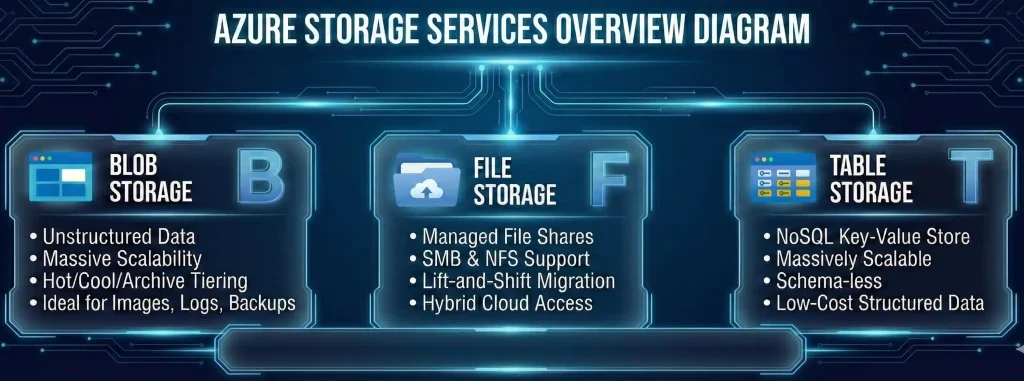
What Are the Three Azure Storage Types?
Before we dive into comparisons, let's get clear on what each storage type actually does. Think of them as three specialized tools in your cloud toolkit.
Azure Blob Storage: Your Go-To for Unstructured Data
Blob stands for "Binary Large Object". Fancy name, simple concept. It's where you dump anything that doesn't fit neatly into rows and columns.
Images? Blob. Videos? Blob. Log files piling up by the gigabyte? You guessed it — blob storage.
As per my Azure infrastructure experience, blob storage handles three types of blobs:
- Block blobs — Perfect for streaming and storing text or binary data. Can handle files up to 190.7 TiB.
- Append blobs — Built for scenarios where you keep adding data, like VM logs or application event tracking.
- Page blobs — Designed for random read/write operations. Azure uses these under the hood for virtual machine disks.
The killer feature? Access tiers. You can move data between Hot, Cool, Cold, and Archive tiers based on how often you need it. Store rarely-accessed backups in Archive tier and watch your costs drop dramatically.
Azure File Storage: Cloud File Shares That Just Work
Ever mounted a network drive at work? Azure Files works exactly like that — except it lives in the cloud.
It uses the Server Message Block (SMB) protocol. That means Windows, Linux, and macOS can all mount these shares natively. No special software. No complicated setup. Just map the drive and go.
This makes Azure Files perfect for:
- Lift-and-shift migrations where apps expect traditional file paths
- Shared configuration files across multiple VMs
- Development tools and scripts that teams need to access
- Hybrid scenarios with Azure File Sync for on-premises caching
Here's a pro tip: Azure Files also supports NFS protocol for Linux workloads. So if your team runs Linux-heavy infrastructure, you've got options.
Azure Table Storage: Fast NoSQL Without the Overhead
Table Storage is Azure's answer to "I need a database, but SQL feels like overkill."
It's a NoSQL key-value store. No schemas to define upfront. No complex relationships to map out. Just entities with properties, organized by partition keys and row keys.
Think of it like a massive spreadsheet in the cloud, but one that can handle billions of rows without breaking a sweat. Common use cases include:
- User profiles and session data
- IoT telemetry and sensor readings
- Application configuration and metadata
- Audit logs and activity tracking
The catch? No secondary indexes. No complex queries with JOINs. If you need that stuff, look at Cosmos DB instead. Table Storage shines when you know your access patterns upfront and design your partition keys accordingly.
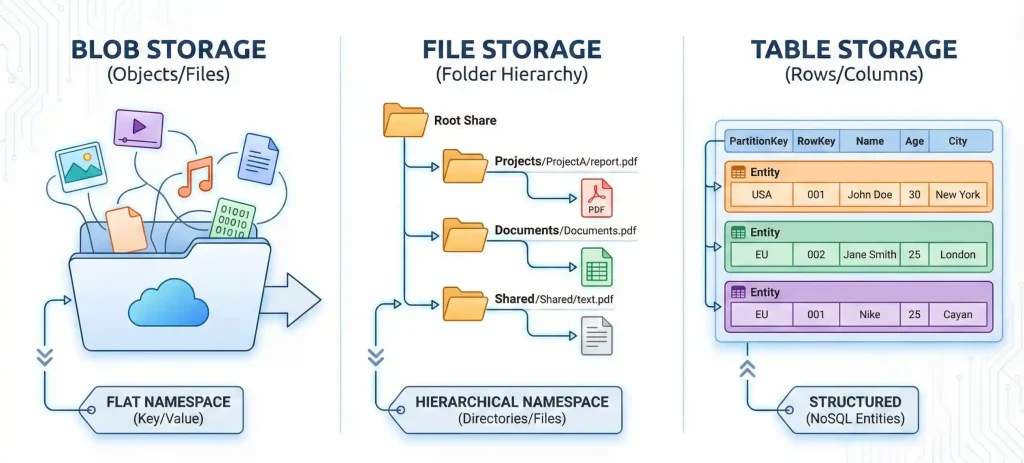
Azure Storage Comparison: Quick Reference Table
Let me save you some scrolling. Here's everything you need to know at a glance:
| Feature | Blob Storage | File Storage | Table Storage |
| Data Type | Unstructured (objects/blobs) | Hierarchical (files/folders) | Semi-structured (key-value) |
| Access Method | REST API, SDKs, Azure Portal | SMB/NFS protocols, mountable drives | OData queries, REST API |
| Max Size | 190.7 TiB per block blob | 100 TiB per file share | 1 MB per entity |
| Access Tiers | Hot, Cool, Cold, Archive | Hot, Cool, Transaction Optimized | Not applicable |
| Best For | Media, backups, data lakes, big data | Lift-and-shift, shared folders, hybrid sync | User data, configs, logs, telemetry |
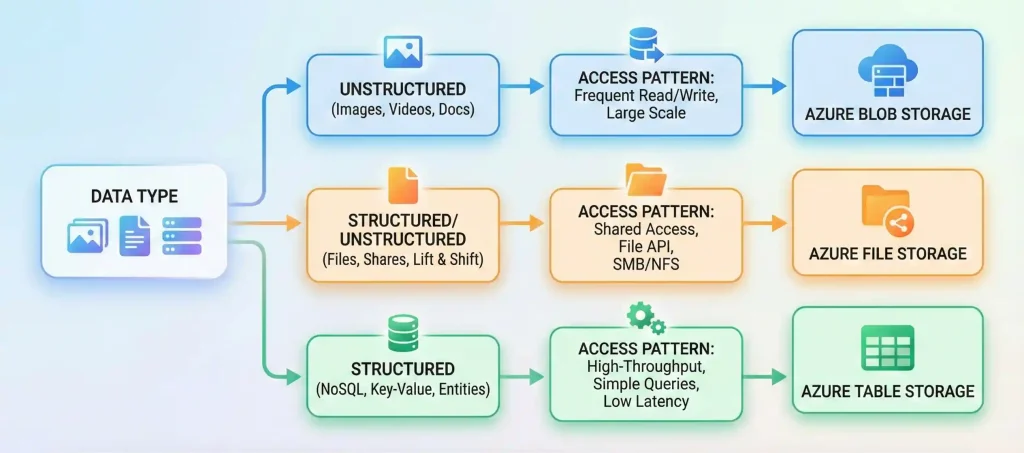
How Do You Choose? A Simple Decision Tree
let's make this practical. When you're staring at a new project, run through these questions:
Question 1: What's the nature of your data?
- Large files without structure (images, videos, documents)? → Blob Storage
- Files organized in folders that need file system access? → File Storage
- Structured records with key-based lookups? → Table Storage
Question 2: How will you access the data?
- Through REST APIs or SDKs from applications? → Blob Storage or Table Storage
- Need to mount as a network drive? → File Storage
- Quick key-value lookups without complex queries? → Table Storage
Question 3: What are your cost priorities?
- Storing massive amounts of rarely-accessed data? → Blob Storage with Archive tier
- Need consistent file access with predictable costs? → File Storage
- High-volume, low-cost NoSQL storage? → Table Storage
How Do Access Tiers in Blob Storage Affect Costs?
This is where the real money conversation happens. Blob Storage offers four access tiers, and picking the right one can slash your bills.
Hot Tier — For data you access frequently. Highest storage cost, lowest access cost. Use this for active applications and recent files.
Cool Tier — For data accessed less than once a month. Lower storage cost, higher access cost. Minimum 30-day retention. Great for short-term backups.
Cold Tier — Even cheaper storage for data you rarely touch. Minimum 90-day retention. Perfect for compliance archives.
Archive Tier — Rock-bottom storage prices, but data takes hours to retrieve. Use for long-term archives you might never access again.
Here's the math that matters: If you're storing 10 TB of backup data that you access maybe once a year, moving from Hot to Archive tier could save you over 90% on storage costs. That's real money.
Pro tip: Set up lifecycle management policies to automatically move aging data to cooler tiers. Set it and forget it.
How to Choose Between GPv2 and Block-Blob-Storage Accounts?
Storage accounts confuse a lot of people. Let me clear this up.
General Purpose v2 (GPv2) is the Swiss Army knife of Azure storage. It supports blobs, files, queues, and tables all in one account. Microsoft recommends this for most scenarios, and honestly, I agree.
BlockBlobStorage is a specialized premium account type for high-performance block blob workloads. It uses SSDs and delivers lower latency — but only supports block and append blobs.
When should you use BlockBlobStorage?
- Media streaming platforms with heavy read/write operations
- AI/ML workloads processing large datasets
- Any application where milliseconds matter
Important heads-up: Microsoft is retiring GPv1 accounts in October 2026. If you're still using them, start planning your migration to GPv2 now. The upgrade is straightforward with no downtime required.
Choosing the Right Primary Workload in Azure Storage
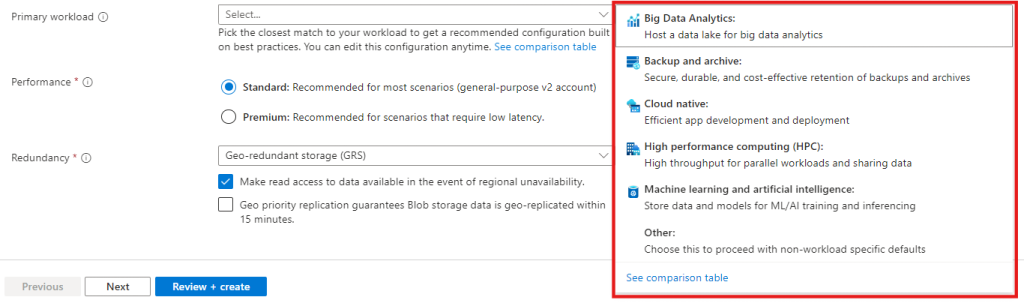
When configuring a new Azure Storage Account, the Primary workload selection acts as a configuration shortcut. It pre-selects the optimal performance tier, redundancy options, and feature sets (like hierarchical namespaces) based on your specific project goals.
Here is a quick comparison to help you decide:
| Workload Type | Best Use Case |
| Big Data Analytics | Ideal for Data Lakes. It often enables hierarchical namespaces automatically for high-throughput analytics. |
| Backup and Archive | Select this for BCDR strategies. It optimizes for cost-effective, long-term data retention and cool/archive tiers. |
| Cloud Native | The go-to for app development, microservices, and storing backend data for web applications. |
| HPC / AI & ML | Designed for high-performance computing workloads that require low latency and massive parallel processing power. |
If your scenario is unique or you prefer full manual control over every setting (such as redundancy or access tiers), simply select "Other". This applies standard defaults without bias toward a specific scenario.
What Redundancy Options Exist for Each Storage Type?
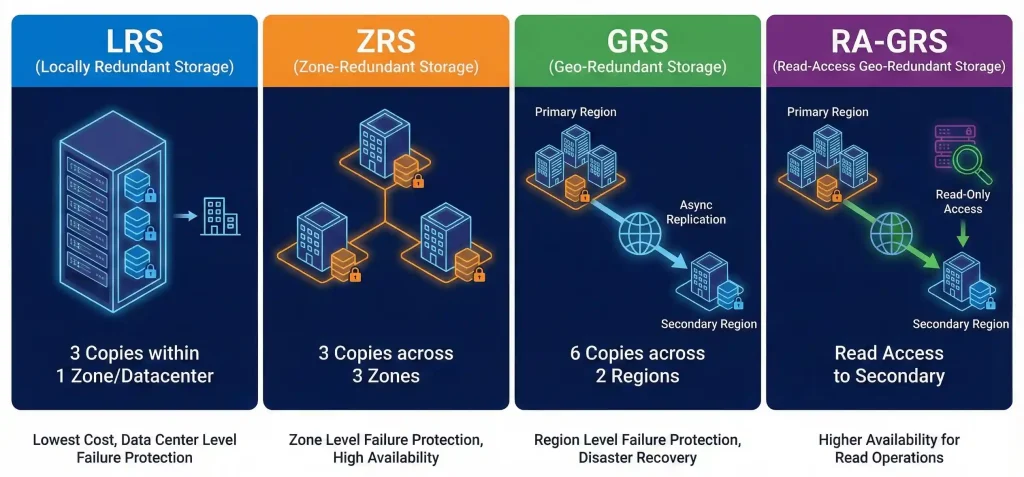
Data loss keeps architects up at night. Azure storage addresses this with multiple redundancy levels:
LRS (Locally Redundant Storage) — Three copies within a single data center. Cheapest option, but vulnerable to facility-wide failures.
ZRS (Zone-Redundant Storage) — Three copies spread across availability zones in the same region. Protects against zone outages.
GRS (Geo-Redundant Storage) — Six copies total: three in the primary region, three in a secondary region hundreds of miles away.
RA-GRS (Read-Access Geo-Redundant Storage) — Same as GRS, but you can read from the secondary region. Useful for disaster recovery scenarios.
All three storage types support these options, though availability varies by region and account type. For production workloads, I typically recommend at least ZRS. The small cost increase is worth the peace of mind.
What Are Best Practices for Table Storage Query Design?
Table Storage performance lives and dies by your partition key strategy. Get this wrong, and you'll wonder why everything feels slow.
Rule 1: Design for Your Query Patterns
The fastest query is a point query — where you specify both PartitionKey and RowKey. Design your keys so that 80% of your queries hit this sweet spot.
Rule 2: Avoid Hot Partitions
If all your writes go to one partition (like using today's date as partition key), you'll create a bottleneck. Spread your data across partitions by hashing or using composite keys.
Rule 3: Keep Partitions Reasonably Sized
Smaller partitions generally perform better for load balancing. But don't go too granular — you lose the ability to do atomic batch operations across entities.
Rule 4: Denormalize When Needed
Unlike SQL databases, Table Storage doesn't do joins. If you need to query the same data different ways, store it twice with different keys. Storage is cheap; slow queries aren't.
Can Azure Files Be Mounted on Windows/Linux VMs?
Absolutely. This is one of Azure Files' killer features.
On Windows: Use the standard net use command or map a network drive through File Explorer. Azure provides a ready-to-use PowerShell script in the portal.
On Linux: Mount using CIFS for SMB shares or NFS for NFS-enabled shares. Make sure you have the cifs-utils package installed.
The connection uses port 445 for SMB. If your corporate firewall blocks this (many do), you'll need to set up Azure File Sync as a workaround or use a VPN connection.
Azure Files also supports identity-based authentication through Microsoft Entra ID (formerly Azure AD). This means you can use existing corporate credentials instead of storage account keys — much cleaner from a security standpoint.
Frequently Asked Questions
What are the main differences between Azure Blob Storage and File Storage?
Blob Storage handles unstructured objects accessed via REST APIs. File Storage provides SMB/NFS file shares you can mount like network drives. Choose Blob for application data and backups. Choose Files when you need traditional file system access patterns.
When should I use Azure Table Storage over a relational database?
Use Table Storage when you need simple key-value lookups without complex queries or joins. It's ideal for high-volume, low-complexity data like user sessions, configurations, and telemetry. For complex relationships or transactions, stick with Azure SQL or Cosmos DB.
What is the maximum size for a Blob vs. a Table entity?
A single block blob can reach 190.7 TiB. A Table Storage entity is limited to 1 MB total, including all properties. If you need to store larger records, split them across multiple entities or use Blob Storage for the large content with Table Storage holding references.
Is Azure Table Storage suitable for hot partitions?
No. Hot partitions create performance bottlenecks. When all traffic hits one partition, you'll see throttling. Design your partition keys to distribute load evenly. Hash keys or use composite values to spread writes across multiple partitions.
How does SMB support work in Azure File Storage?
Azure Files supports SMB 2.1 and SMB 3.x protocols. SMB 3.0+ enables encryption in transit without VPN. You connect using storage account credentials or Microsoft Entra ID authentication. The share appears as a standard network drive on Windows, Linux, or macOS.
When should I migrate data from File Shares to Blob Archive tier?
Consider migration when data ages out and no longer needs file system access. Archive tier costs a fraction of File Storage but takes hours to retrieve. Use AzCopy or Azure Data Factory to move files to Blob Storage, then apply Archive tier policies.
How scalable is Blob Storage for big data workloads?
Extremely scalable. A single storage account supports up to 500 TB of capacity (higher with quota increases). Blob Storage integrates with Azure Data Lake Storage Gen2 for analytics workloads. It handles petabyte-scale data lakes and billions of objects without breaking a sweat.
Does File Storage support Entra ID permissions like Blob?
Yes. Azure Files supports Microsoft Entra ID authentication for SMB access. You can assign Azure RBAC roles and use your existing identity infrastructure. This works with both cloud-only and hybrid identity setups, making it easier to manage access at scale.
What performance differences exist between Blob and Files?
Blob Storage offers higher throughput for large sequential operations. File Storage excels at random access patterns typical of file workloads. Premium tiers deliver lower latency for both. For raw performance numbers, Blob generally wins on throughput; Files wins on compatibility.
How do I optimize costs with Azure Blob Storage tiers?
Use lifecycle management to automate tier transitions based on age. Store active data in Hot, move to Cool after 30 days, Cold after 90 days, and Archive after a year. Review early deletion penalties — moving data too quickly between tiers can cost more than it saves.
Wrapping Up: Your Azure Storage Action Plan
Choosing between Azure Blob, File, and Table Storage isn't complicated once you understand their strengths. The key is matching the storage type to your data characteristics and access patterns.
Here's your quick action plan:
- Audit your data types. Categorize by structure (unstructured, hierarchical, key-value).
- Map access patterns. How will applications interact with the data?
- Plan for cost optimization. Leverage access tiers and lifecycle policies from day one.
- Start with GPv2. It's the safest default for most workloads.
Got questions about your specific use case? Drop them in the comments. And if you found this guide helpful, share it with your team — I've seen too many organizations make expensive storage decisions that a quick read could have prevented.
Now go build something awesome. Your data will thank you.





No comments yet. Be the first to share your thoughts!