

Quick Answer: Azure Storage 403 errors mainly happen when authentication fails (wrong keys, expired SAS tokens, bad credentials) or authorization fails (missing RBAC roles, firewall blocks). Fix them by checking your credentials first, then permissions, then network settings. Most issues come from expired tokens or missing data-access roles like Storage Blob Data Contributor.
Introduction
You wrote your app code. Your Azure infra setup looks perfect. And then boom—403 Forbidden. That annoying little error that basically says "nope, not today." Trust me, I have been there more times than I can count during my years working with Azure infrastructure.

Here is the thing about Azure Storage 403 errors—they look simple but they can come from so many different places. Maybe your SAS token expired five minutes ago. Perhaps your firewall is blocking requests you thought were allowed. Or your RBAC permissions are set up for the wrong scope.
In this guide, I will walk you through every major cause of Azure Blob Storage 403 Forbidden errors. We will cover authentication problems, authorization issues, network configurations, and those sneaky edge cases that catch everyone off guard. By the end, you will know exactly where to look and what to fix.
Let us dive in and solve this together.
What Does 403 Forbidden Mean in Azure Storage?
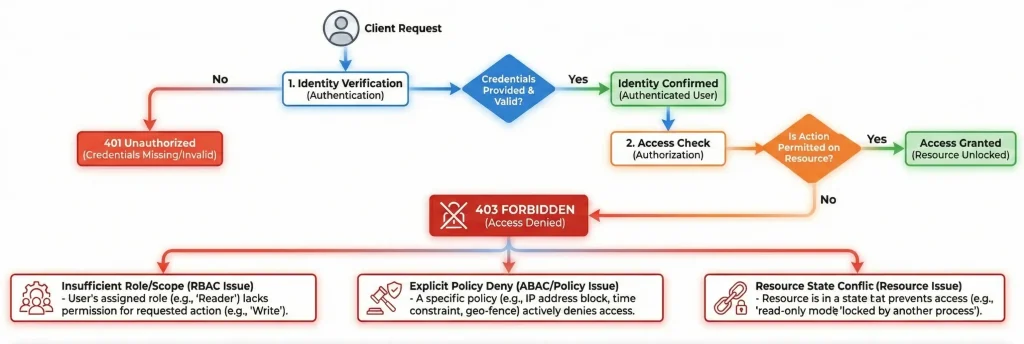
A 403 error in Azure Storage means one major simple thing: the server understood your request but refused to process it. Unlike a 401 error (where authentication completely failed), a 403 says "I know who you are, but you cannot do that."
However, here is where it gets interesting. Azure uses 403 for both authentication AND authorization failures. This can be confusing at first. Let me break it down for you.
Authentication vs Authorization: What is the Difference?
| Aspect | Authentication Failure | Authorization Failure |
| What it means | Your credentials are wrong or expired | Your identity lacks permission |
| Common causes | Expired SAS, wrong keys, bad signature | Missing RBAC role, wrong scope |
| Error codes | AuthenticationFailed, InvalidAuthInfo | AuthorizationFailure, AuthPermissionMismatch |
| First step to fix | Check credentials and tokens | Check RBAC role assignments |
How to Fix Azure Storage 403 Errors from SAS Token Problems
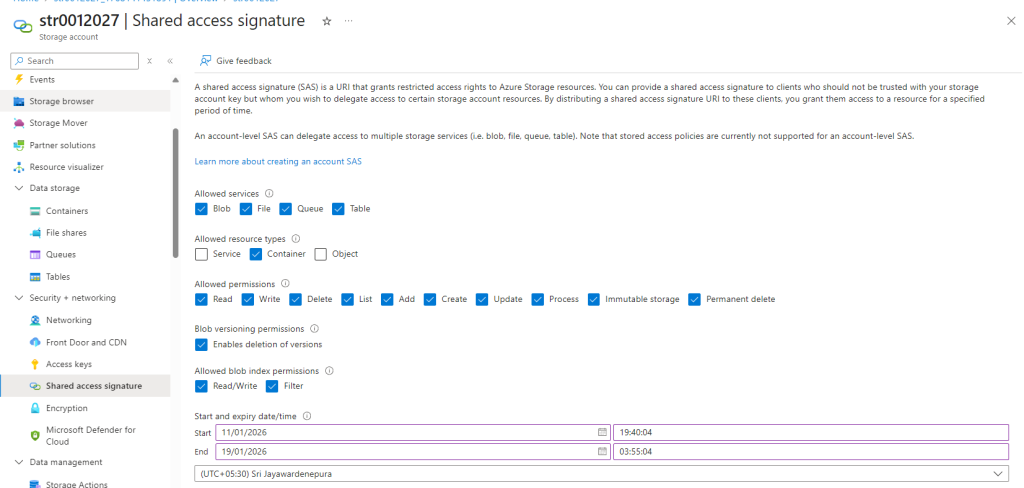
SAS tokens are probably the number one cause of Azure Storage 403 errors that I see. They are powerful but also easy to mess up. Here is what usually goes wrong and how to fix it.
Why Is My SAS Token Returning 403 Forbidden?
Your SAS token can fail for several reasons. Let me walk you through the most common ones.
Expired or Not Yet Valid: This catches people all the time. If your SAS token has an expiry time that has passed, you get a 403 error. Same thing happens if you set a start time in the future. Azure is very strict about these timestamps.
Missing Permissions: You created a SAS with read permission but your app is trying to write? That is a 403. Always double-check that your SAS includes the exact permissions your operation needs with also follow least privilege practice. For example, to overwrite a blob you need both write AND delete permissions.
Wrong Signature: If you built your SAS manually (instead of using an SDK), even one wrong character in the signature will cause authentication failure. I always recommend using official SDKs to generate SAS tokens.
Clock Skew: Here is a secret one. If your server clock is off by more than a few minutes compared to Azure, your tokens might fail. This is especially common in containers or VMs with incorrect time settings.
Quick Fix Steps for SAS Token 403 Errors
- Check the expiry time on your SAS token. Make sure it has not passed.
- Verify the start time is not set in the future.
- Confirm your SAS has all required permissions for your operation.
- Generate a fresh SAS token using Azure Portal, Storage Explorer, or SDK.
- Check your system clock is synchronized with internet time.
How to Fix 403 Authorization Failure with Azure RBAC
If you are using Microsoft Entra ID (formerly Azure AD) for authentication, RBAC permissions he is our next suspect. This is where things get a bit tricky because Azure has two types of permissions—and mixing them up is a classic mistake.
Why Does My Storage Blob Data Contributor Role Still Get 403?
Here is something that trips up a lot of people and me past times. You assign the Storage Blob Data Contributor role to a user or service principal. Seems right, doesn't it? But they still get access denied.
The issue? Azure separates management plane and data plane permissions. Management plane roles (like Contributor or Storage Account Contributor) let you manage the storage account itself—create accounts, change settings, manage keys. But they do NOT give you access to the actual blob data.
For data access, you need data plane roles like Storage Blob Data Reader, Storage Blob Data Contributor, or Storage Blob Data Owner.
Which Azure RBAC Role Do I Need for Blob Storage?
| Role Name | Permissions | Use Case |
| Storage Blob Data Reader | Read blobs | Apps that only download files |
| Storage Blob Data Contributor | Read, write, delete blobs | Most applications, file uploads |
| Storage Blob Data Owner | Full access + ACL management | Admin access, Data Lake Storage |
| Storage Blob Delegator | Create user delegation SAS | Generating SAS with Entra ID |
How to Assign the Correct RBAC Role
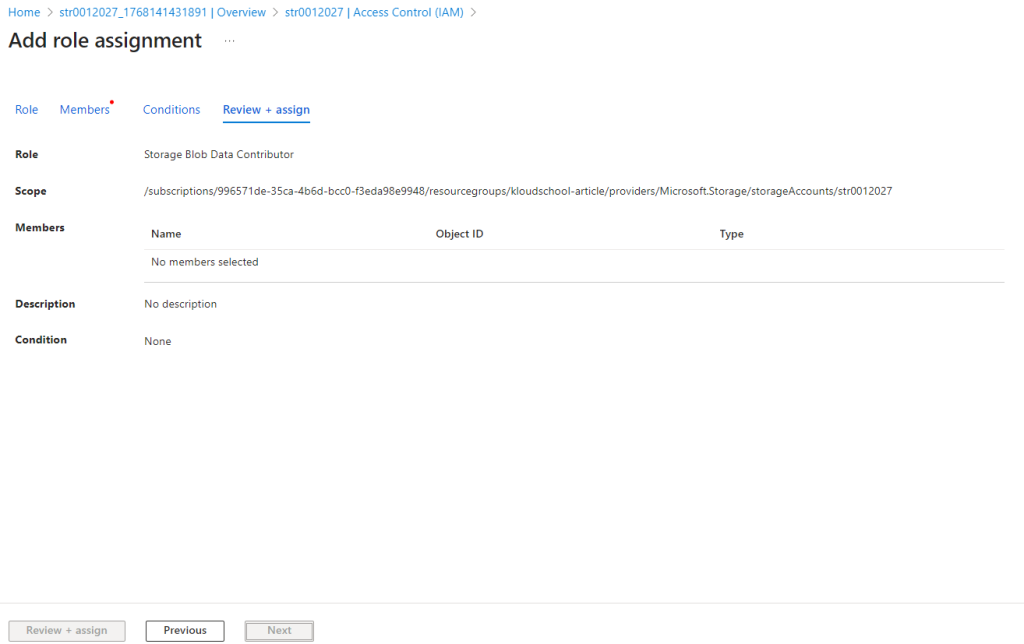
- Go to your Storage Account in Azure Portal.
- Click on Access Control (IAM) in the left menu.
- Click Add > Add role assignment.
- Select Storage Blob Data Contributor (or the role you need).
- Search for your user, managed identity, or service principal.
- Click Review + assign.
Pro Tip: RBAC role assignments can take up to 30 minutes to propagate(Some time 45min). If you just added a role and still get 403, wait a bit before troubleshooting further.
How to Fix Azure Storage Firewall 403 Errors
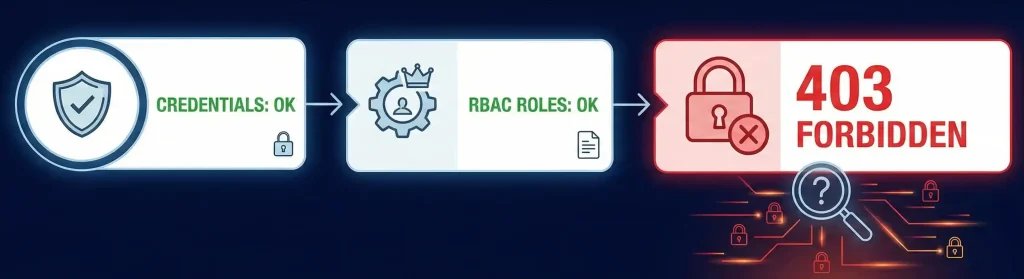
Okay, so your credentials are fine. Your RBAC roles are correct. But you are still getting 403 Forbidden. The next suspect? Network restrictions.
Azure Storage accounts can be locked down to only accept traffic from specific networks, IPs, or services. If you are outside these allowed sources, you will get blocked—even with perfect credentials.
Why Is My SAS URL Blocked by the Storage Firewall?
This is a very common issue. You generate a SAS token, everything looks good, but requests still fail with 403. Here is why:
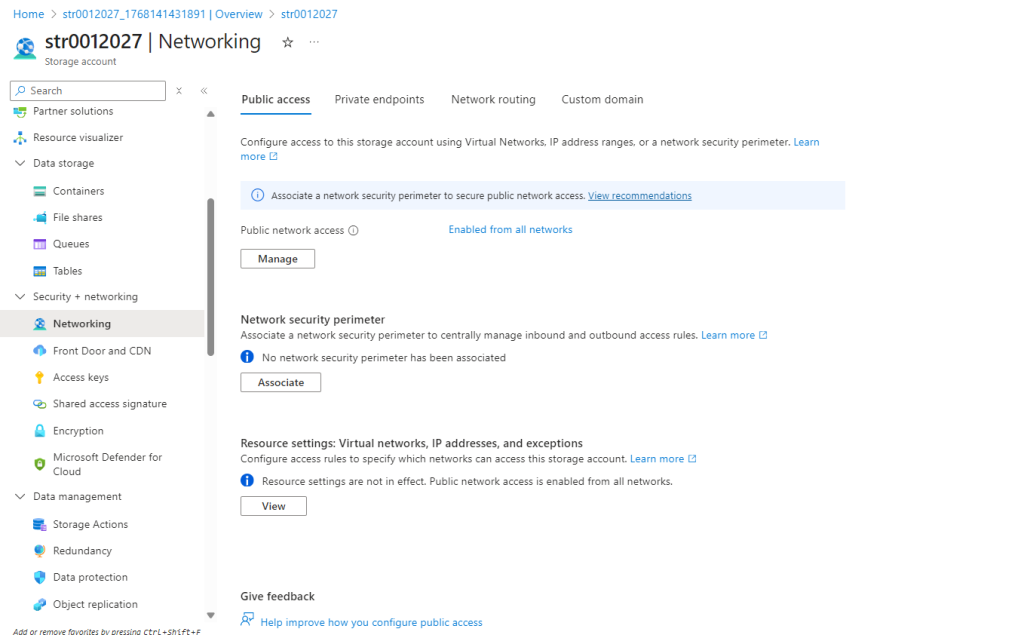
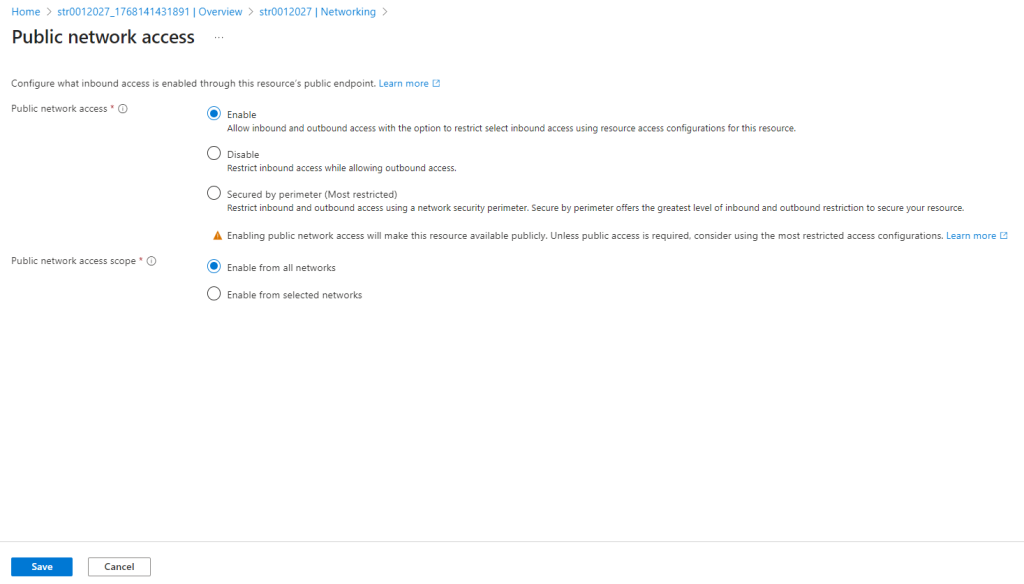
If your storage account has "Public network access" set to "Disabled" or "Enabled from selected virtual networks and IP addresses", then connections from the public internet get blocked. Your SAS token is valid, but the network layer is saying no.
Quick Checks for Network-Related 403 Errors
- Is Public network access disabled? Check Networking settings in your storage account.
- Is your IP address in the allowed list? Add your client IP if needed.
- Are you connecting through a VNet? Make sure service endpoints are configured.
- Using a private endpoint? Verify DNS resolves to the private IP.
How to Fix 403 Errors with Private Endpoints
Private endpoints are great for security but they can cause confusing 403 errors if not set up right. When you use a private endpoint, your storage account gets a private IP inside your VNet. All traffic should route through this private IP.
The tricky part? DNS. If your DNS is not resolving the storage account hostname to the private IP, your requests might try to go through the public endpoint—which is probably blocked.
Steps to Verify Private Endpoint Setup
- Run nslookup yourstorageaccount.blob.core.windows.net from your client.
- It should resolve to a private IP (like 10.x.x.x), not a public IP.
- If it shows a public IP, your private DNS zone is not linked correctly.
- Check that privatelink.blob.core.windows.net DNS zone is linked to your VNet.
Why Do I Get 403 After Regenerating Storage Account Keys?
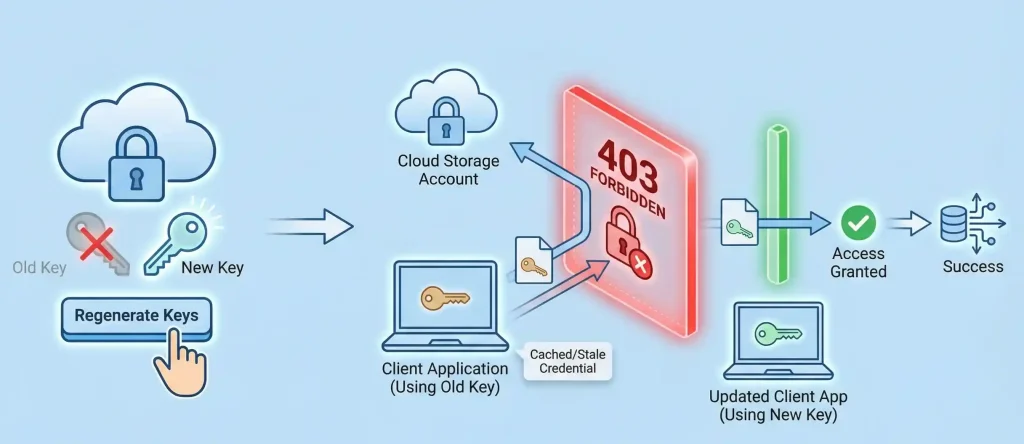
Here is a scenario I have seen couple of times. Someone rotates the storage account keys (which you should do regularly for security), and suddenly everything breaks with 403 errors.
When you regenerate a key, all connection strings and SAS tokens that were created with that old key become invalid immediately. There is no grace period. One second they work, the next second—403 Forbidden.
What to Do After Key Rotation
- Update all connection strings in your applications, config files, and key vaults.
- Regenerate any SAS tokens that were signed with the old key.
- Check Azure services that integrate with your storage (Functions, App Service, etc.).
- Test all integrations before considering the rotation complete.
Best Practice: Use Managed Identity instead of keys whenever possible. Managed identities automatically handle credential management and you never have to worry about key rotation breaking things.
How to Fix Terraform, AzCopy, and Storage Explorer 403 Errors
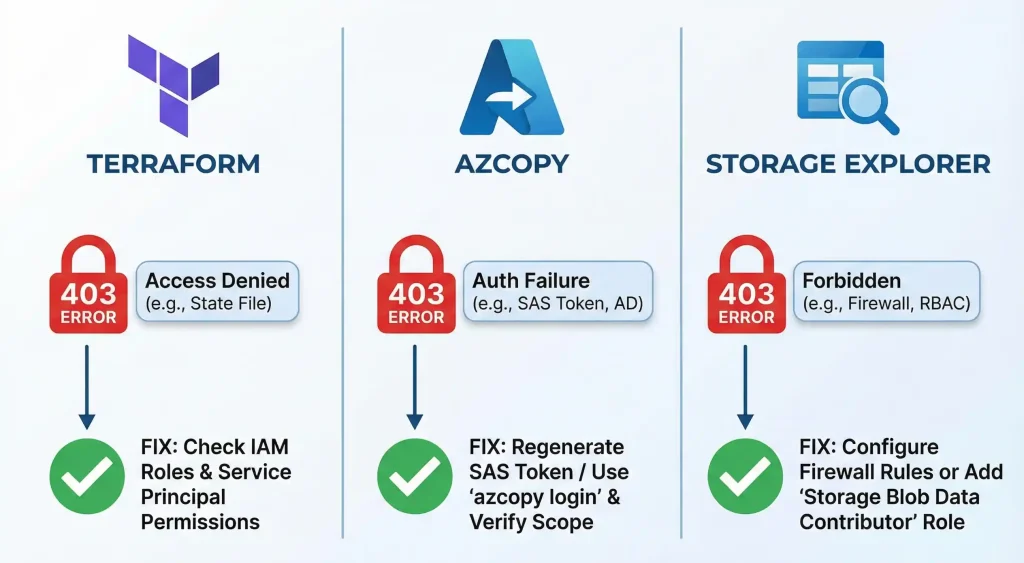
If you are using tools like Terraform for infrastructure, AzCopy for data transfer, or Azure Storage Explorer for browsing files, 403 errors can pop up for tool-specific reasons.
Terraform Backend Azure Storage 403 Access Denied
When using Azure Storage as a Terraform backend, you might get 403 errors during terraform init or plan. Common causes include:
- The service principal or user running Terraform does not have Storage Blob Data Contributor role.
- The storage account firewall is blocking your Terraform runner's IP.
- Shared key access is disabled but you are using a connection string.
AzCopy 403 Key-Based Authentication Not Permitted
This error happens when the storage account has disabled shared key authorization. Starting with newer security configurations, some organizations disable key-based access entirely, forcing you to use Entra ID authentication.
Solution: Use azcopy login to authenticate with your Entra ID account instead of using storage keys or SAS.
Azure Storage Explorer Connection Issues
Storage Explorer is fantastic for browsing blobs, but it has its different with 403 errors:
- If you are signed in with Entra ID, make sure you have both a data role AND the Reader role (for navigation).
- If you are using SAS, verify it has not expired and includes list permission.
- Check if firewall rules are blocking your current network.
Why Cannot App Service or Functions Access Blob Storage?
Azure App Service, Azure Functions, and other services often need to read or write blobs. When they get 403 errors, it is usually related to managed identity configuration or network restrictions.
Using Managed Identity with Blob Storage
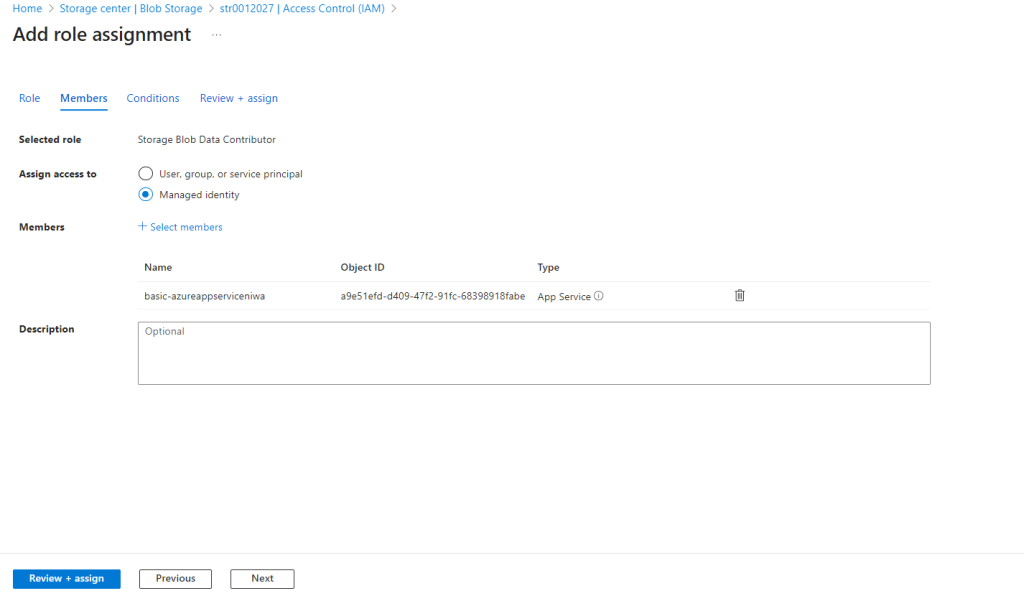
Managed Identity is the recommended way for Azure services to authenticate to storage. Here is how to set it up correctly:
- Enable System Assigned Managed Identity on your App Service or Function.
- Go to your Storage Account > Access Control (IAM).
- Add role assignment > Storage Blob Data Contributor.
- Select Managed identity and find your App Service.
- Update your code to use DefaultAzureCredential instead of connection strings.
SQL Server BULK INSERT from Blob Storage 403 Error
If you are trying to load data from blob storage into SQL Server using BULK INSERT or OPENROWSET, you might hit 403 errors. SQL Server needs a credential that gives it access to the blob container.
Create a database scoped credential with your SAS token, then create an external data source pointing to your blob container. Make sure the SAS has read permission and is not expired.
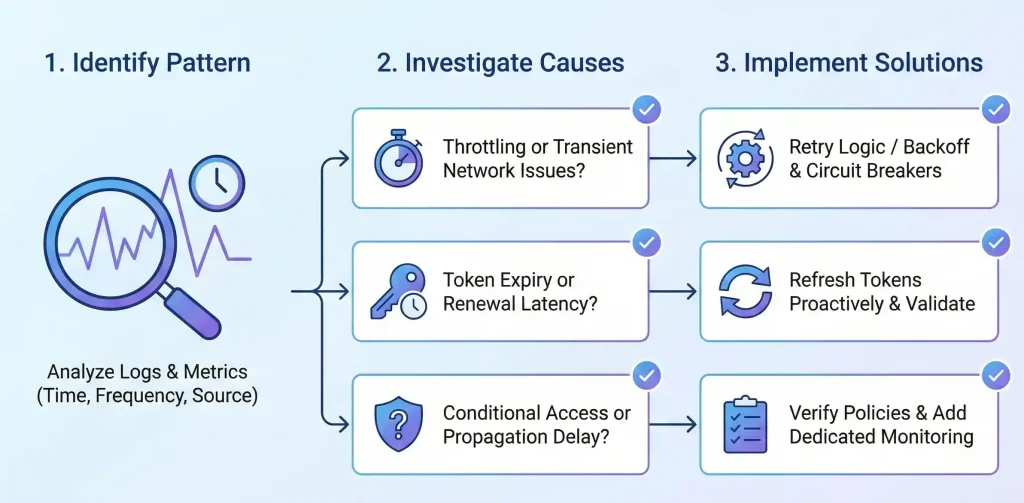
How to Troubleshoot Intermittent 403 Errors
Intermittent 403 errors—where things work sometimes but fail other times—are the most frustrating to debug. Here are the usual suspects:
- Token expiration edge cases: If your token is about to expire when a request starts, it might become invalid mid-request.
- Rate limiting: Azure Storage has request limits. Very high traffic can trigger temporary denials.
- Stored access policy propagation: After updating a stored access policy, wait 30 seconds before using SAS tokens linked to it.
- Multiple keys in use: If different parts of your system use different keys and one gets rotated, some requests fail while others succeed.
Using Azure Diagnostic Logs to Find the Root Cause
Enable Storage Analytics logging or Azure Monitor diagnostics for your storage account. These logs will show you exactly which requests are failing and why. Look for the detailed error code (like AuthenticationFailed or AuthorizationPermissionMismatch) to pinpoint the issue.
Complete 403 Error Troubleshooting Checklist
Here is my go-to checklist when I encounter Azure Storage 403 errors. Run through this in order:
- Check the error code. Is it AuthenticationFailed, AuthorizationFailure, or something else?
- Verify credentials. Are your keys, SAS tokens, or managed identity set up correctly?
- Check token validity. Is your SAS expired? Is the start time in the future?
- Check permissions. Does your SAS or RBAC role include the required permissions?
- Check scope. Is the RBAC role assigned at the right level (account, container, or blob)?
- Check network. Is your IP allowed? Is the VNet configured? Is the private endpoint working?
- Check for disabled features. Is shared key access disabled? Is public access disabled?
- Check the clock. Is your system time synchronized?
- Enable logging. Use Storage Analytics or Azure Monitor to get detailed error information.
Frequently Asked Questions
Why am I getting 403 Forbidden when accessing Azure Blob Storage from my app?
Your app is likely facing one of three issues: expired or invalid credentials (keys/SAS), missing RBAC data-access roles like Storage Blob Data Contributor, or network restrictions blocking your app's IP. Start by checking if your credentials are valid and not expired, then verify RBAC permissions, and finally check firewall settings.
What does "Server failed to authenticate the request" mean?
This error means Azure could not verify your identity using the provided credentials. Common causes include expired SAS tokens, regenerated storage keys that invalidated old connection strings, malformed authorization headers, or clock skew between your client and Azure servers. Regenerate your credentials and ensure your system clock is accurate.
How do I fix 403 errors caused by expired SAS tokens?
Generate a new SAS token with a longer expiry time. Use Azure Portal, Storage Explorer, or SDK to create tokens with proper permissions. Avoid setting start times unnecessarily. Consider using Microsoft Entra ID with managed identities instead of SAS for long-running services.
How do I troubleshoot Authorization Failure with Azure RBAC?
First, confirm you have a data-plane role (Storage Blob Data Reader/Contributor/Owner) not just a management-plane role (Contributor/Owner). Check the role is assigned at the correct scope (subscription, resource group, storage account, or container). Wait up to 30 minutes up to 45min for new role assignments to propagate.
Why is my SAS URL blocked by the storage firewall?
Even valid SAS tokens get blocked if the storage account firewall denies your client's network. Check if public network access is disabled or if your IP is not in the allowed list. Add your IP to the firewall rules or enable "Allow trusted Microsoft services" if applicable.
How do I resolve 403 errors with private endpoint access?
Verify that your DNS correctly resolves the storage account hostname to its private IP. Use nslookup to check. Ensure the Private DNS Zone (privatelink.blob.core.windows.net) is linked to your VNet. If DNS resolves to public IP instead, your requests will fail. Pro Tip for Private IP DNS Resolution: To check DNS resolution at the VNet level, simply spin up a VM in that VNet and test the DNS resolution privately.
Why do I get 403 after regenerating storage account keys?
Regenerating a key immediately invalidates all credentials that used that key. Update connection strings in all apps, config files, and Azure services. Regenerate any SAS tokens signed with the old key. Use Azure Key Vault to manage key rotation across services automatically.
How do I fix Terraform Azure Storage backend 403 errors?
Ensure your service principal has Storage Blob Data Contributor role on the storage account. Verify the storage account firewall allows your Terraform runner's IP or uses a VNet service endpoint. If shared key access is disabled, switch to Entra ID authentication in your backend configuration.
Why cannot SQL Server or App Service access blob storage with 403 error?
For App Service, enable managed identity and assign Storage Blob Data Contributor role. For SQL Server, create a database scoped credential with valid SAS token. Check firewall rules allow the service's outbound IPs. Enable "Allow Azure services" if the service runs within Azure.
What built-in RBAC roles fix 403 authorization issues on blob containers?
Use Storage Blob Data Reader for read-only access, Storage Blob Data Contributor for read/write/delete, and Storage Blob Data Owner for full access including ACL management. Note that management roles like Contributor or Storage Account Contributor do NOT grant blob data access.
What network settings should I check for sudden 403 errors?
Check the Networking blade in your storage account. Verify: Is public network access enabled? Is your IP in the allowed list? Are service endpoints configured for your VNet? Is the private endpoint DNS working correctly? Were firewall rules recently changed?
How do I fix "This request is not authorized" with SAS-only access?
This error indicates your SAS token lacks the required permission for the operation. Regenerate the SAS with all needed permissions (read, write, delete, list as required). For blob overwrites, you need both write AND delete permissions. Also verify the SAS targets the correct resource level.
Wrapping Up
Azure Storage 403 errors can feel headache at first everyone, but they always come down to three things: credentials, permissions, or network access. Once you understand this framework, troubleshooting becomes much more systematic.
From my experience working with Azure infrastructure, most 403 errors fall into the SAS token category—either expired, wrong permissions, or regenerated keys. The second most common cause is RBAC misconfiguration, especially confusing management roles with data-access roles. And finally, firewall or private endpoint issues can block perfectly valid credentials.
Bookmark this guide and use the troubleshooting checklist next time you hit a 403. Chances are, you will find the solution within the first few checks.
Need More Help? Check out Microsoft's official Azure Storage troubleshooting documentation for the latest updates and additional scenarios. And if this guide helped you solve your issue, share it with your team—they will thank you later!
Helpful Resources
- Azure Storage troubleshooting documentation: docs.microsoft.com
- Azure RBAC built-in roles for Storage: learn.microsoft.com
- SAS token best practices: Azure Security documentation
- Managed identity configuration guides: Azure App Service documentation
- Azure VNets and NSGs Work : How Azure VNets and NSGs Work Together


No comments yet. Be the first to share your thoughts!