

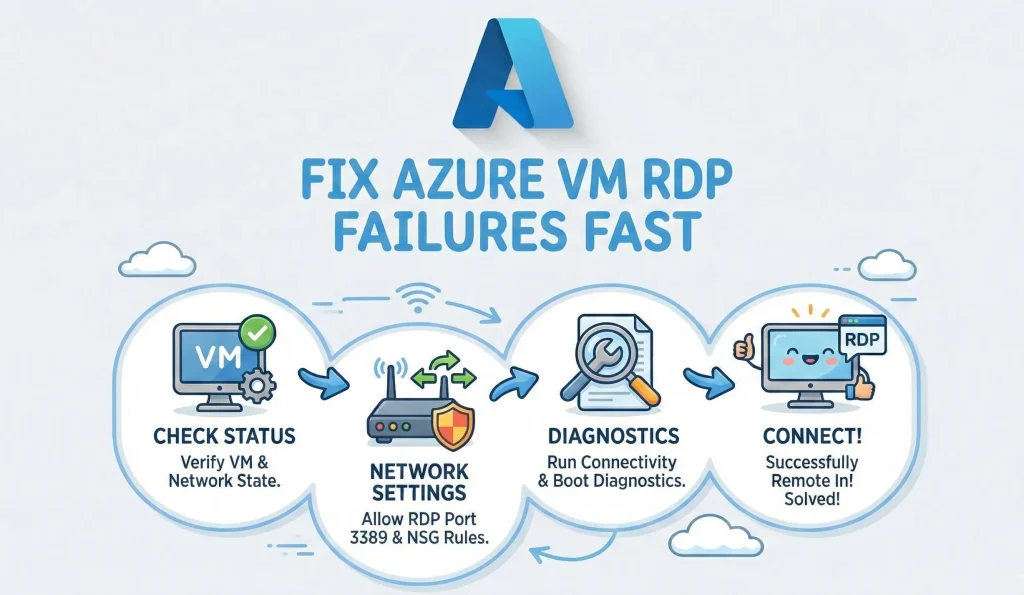
Quick Answer: RDP connection failures to Azure VMs usually happen mainly reason of blocked Network Security Group (NSG) rules, disabled Remote Desktop services, or firewall issues(Vm inside or external). First Check your NSG inbound rules for port 3389 first. Then reset your RDP configuration from the Azure portal. These two steps fix most connection problems within minutes.
What Causes Azure VM RDP Connection Issues?
So you just spun up a brand-new Windows VM in Azure. You click Connect, download the RDP file, and... nothing. The connection just hangs there. Maybe you get that annoying "Remote Desktop can't connect to the remote computer" error. Sound familiar?
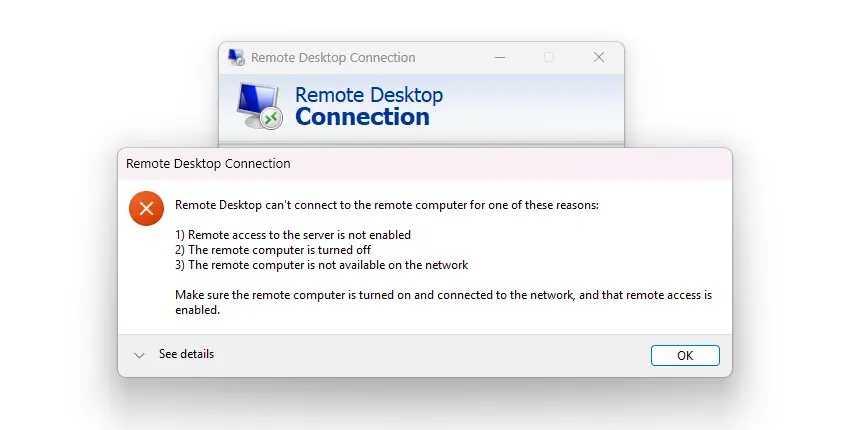
Trust me, I have been there many of times during with my Azure working experience. And here is the thing—nine times out of ten, the fix is simpler than you think. The culprit is usually your Network Security Group blocking port 3389, or the Remote Desktop service just needs a quick reset.
In this guide, I will walk you through a step-by-step troubleshooting process. We will start with the most common fixes and work our way down to the trickier stuff. By the end, you will know exactly how to diagnose and fix Azure VM RDP connection issues like a pro.
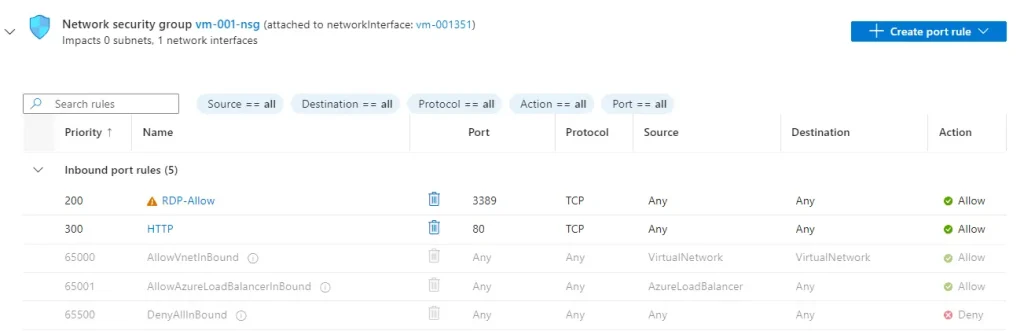
How to Check and Configure NSG Rules for RDP Port 3389
The Network Security Group is basically a firewall for your Azure VM. It controls what traffic gets in , gets out and what gets blocked. Here is where most people mess up—they forget to allow RDP traffic, or an existing rule is blocking it.
Step-by-Step: Allow RDP in Azure NSG
- Go to the Azure Portal and find your VM.
- Click on Networking in the left menu and networking Settings.
- Look at the Inbound port rules tab.
- Check if there is a rule allowing TCP port 3389.
- If not, click Add inbound port rule.
- Set Destination port ranges to 3389, Protocol to TCP, or Select Service type to "RDP" and Action to Allow.
- Give it a priority lower than any deny rules (like 300).
- Click Add and wait a minute for changes to apply.
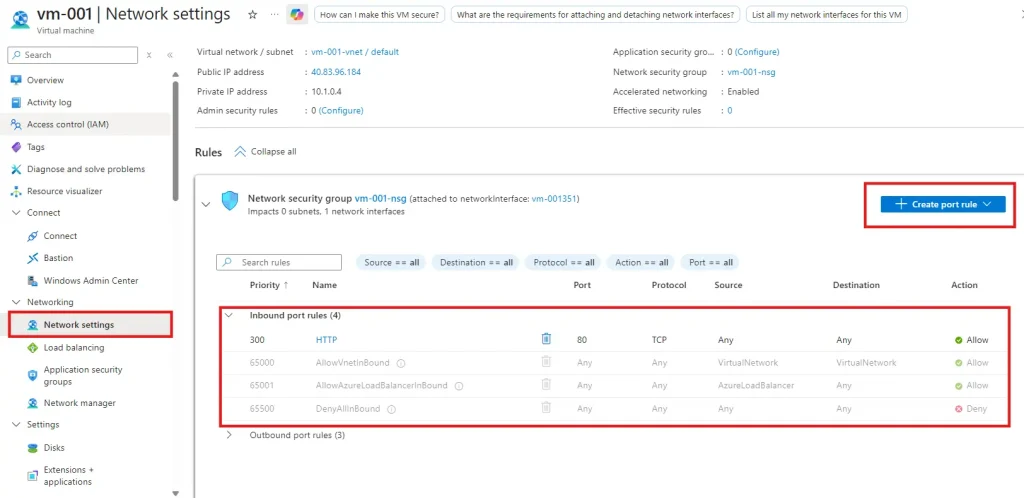
Pro Tip: NSG rules work on priority. Lower numbers win. If you have a DenyAllInbound rule with priority 1000, make sure your RDP allow rule has a lower number like 300.
Common NSG Rule Configuration
| Rule Name | Port | Protocol | Priority | Action |
| Allow-RDP | 3389 | TCP | 300 | Allow |
| DenyAllInbound | * | Any | 65500 | Deny (Default) |
How to Reset RDP Configuration in Azure Portal
Sometimes the Remote Desktop service on your VM just gets stuck. Maybe it crashed, maybe Windows Firewall went rogue—whatever the reason, Azure gives you a magic button to fix it.
Reset RDP Configuration Steps
- Open your VM in the Azure Portal.
- Scroll down to the Help section in the left menu.
- Click Reset password.
- Change the Mode dropdown to Reset configuration only.
- Click Update and wait for it to complete.
- Try connecting via RDP again.
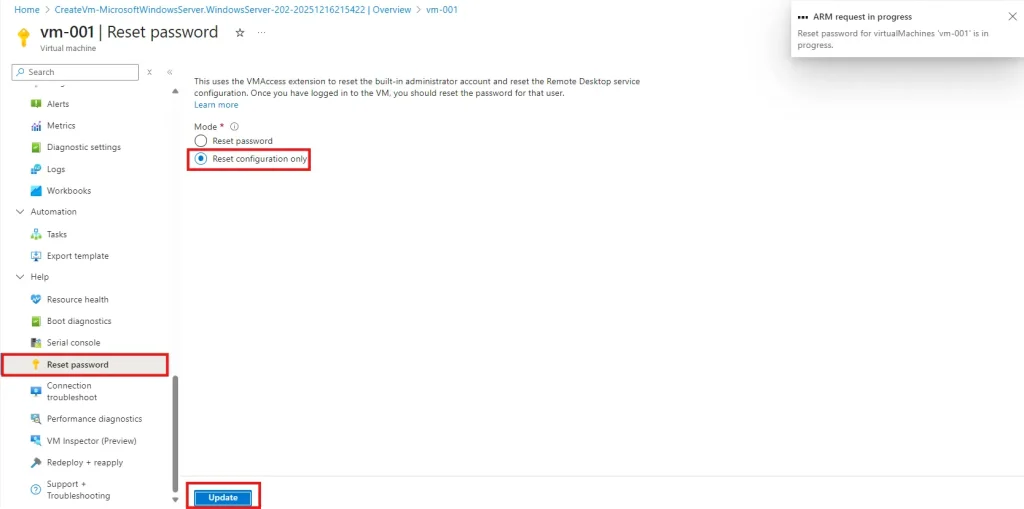
This action does several helpful things behind the scenes. It re-enables Remote Desktop connections, resets the Windows Firewall RDP rule, and refreshes the Remote Desktop service. As per my Azure working experience, this simple reset fixes about 40% of RDP connection issues my own cases.
Using Azure Network Watcher to Troubleshoot RDP
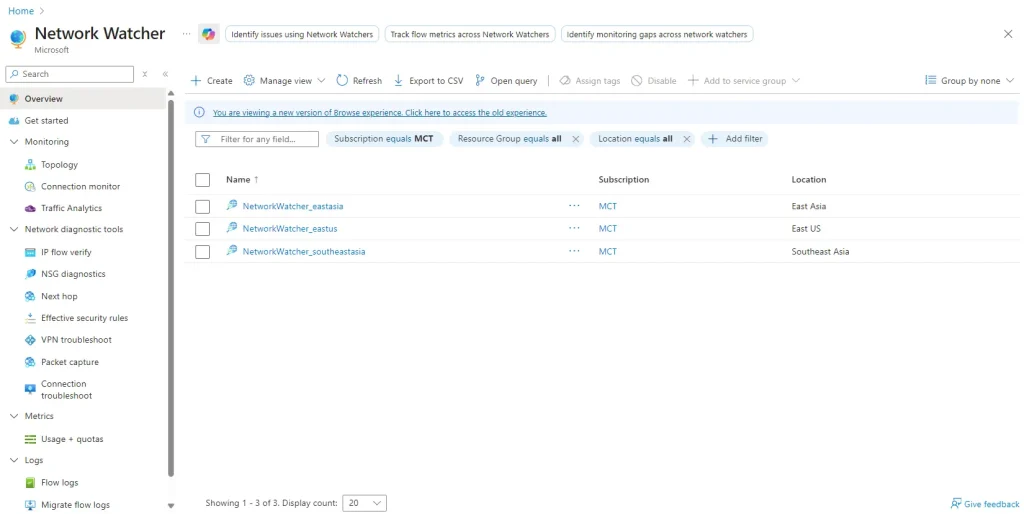
Azure Network Watcher is like having X-ray vision for your network traffic. It shows you exactly where packets are getting blocked. Two features here are absolute game-changers: IP Flow Verify and Effective Security Rules.
IP Flow Verify
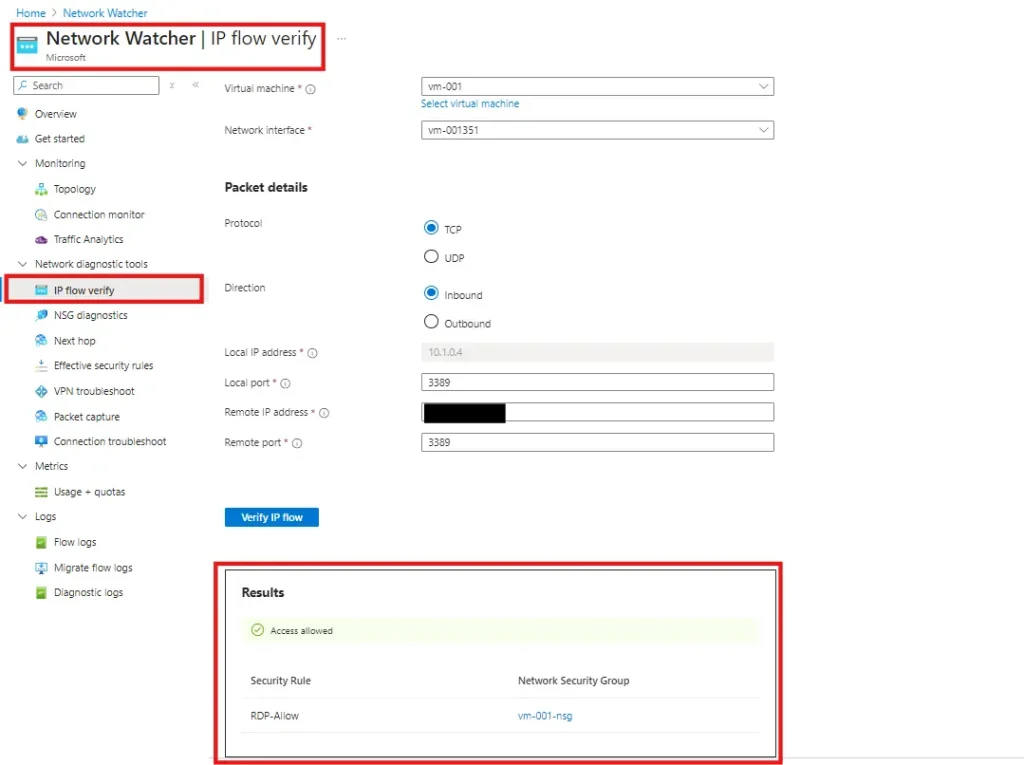
This tool simulates traffic from your computer to the VM and tells you if it would be allowed or denied. Here is how to use it:
- Search for Network Watcher in the Azure Portal.
- Go to Network diagnostic tools and select IP flow verify.
- Select your VM and network interface.
- Set Direction to Inbound, Protocol to TCP.
- Enter your local IP as Remote IP, and 3389 as Local port.
- Click Check and see what is blocking your traffic.
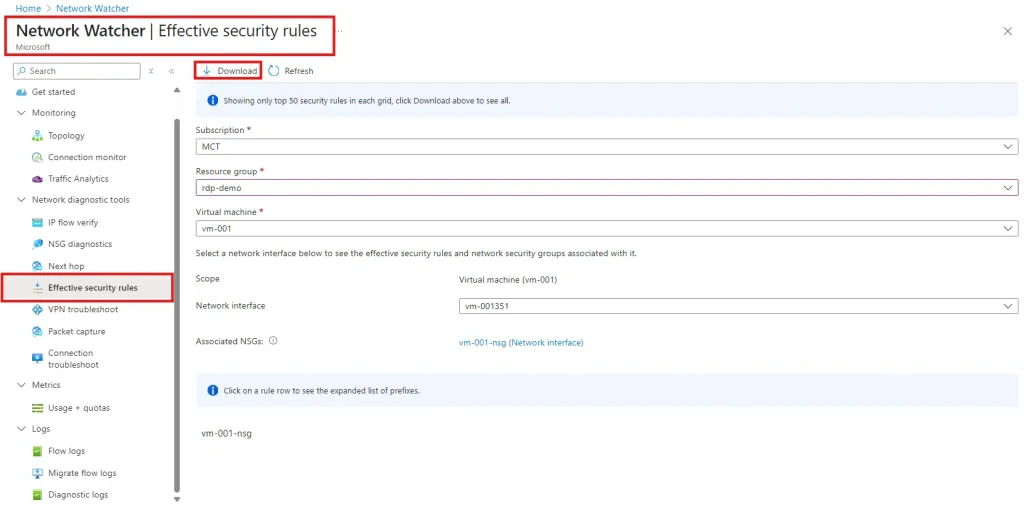
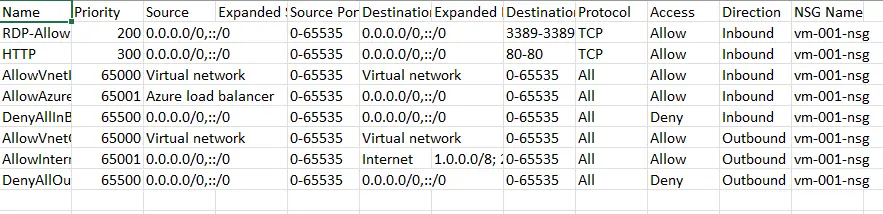
Effective Security Rules
You might have NSGs at both the subnet level AND the network interface level. Effective Security Rules shows you the combined result of all rules. This is super helpful when you are scratching your head wondering why traffic is still blocked even after adding an allow rule.
Checking Windows Firewall Settings on Your Azure VM
Even if your NSG rules are perfect, Windows Firewall inside the VM can still block RDP. This is especially common after Windows updates or if someone tinkered with firewall settings.
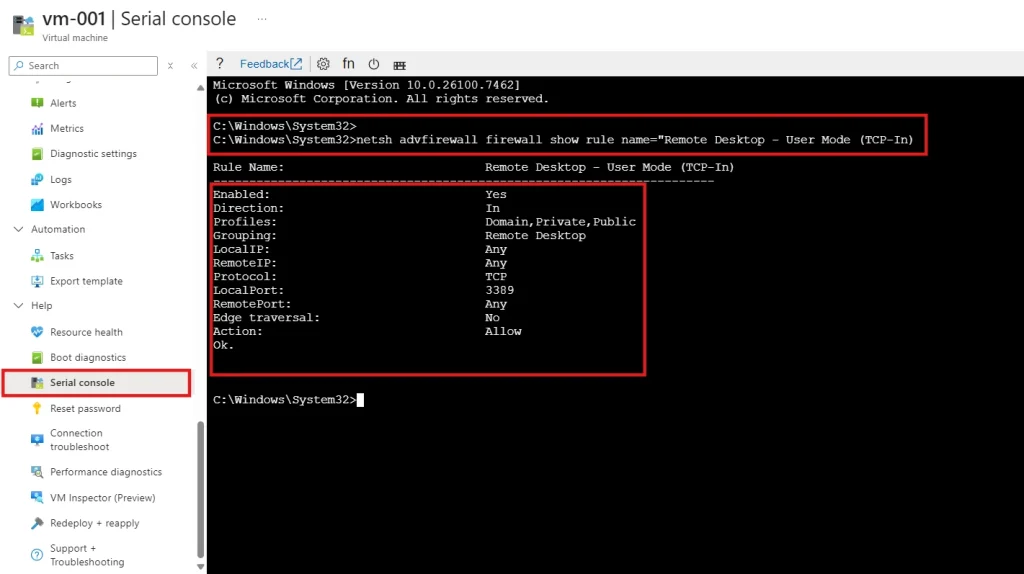
If you cannot RDP in, use the Azure Serial Console to check firewall settings:
- Go to your VM in Azure Portal.
- Under Help, click Serial console.
- type "ch -si 1"
- Log in with your admin credentials.(Domain : continue blank with pressing enter)
- Type cmd to open a command prompt channel.
- Run: netsh advfirewall firewall show rule name="Remote Desktop - User Mode (TCP-In)"
- If disabled, enable it with: netsh advfirewall firewall set rule name="Remote Desktop - User Mode (TCP-In)" new enable=yes
Fixing CredSSP and Authentication Errors
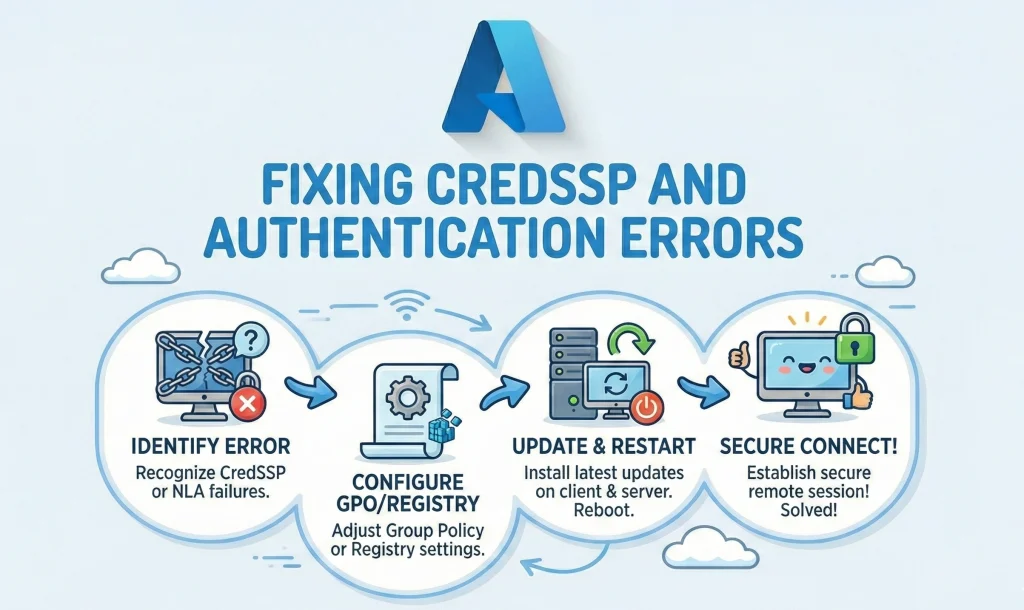
Getting an "Authentication error" or "CredSSP encryption oracle remediation" message? This usually happens when there is a security policy mismatch between your computer and the Azure VM. Microsoft tightened CredSSP security, and sometimes things get out of sync.
Quick Fixes
- Update your local Windows: Install the latest Windows updates on your computer.
- Update the VM: Use Azure Serial Console or Run Command to install Windows updates.
- Temporary workaround: On your local machine, run gpedit.msc and navigate to Computer Configuration, Administrative Templates, System, Credentials Delegation. Set Encryption Oracle Remediation to Enabled and change Protection Level to Vulnerable. Remember to change this back after you fix the root cause!
Security Note: The "Vulnerable" setting is just a temporary fix. Always update both ends and reset to a secure configuration afterward.
Best Practices to Secure RDP on Azure VMs
Here is something important: exposing RDP port 3389 directly to the internet is risky. Hackers constantly scan for open RDP ports. Let me share some better approaches from my experience managing Azure environments.
Use Just-In-Time VM Access

This is my favorite Azure security feature. Just-In-Time (JIT) access keeps port 3389 closed by default. When you need to connect, you request access for a limited time—say, 3 hours. Azure automatically opens the port for your IP only, then closes it when time expires.
To enable JIT:
- Go to Microsoft Defender for Cloud in Azure Portal.
- Navigate to Workload protections, then Just-in-time VM access.
- Select your VM and click Enable JIT.
- When you need to connect, click Request access first.
Other Security Options
- Azure Bastion: Connect to VMs through the Azure Portal without any public IP. Super secure, no RDP exposure at all.
- VPN Gateway: Set up a site-to-site or point-to-site VPN. Access VMs over private IPs only.
- Restrict source IPs: If you must expose RDP, limit the source IP in your NSG rule to your office or home IP address.- Whitelisting
Last Resort: Restart or Redeploy Your Azure VM

Still stuck after trying everything? Sometimes a good old restart does the trick. And if that fails, redeploying moves your VM to a fresh Azure host.
When to Restart
Try a restart if your current VM has been running for a long time, or if boot diagnostics shows the login screen but RDP still will not connect. Go to your VM Overview page and click Restart.
When to Redeploy
Redeploying is more drastic. It moves your VM to a different physical host in Azure. Your OS disk and data stay intact, but the temporary disk (D: drive) gets wiped. To redeploy, go to Support + troubleshooting and click Redeploy + reapply.
Important: Back up any data on the temporary disk before redeploying. Also, your dynamic public IP might change.
Quick Troubleshooting Checklist
| Symptom | Fix to Try First |
| Connection timeout | Check NSG rules for port 3389 |
| Remote access not enabled | Reset RDP configuration in portal |
| Authentication error / CredSSP | Update Windows OS on both ends |
| Credentials do not work | Reset password in Azure portal |
| Nothing works | Restart VM, then try Redeploy |
Frequently Asked Questions
1. Why can't I connect to my Azure Windows VM using RDP even though it is running?
The most common reasons are Azure NSG rules blocking port 3389, Windows Firewall settings inside the VM, or the Remote Desktop service being disabled. Start by checking your NSG inbound rules, then use the Azure portal to reset the RDP configuration.
2. How do I check if my NSG is blocking RDP port 3389?
Go to your VM, click Networking, and check the Inbound port rules. You need an Allow rule for TCP port 3389 with a lower priority number than any deny rules. Pro tip :Use Network Watcher IP Flow Verify for a detailed traffic analysis.
3. How do I reset RDP configuration without accessing the VM?
From the Azure portal, go to your VM, scroll to Help section, click Reset password, select Reset configuration only from the dropdown, and click Update. This resets Remote Desktop settings without changing your password.
4. How do I reset my Azure VM admin password if I forgot it?
Navigate to your VM in Azure portal, go to Help, click Reset password. Enter your username and new password, then click Update. The change takes effect within a few minutes.
5. What is Azure Network Watcher and how does it help with RDP issues?
Network Watcher is a monitoring tool that diagnoses network problems. Which is free and use region level. Use IP Flow Verify to check if traffic is blocked, and Effective Security Rules to see all NSG rules affecting your VM. It tells you exactly which rule is causing the problem.
6. How do I fix CredSSP authentication errors when connecting via RDP?
Install the latest Windows updates on both your local machine (Laptop) and the Azure VM. As a temporary workaround, adjust the Encryption Oracle Remediation policy in Group Policy Editor. Always revert to secure settings after updating.
7. What is Just-In-Time VM access and should I use it?
JIT access keeps RDP port closed until you request access. It significantly reduces your attack surface. Yes, you should use it—especially for production VMs. It is available through Microsoft Defender for Cloud.
8. Why did RDP stop working after I changed my NSG rules?
Rule priority matters. If you added a deny rule with a lower priority number than your allow rule, it will block traffic. Check that your RDP allow rule has a lower priority number than any deny rules affecting port 3389.
9. Should I expose RDP port 3389 directly to the internet?
No, not recommended for production environments. Use Azure Bastion, Just-In-Time access, or a VPN instead. If you must expose it, restrict the source IP to your known addresses and use strong passwords.
10. When should I redeploy my Azure VM?
Redeploy as a last resort when other troubleshooting steps fail. It moves your VM to a new physical host. Your OS disk stays intact, but temporary disk data is lost. Try restarting the VM first before redeploying.
Wrapping Up
Azure VM RDP connection issues can feel frustrating, but they usually have straightforward quick fixes. Start with the basics—check your NSG rules and reset the RDP configuration. Use Network Watcher to dig deeper if needed. And please, set up Just-In-Time access or Azure Bastion to keep your VMs secure.
Azure Landing Zone is mostly help you to reduce this future issue at starting point : https://kloudschool.com/azure-landing-zone/
Got any questions or ran into a weird RDP issue I did not cover? Drop a comment below—I would love to hear about your experience and help you troubleshoot. Happy cloud computing with Azure..!




No comments yet. Be the first to share your thoughts!