


Ever felt like managing server updates is like herding cats in a thunderstorm? Yeah, me too. That's exactly why I'm excited to talk about Azure Update Manager – Microsoft's answer to the chaos of keeping your Windows and Linux servers patched across Azure, on-premises, and even other clouds.
Let me paint you a picture. It's Tuesday morning, your coffee's still warm , and suddenly you realize you've got 200 servers scattered across three clouds that need critical security patches. In the old days, this meant juggling multiple tools, praying to the tech gods, and probably missing lunch . But Azure Update Manager? It's like having a really organized assistant who never sleeps and actually enjoys paperwork.
What Exactly Is Azure Update Manager (And Why Should You Care)?
Picture this: You've got servers everywhere Cloud or On-Premise – some chilling in Azure, others hanging out on-premises, and a few rebels living in AWS or Google Cloud. Azure Update Manager is that unified service that brings them all under one roof for patching and compliance. No more switching between tools like you're playing musical chairs.
Here's the kicker – it's not just another fancy dashboard. This thing actually centrally assesses and deploys OS and application updates to both Windows Server and Linux machines. And yes, it works with your on-premises servers too (thanks to Azure Arc). The best part? You get real-time patching options alongside scheduled maintenance windows. It's like having your cake and eating it too.
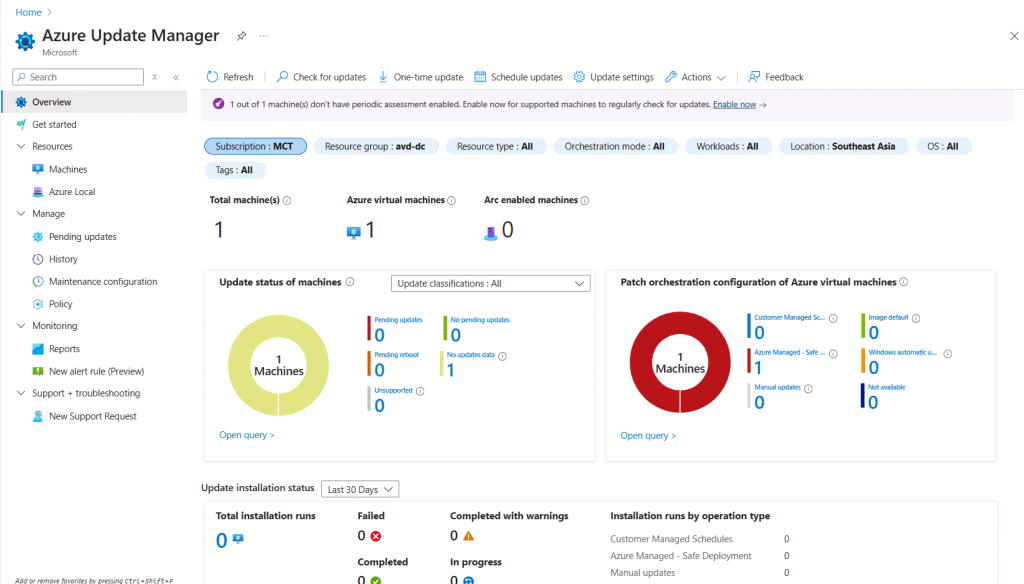
Breaking Down Your Command Center: The Azure Update Manager Interface
Let me walk you through what you'll actually see when you dive into Azure Update Manager. Think of it as your mission control for all things patching.
Overview: Your Central Command Center
This is where the update magic starts. The Overview section gives you that bird's-eye view of your entire update landscape. You'll see at a glance which machines are compliant, which ones are throwing tantrums, and what needs your attention right now. It's surprisingly satisfying watching those compliance percentages climb.
Resources: Managing Your Infrastructure Components
The Resources tab is where you get down to brass tacks. Every server, whether it's an Azure VM or an Arc-enabled server from your dusty server room, shows up here. You can filter, sort, and basically treat this like your personal server inventory system. I've found myself spending way too much time organizing things here – it's oddly therapeutic.
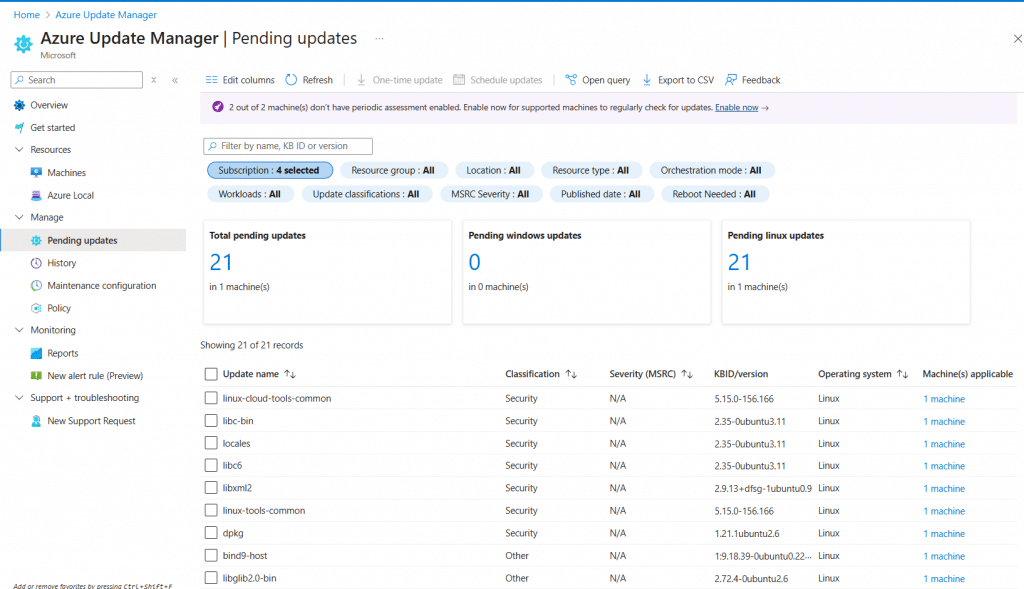
Pending Updates: Staying Ahead of Requirements
Remember that feeling when you realize you forgot about a critical update? The Pending Updates section makes sure that never happens again. It's like having a really persistent reminder that actually knows what it's talking about. You'll see exactly what updates are waiting, which machines need them, and how critical they are.
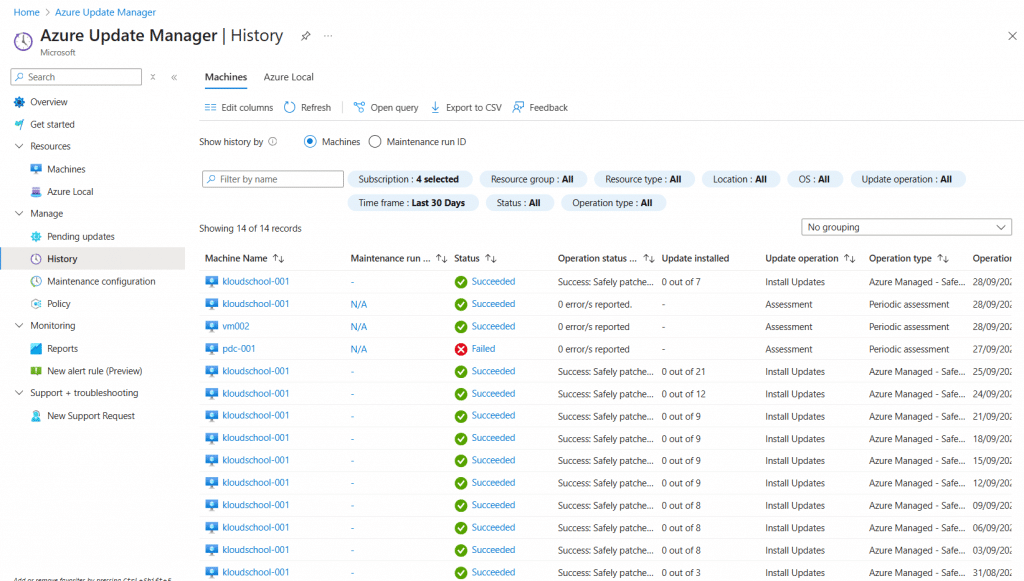
The Time Machine: History and Learning from the Past
History: Learning from Past Deployments
The History tab isn't just a log file nobody reads. It's actually useful! You can see what worked, what didn't, and most importantly – why. Failed update at 3 AM last Tuesday? The history will tell you if it was a network hiccup or something more sinister. It's like having a crystal ball, except it looks backward instead of forward.
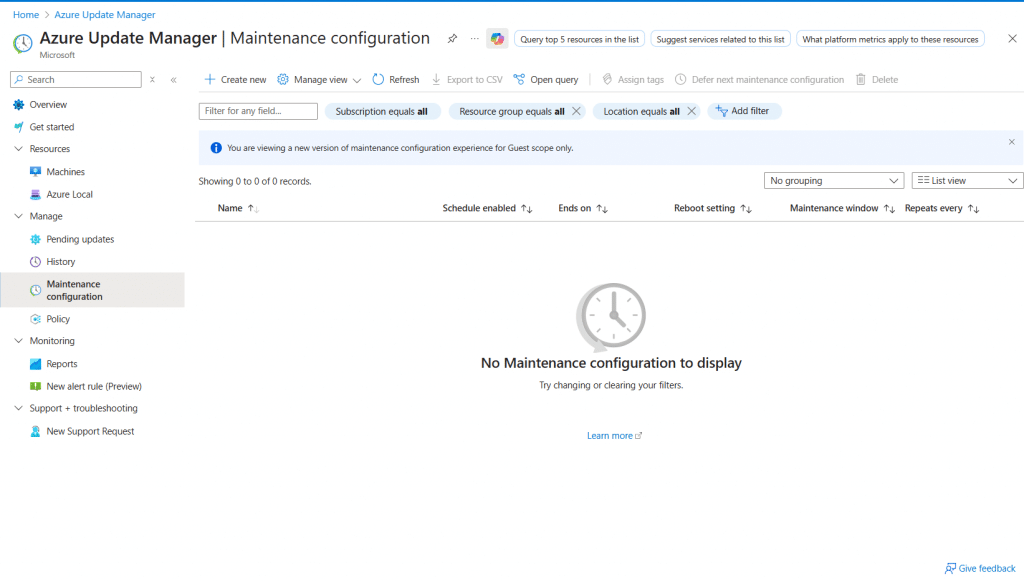
Setting the Rules: Configuration and Policy Management
Maintenance Configuration: Defining Your Update Windows
Here's where you get to play puppet master. Maintenance configurations let you define exactly when updates happen. Want to patch your development servers at 2 AM on Sundays but keep production updates for the third Thursday of each month? No problem. You can set maintenance windows so specific, they'd make a Swiss watchmaker jealous.
The beauty is in the flexibility. You can create different configurations for different groups of machines. Maybe your Linux servers get updates weekly while your Windows servers follow a monthly cadence. It's your world – Azure Update Manager just helps you run it.
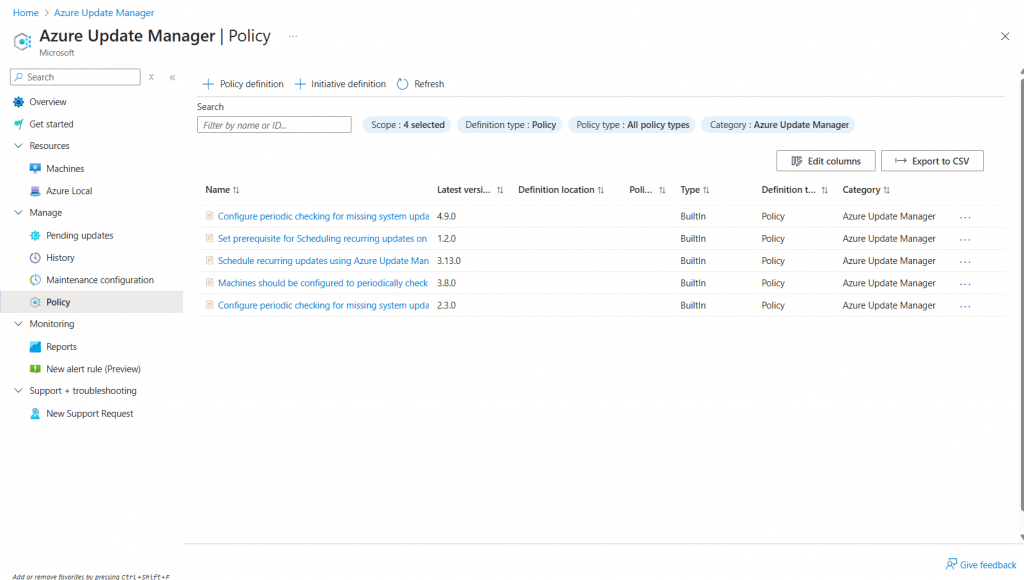
Policy: Governing Update Deployment
Policies are where you lay down the law. Think of them as the constitution for your update management kingdom. You can define which updates get installed automatically, which ones need approval, and which machines get special treatment. It's Azure RBAC at its finest, giving you granular control over who can do what.
Data-Driven Decisions: Reports and Monitoring
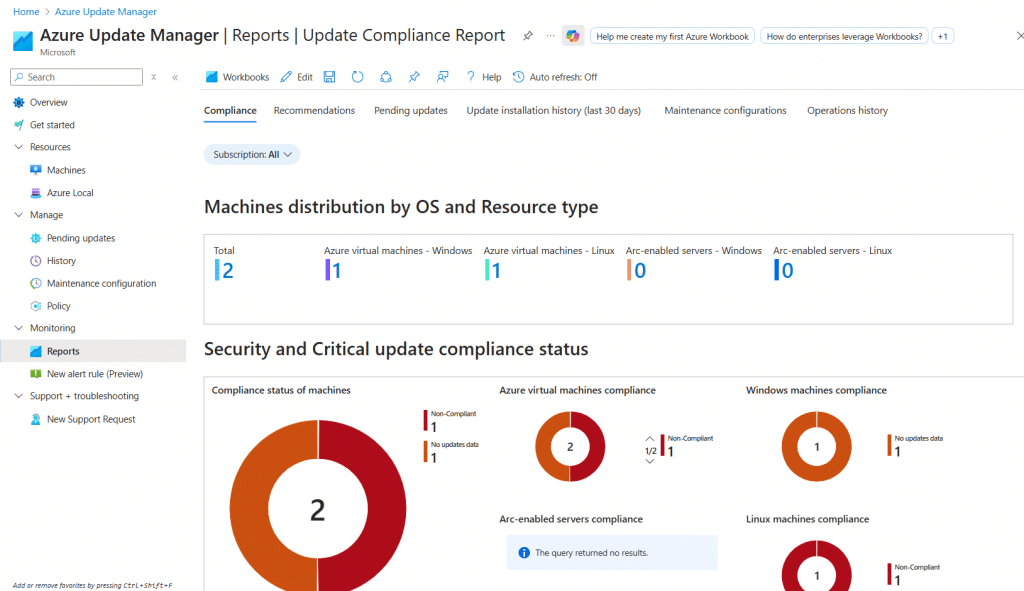
Reports: Data-Driven Decision Making
Gone are the days of "I think most of our servers are patched." The Reports section gives you cold, hard facts. You can query update compliance data through Azure Resource Graph, create custom dashboards with Azure Workbooks, and basically become the Sherlock Holmes of patch management.
Want to know which servers haven't been patched in 30 days? There's a query for that. Need to prove compliance to auditors? Export that beautiful report and watch their eyes light up.
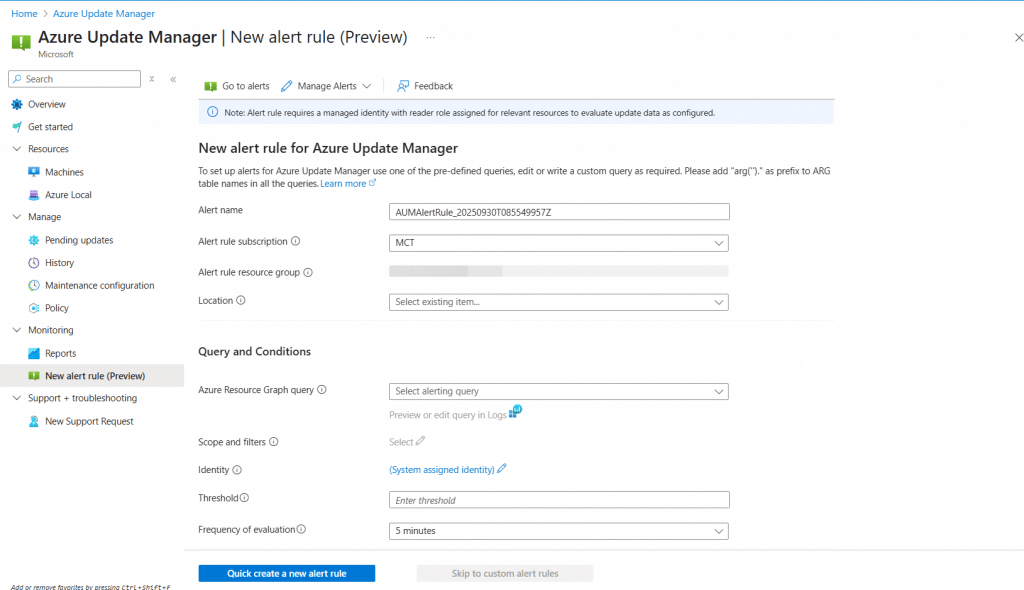
New Alert Rule (Preview): Proactive Issue Detection
The New Alert Rule feature (currently in preview - 2025/09/30) is like having a really smart watchdog. You can define custom conditions that trigger notifications when something's amiss. Server failed three update attempts in a row? Get an alert. Compliance dropping below 95%? Alert. It's proactive monitoring that actually prevents fires instead of just telling you about them.
The Technical Stuff: How Does It Actually Work?
Let's peek under the hood for a moment. When you trigger an update action, Azure Update Manager pushes an extension to your machine. This extension then has a friendly chat with either the Azure VM agent or the Azure Arc agent (If not azure resources) (depending on where your server lives). These agents then fetch and install updates from whatever repository the machine is configured to use.
For Windows machines, that could be Windows Update, Microsoft Update, or your trusty WSUS server. Linux machines pull from their configured apt or yum repositories. It's elegant in its simplicity – Update Manager doesn't try to reinvent the wheel; it just makes sure all the wheels are turning in sync.
Frequently Asked Questions (The Stuff Everyone Asks)
Is Azure Arc Really Required for Non-Azure Servers?
Short answer: Yes. Long answer: Still yes, but here's why it's actually a good thing. Azure Arc is what lets Update Manager see and manage your on-premises and multi cloud servers. Think of Arc as the universal translator that lets Azure speak to servers anywhere. Once Arc is installed, your on-premises servers basically become honorary Azure resources - Native Azure resources .
What About Azure Automation and Log Analytics?
Here's some good news – you don't need them anymore! The new Update Manager is native on the machine and stores all its data in Azure Resource Graph. If you're migrating from the old Automation Update Management, Microsoft's got guidance to help you move your schedules and machines over. It's like upgrading from a flip phone to a smartphone – same basic function, way better experience.
Can It Handle Third-Party Applications?
Yes, Azure Update Manager can handle updates whether they come from apt or yum repositories, or from Windows applications. If not, integration with enterprise tools such as WSUS or SCCM can manage this.
Operating System Support: Who's Invited to the Party?
Windows Server and Linux server distributions are the VIP guests here. But – and this is important – Windows 10 and Windows 11 client machines aren't on the list. Microsoft's basically saying "Use Intune for those, please." It makes sense when you think about it; servers and workstations have different update needs and rhythms.
The Cool Features You'll Actually Use
Hot patching: Updates Without the Drama
Remember when patching meant scheduling downtime and crossing your fingers? Hot patching changes that game. On eligible Azure VMs, you can apply critical updates with minimal or no reboot. It's like changing the tires on a car while it's still driving – technically impressive and practically invaluable.
Dynamic Scoping: Managing at Scale
When you've got hundreds or thousands of machines, manually selecting them for updates is about as fun as alphabetizing a dictionary. Dynamic scoping lets you create rules that automatically group machines based on metadata, tags, or other properties. Want to patch all production servers in East US with the "critical" tag? Set it once, and Update Manager handles the rest.
Periodic Assessments: The 24-Hour Checkup
Enable periodic assessments, and your servers get scanned for missing updates every 24 hours. It's like having a doctor on call, except this one never sleeps and doesn't charge by the hour. You'll always know your compliance status without lifting a finger.
Troubleshooting: When Things Go Sideways
Let's be real – sometimes things don't work as expected. Common issues include:
- Skipped periodic assessments: Usually a prerequisites issue. Check your agents, extensions, and maintenance configurations.
- Failed updates: Could be network issues, repository problems, or the classic "insufficient disk space" gotcha. - For the Download update
- Arc connectivity: Make sure your firewall isn't being overprotective.
The community threads are goldmines for troubleshooting these issues. Don't be shy about diving into those forums – we've all been there.
Migration Considerations: Moving from the Old to the New
If you're coming from SCCM/Configmgr or the old Automation Update Management, take a breath. Migration isn't as scary as it sounds. Microsoft's provided solid guidance for moving your schedules and machines over. The key is to:
- Plan your migration in phases (don't try to move everything at once)
- Test with a pilot group first
- Document your current configurations before making changes
- Have a rollback plan (because Murphy's Law is real)
Reporting and Compliance: Making Auditors Happy
The reporting capabilities deserve their own shoutout. With Azure Resource Graph storing all your update data, you can:
- Query update compliance across subscriptions
- Create custom visualizations with Azure Workbooks
- Set up alerts for compliance thresholds
- Export data for those quarterly audit meetings
| Feature | What It Does | Why You Care |
|---|---|---|
| Resource Graph Queries | Pull compliance data programmatically | Automate reporting |
| Workbooks | Create visual dashboards | Impress management |
| Alerts | Proactive notifications | Sleep better at night |
| Export Options | Various format outputs | Keep auditors happy |
Best Practices: Learning from Others' Mistakes
After working with Update Manager for a while, here are some tips I wish someone had told me:
- Start small: Don't enable automatic updates on all production servers on day one. Trust me.
- Create Plan and joining one by one or firstly Dev Servers then UAT..... PROD
- Use tags religiously: They make dynamic scoping so much easier.
- Test your maintenance windows: Nothing worse than discovering your window is too short at 3 AM.
- Monitor the monitors: Set up alerts for your periodic assessments – make sure they're actually running.
- Document everything: Future you will thank present you.
Cross-Subscription Patching: Managing the Empire
One of Update Manager's superpowers is cross-subscription patching. You can manage updates across multiple Azure subscriptions from a single pane of glass. From Update manager you can select all or one by one Subscriptions. It's particularly useful for organizations with separate subscriptions for dev, test, and production environments. Set up your dynamic scoping rules right, and you can patch similar servers across all subscriptions simultaneously.
The Network Planning Nobody Talks About
Before you dive in, spend some time on network planning. Update Manager needs to communicate with your servers, and those servers need to reach their update sources. Key considerations:
- Firewall rules for Azure endpoints
- Bandwidth for update downloads
- Proxy configurations if you're using them
- Private endpoint options for extra security
Wrapping Up: Is Azure Update Manager Worth It?
Look, I've managed servers with everything from manual scripts to enterprise tools that cost more than my car. Azure Update Manager hits that sweet spot – powerful enough for enterprise needs, simple enough that you won't need a PhD to use it.
The fact that it works across Azure, on-premises, and other clouds via Arc is huge. The native integration means less moving parts to break. And the move away from requiring Automation accounts and Log Analytics workspaces? That's just fewer things to manage and pay for.
Is it perfect? No tool is. But if you're looking for a unified way to keep your Windows and Linux servers patched and compliant, Azure Update Manager is absolutely worth your time and pocket. Start with a small pilot group, get comfortable with the interface, and gradually expand your scope. Before you know it, you'll wonder how you ever managed without it.
Ready to give it a shot? Fire up your Azure portal, navigate to Update Manager, and start with just a few test machines. Trust me, once you see all those green compliance checkmarks, you'll be hooked. And hey, your servers will thank you for keeping them healthy and secure.
Remember: In the world of IT, the best update is the one that happens automatically at 2 AM while you're sleeping soundly, knowing your infrastructure is protected. Azure Update Manager makes that dream a reality.
Have questions about Azure Update Manager? Found a clever way to use dynamic scoping? Drop a comment below of reach me via Linkedln – I'd love to hear about your experiences with keeping the server farm happy and patched!



No comments yet. Be the first to share your thoughts!