

Hey there! Let me tell you something interesting. Last week, I was helping a friend who runs an e-commerce site. His website was crashing every time customers from different countries tried to access it during sales. You know what saved him? Azure Traffic Manager. If you're wondering what this magical tool is and how it can transform your web applications, you're in the right place!
What is Azure Traffic Manager and What Are Its Main Use Cases?
So, what exactly is this Azure Traffic Manager I'm talking about? Think of it like a super-smart traffic cop for your website. Just like how a traffic police officer directs cars to avoid congestion, Traffic Manager directs your website visitors to the best available server. Pretty cool, no?
Azure Traffic Manager is Microsoft's DNS-based load balancing service that helps you distribute traffic optimally across your global Azure regions. But here's the thing - it's not just about spreading the load. It's about making sure your users always get the fastest, most reliable connection possible.
Main use cases? Let me break it down for you:
Use Case What It Does Perfect For Global Load Distribution Spreads traffic across multiple regions E-commerce sites with worldwide customers Disaster Recovery Automatically redirects traffic if one region fails Banking and financial applications Application Performance Routes users to nearest endpoint Video streaming services Maintenance Windows Redirects traffic during updates SaaS applications A/B Testing Distributes traffic for testing Marketing websites
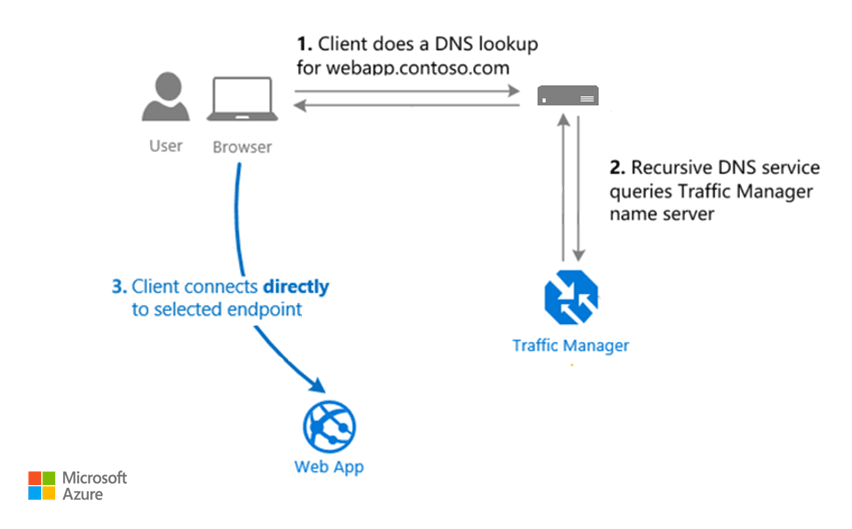
Diagram Source : https://learn.microsoft.com/en-us/azure/well-architected/service-guides/azure-traffic-manager
How Does Azure Traffic Manager's DNS-Based Load Balancing Work?
Now, I know what you're thinking - "DNS-based load balancing sounds complicated!" But actually, it's quite simple. Let me explain it like this:
Imagine you're calling a pizza delivery service. Instead of calling the main branch directly, you call a central number. That central number knows which branch is closest to you and connects you there. That's exactly how DNS-based load balancing works!
When someone types your website URL:
- First, their request hits Azure Traffic Manager (not your actual server)
- Then, Traffic Manager checks which of your endpoints is best for that user
- Finally, it sends back the IP address of the optimal endpoint
- Boom! The user connects directly to that server
The beauty is, all this happens in milliseconds. Your users don't even know it's happening!
What Traffic Routing Methods Are Supported by Azure Traffic Manager?
This is where things get really exciting! Azure Traffic Manager isn't just a one-trick pony. It offers six different traffic routing methods, each designed for specific scenarios. Which one should you use? Let me help you figure that out:
➡️ Priority Routing
You set up a primary endpoint and backups. Traffic goes to the primary unless it fails. Simple as that! Perfect if you have a main data center and want failover options.
➡️ Weighted Routing
Want to send 70% traffic to one server and 30% to another? This is your friend. I use this when testing new features - send small traffic to the new version first!
➡️ Performance Routing
This one's smart - it sends users to the endpoint with the lowest network latency. Your users in Singapore connect to Singapore servers, while Canadian users hit Canadian servers. Everyone's happy!
➡️ Geographic Routing
Need to follow data residency laws? Or want to show region-specific content? Geographic routing lets you map specific geographic regions to specific endpoints. European users see GDPR-compliant servers only!
➡️ Multi value Routing
Returns multiple healthy endpoints in response to DNS queries. Great for client-side load balancing!
➡️ Subnet Routing
Maps specific IP address ranges to specific endpoints. Super useful for testing or giving certain users special treatment.
How Do I Enable Automatic Failover and Endpoint Health Monitoring?
Here's something that happened to me once - my main server went down at 2 AM. But guess what? Nobody noticed! Why? Because I had automatic failover configured.
Setting up endpoint health monitoring is surprisingly easy:
- Configure health probes - Traffic Manager sends regular HTTP/HTTPS requests to your endpoints
- Set probe intervals - How often should it check? Every 30 seconds is standard
- Define failure thresholds - How many failures before marking endpoint as unhealthy?
- Enable automatic failover - Traffic Manager automatically redirects traffic away from unhealthy endpoints
The best part? You can monitor all this through Azure Portal. You'll get alerts if something goes wrong, and you can see real-time health status of all your endpoints.
Can Azure Traffic Manager Distribute Traffic Between Azure and On-Premises Endpoints?
Absolutely yes! And this is what makes Traffic Manager really special. You're not locked into Azure-only solutions.
You can mix and match:
- Azure VMs
- Azure App Services
- On-premises servers
- External endpoints (even AWS or Google Cloud!)
- Nested Traffic Manager profiles (Traffic Managers within Traffic Managers - mind blown, right?)
I've seen companies use this for hybrid cloud setups. They keep sensitive data on-premises but use Azure for scaling during peak times. Traffic Manager seamlessly manages both!
How is Performance Routing Different from Priority and Weighted Routing in Traffic Manager?
Let me clear this confusion once and for all with a simple analogy:
Priority Routing = Like having a favorite restaurant. You always go there first, only trying others if it's closed.
Weighted Routing = Like splitting your lunch budget. 50% on healthy food, 30% on comfort food, 20% on desserts.
Performance Routing = Like using GPS to find the fastest route. It automatically picks the endpoint with the best performance for each user.
Routing Method Decision Based On Best Use Case Priority Predefined order Primary-backup scenarios Weighted Percentage distribution A/B testing, gradual rollouts Performance Network latency Global applications needing speed
Is it Possible to Use Azure Traffic Manager with IPv6 or External Endpoints?
Good news on both fronts!
IPv6 Support: Yes, Traffic Manager supports AAAA records for IPv6. However, remember that Traffic Manager itself doesn't proxy traffic - it just returns DNS records. Your endpoints need to support IPv6 too!
External Endpoints: Absolutely! You can add any publicly accessible endpoint. I've used this to include:
- AWS EC2 instances
- Google Cloud servers
- On-premises data centers
- Third-party CDN endpoints
Just remember - external endpoints need manual health monitoring configuration since Traffic Manager can't automatically detect their health like it does with Azure resources.
How Do I Monitor and Troubleshoot Endpoint Health Issues in Traffic Manager?
Nothing's worse than finding out your endpoint is down from angry customer emails, right? Here's how to stay ahead:
Monitoring Tools at Your Disposal:
- Azure Portal Dashboard - Real-time health status, visual and easy
- Azure Monitor - Detailed metrics and logs
- Traffic Manager metrics - DNS query volumes, endpoint status
- Azure Alerts - Get notified before customers notice issues
Troubleshooting Checklist (my personal go-to):
- Check endpoint health status in Azure Portal
- Verify health probe configuration (correct path? port?)
- Test endpoint directly (bypass Traffic Manager)
- Review Traffic Manager logs
- Check DNS propagation (sometimes it takes time!)
- Verify firewall rules (are health probes being blocked?)
[Insert image of Azure Portal monitoring dashboard here]
What Are the Billing and Cost Considerations for Azure Traffic Manager?
Let's talk money - because nobody likes surprise bills! Azure Traffic Manager pricing is actually quite straightforward:
You pay for:
- DNS queries - First 1 billion queries per month at one rate, cheaper after that
- Health checks - Basic health checks are included, advanced ones cost extra
- Real User Measurements - Optional feature for enhanced performance routing
You DON'T pay for:
- Creating Traffic Manager profiles
- Number of endpoints (add as many as you want!)
- Data transfer (Traffic Manager only returns DNS responses)
Cost optimization tips I've learned:
- Use longer DNS TTL values to reduce query volume
- Combine multiple subdomains under one profile when possible
- Disable unnecessary health checks on external endpoints
- Monitor your DNS query charges Traffic Manager regularly
How Quickly Does Traffic Manager Redirect Users Away from Unhealthy Endpoints?
This is crucial for maintaining high availability! The redirect speed depends on several factors:
The Math Behind It:
- Probing interval: 30 seconds (default)
- Number of failures to mark unhealthy: 3 (default)
- DNS TTL: 60 seconds (configurable)
So theoretically, it could take up to 90 seconds to detect failure + DNS TTL time for all clients to get updated records. But here's the thing - you can tune these values!
Want faster failover? Try this:
- Reduce probing interval to 10 seconds (Fast interval)
- Set tolerated failures to 2
- Lower DNS TTL to 30 seconds
Just remember - faster failover means more health checks, which means slightly higher costs.
Step By Step Implementation Guide
Now comes the fun part - actually setting this up! I'll walk you through creating your first Traffic Manager profile. Don't worry, it's easier than you think!
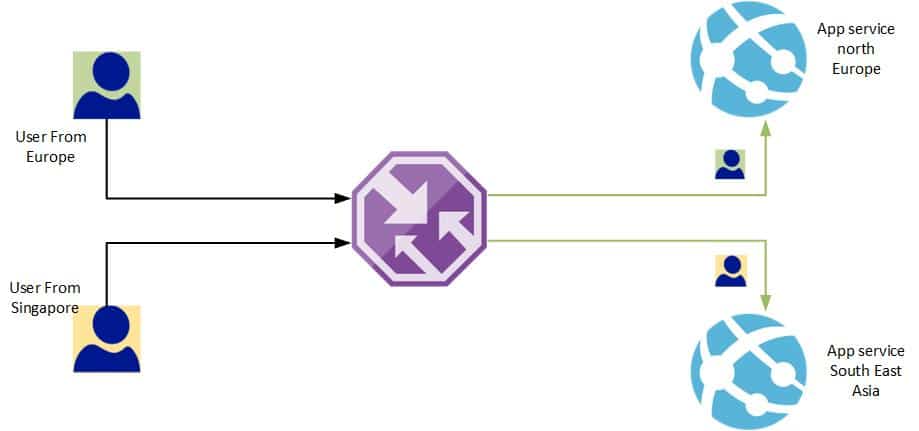
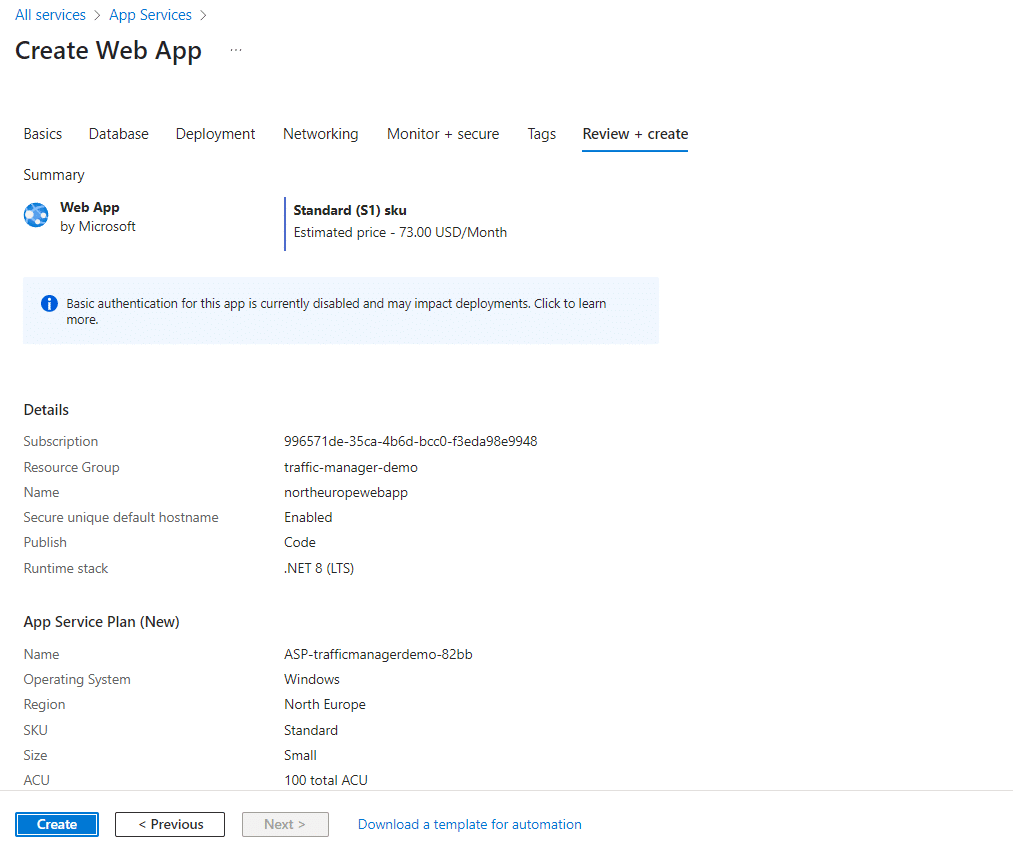
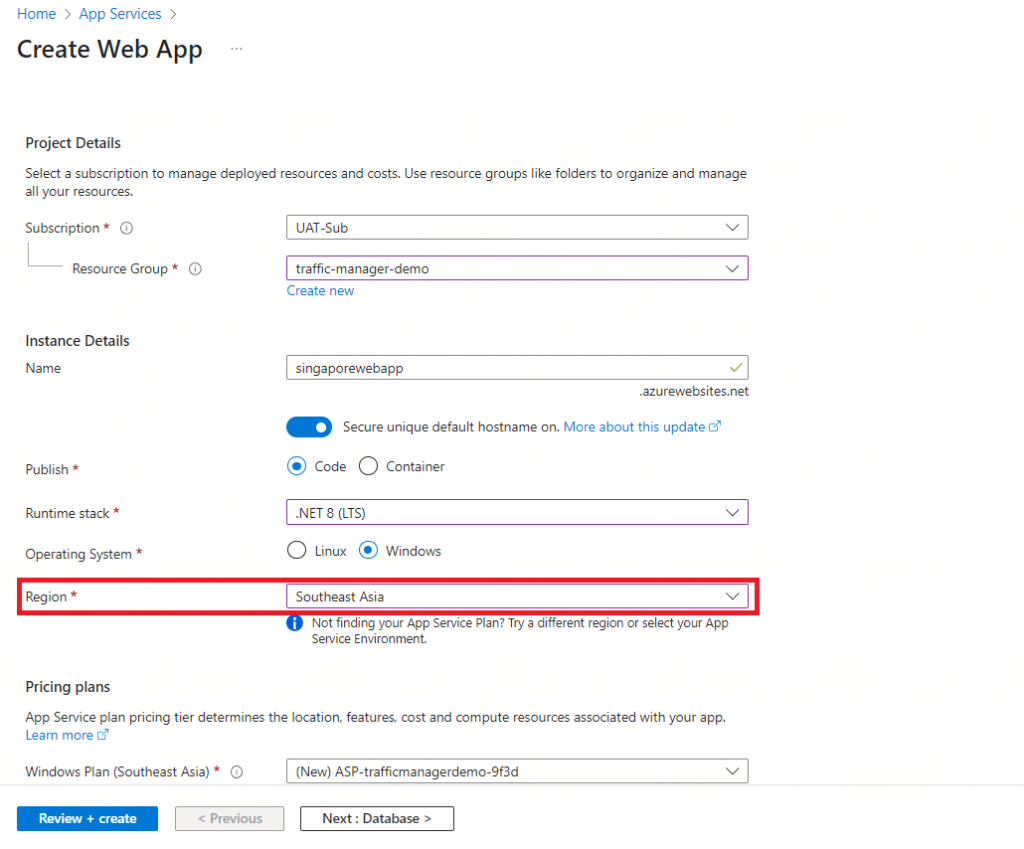
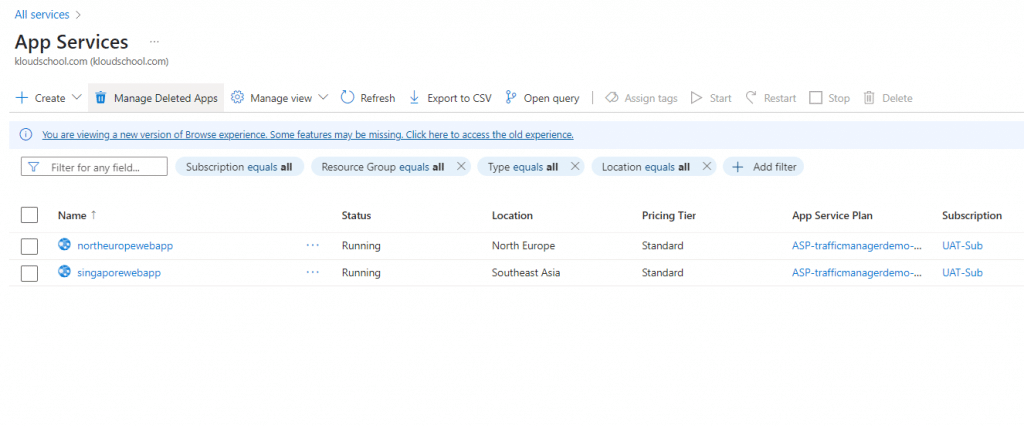
In this demo, we are creating two Azure Web Apps in different regions: Southeast Asia and North Europe. We then create an Azure Traffic Manager using the Geographic routing method. After completing all configurations, we test access to the web applications from different geographic locations, such as Europe and Sri Lanka.
☑️ Create Web apps in North Europe and South East Asia
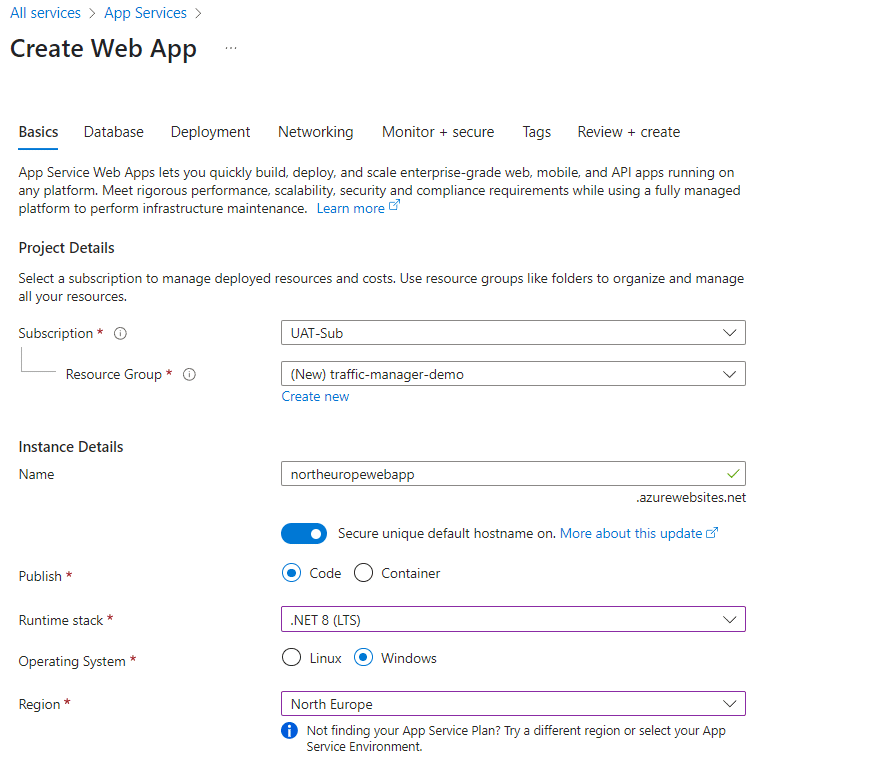
☑️Create Traffic Manager using Geographic routing method
Search traffic manager and then you can create traffic manager profile.
Select subscription --> Resource group , provide unique name for the traffic manager and Must need to provide Routing method.
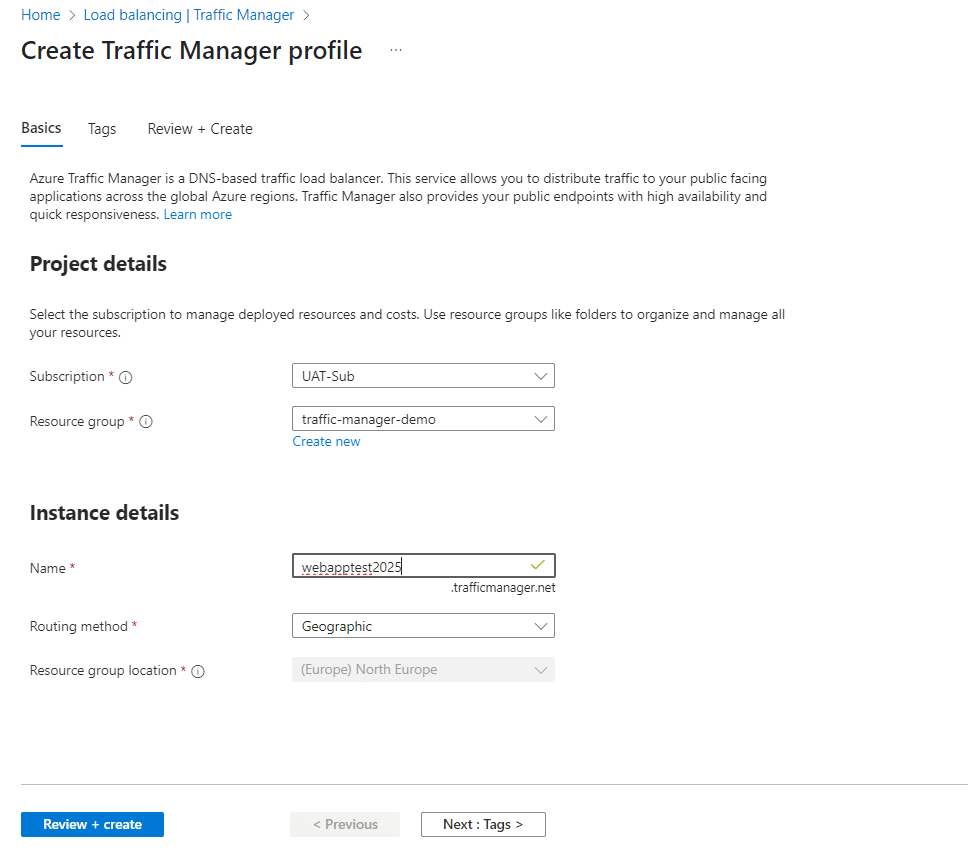
☑️Search traffic manager and then you can create traffic manager profile.
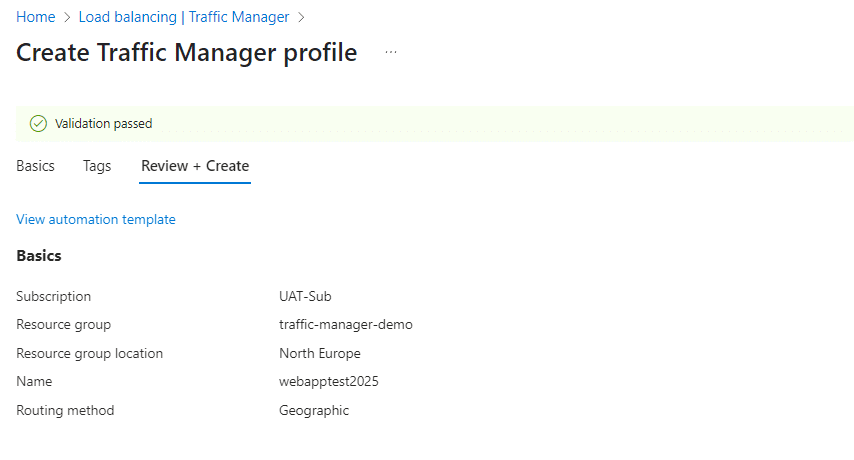
Traffic Manager profile
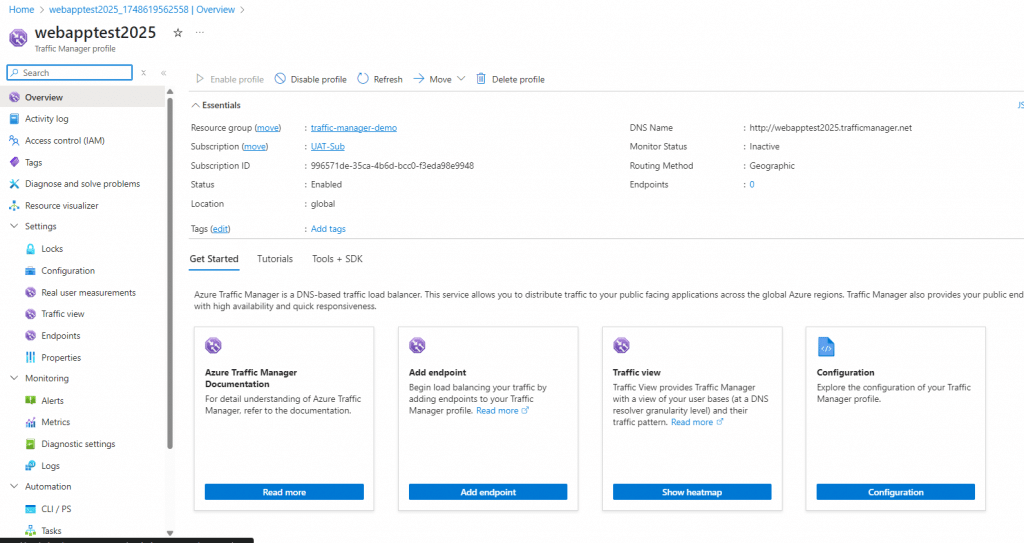
In this overview page we can see much of the details of azure traffic manager profile.
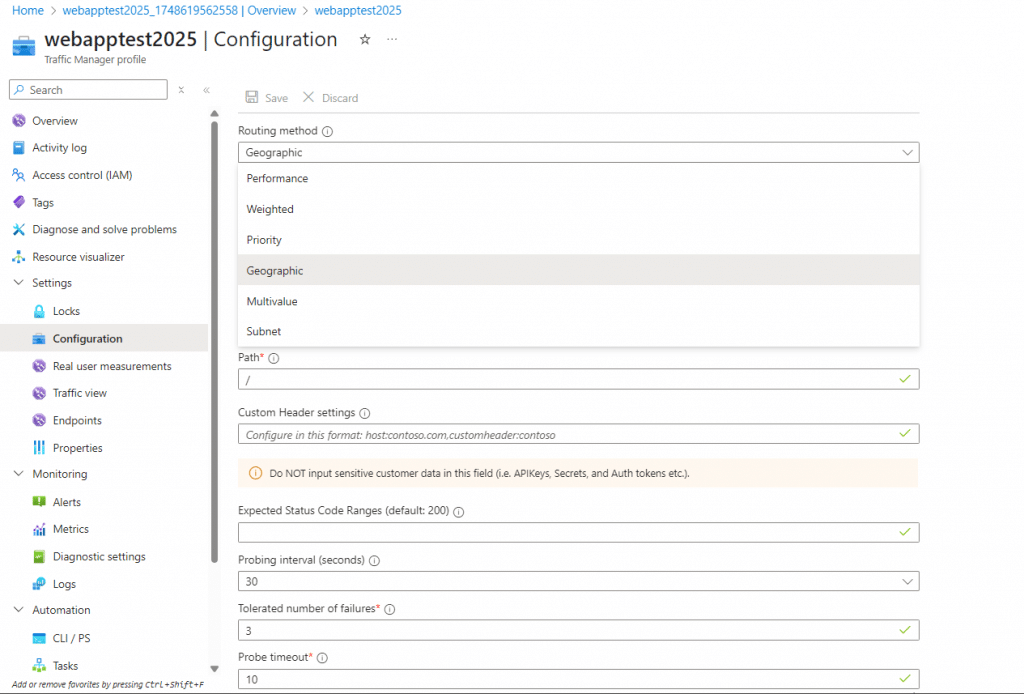
From the Configuration we can change any time Routing method as we need.
☑️Endpoints
In this endpoint we can set our application endpoints Address(Domain name or IP Address). this ca be azure resource or External resource.
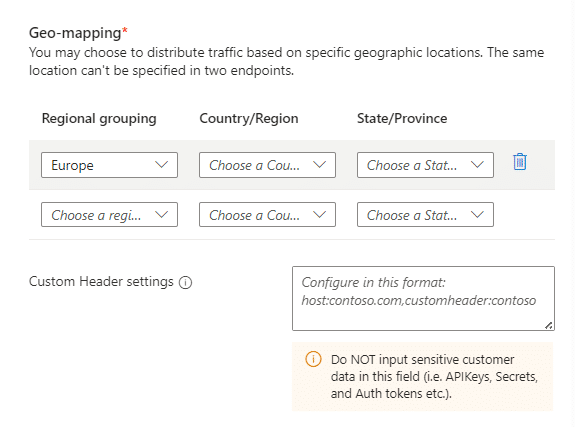
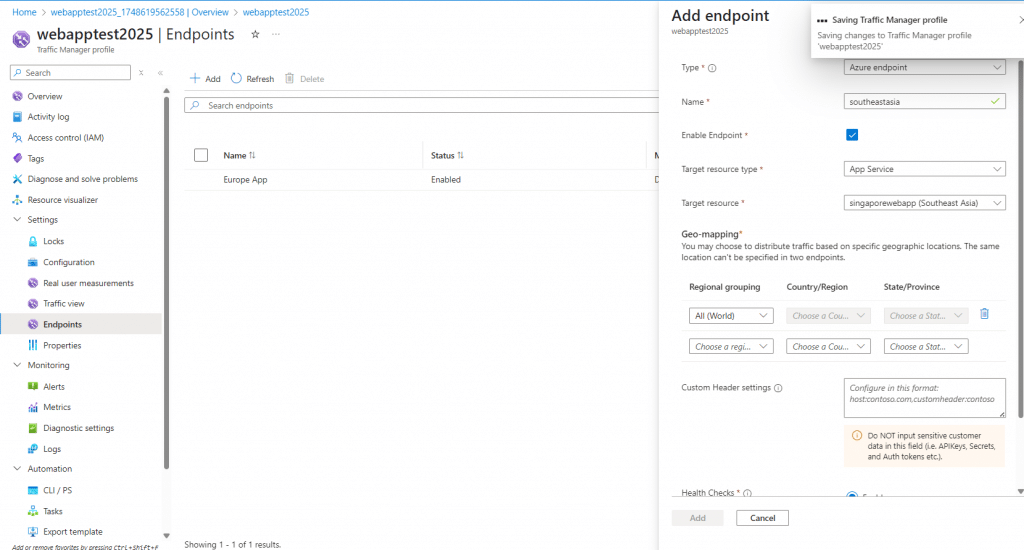
Select Type , Name , tick Enable endpoint , Target resource type (Our case App service), Target resource (here can select our web app) and finally need Geo-mapping*.
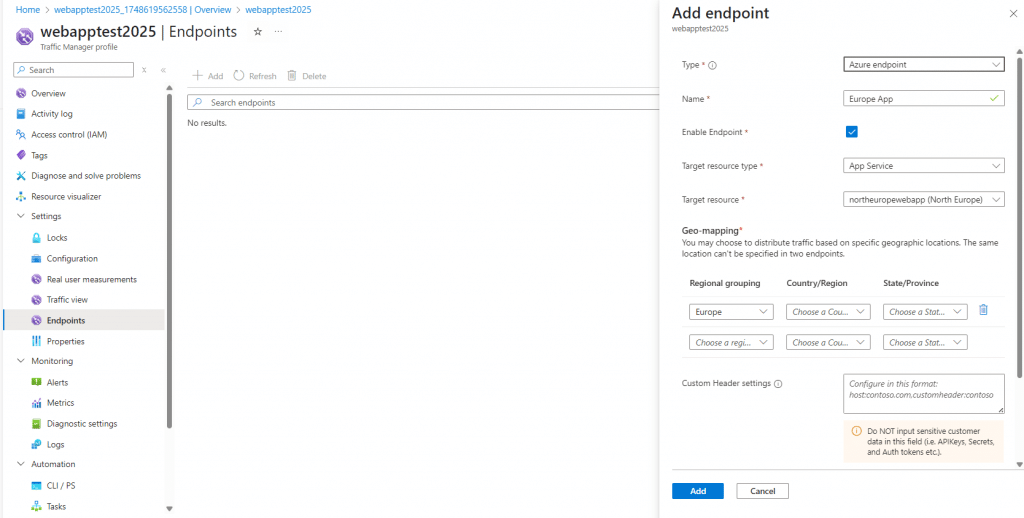
☑️In this Geo-mapping we can distribute traffic based on specific geographic locations. You cannot select same location to two endpoint. Finally enable Health Checks.
☑️Registering South East Asia web App as well
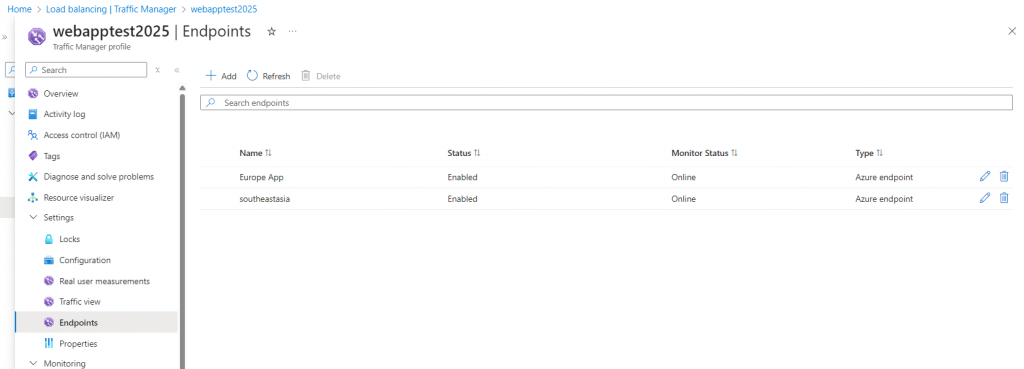
☑️Test Traffic manager functionality
I have already spin up Virtual machine on West Europe data center and i will use that Virtual machine for the access webapp.
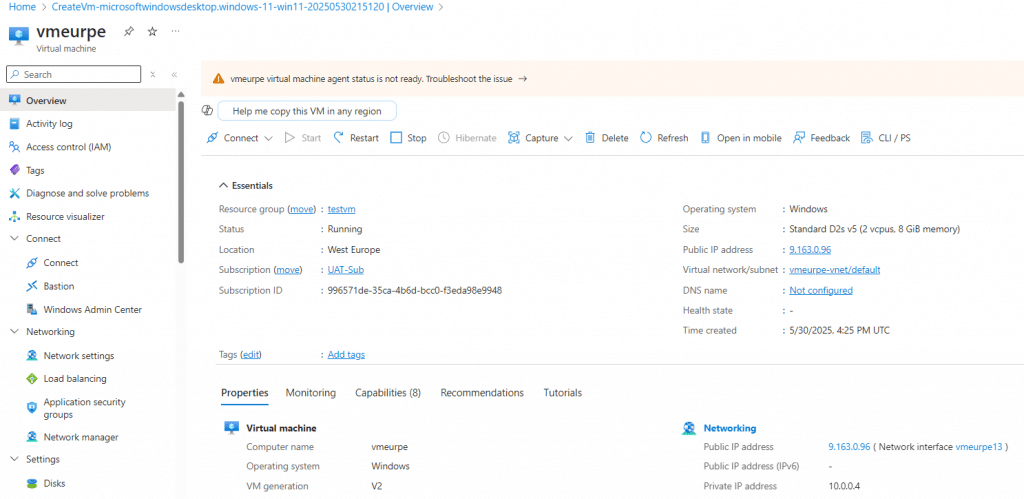

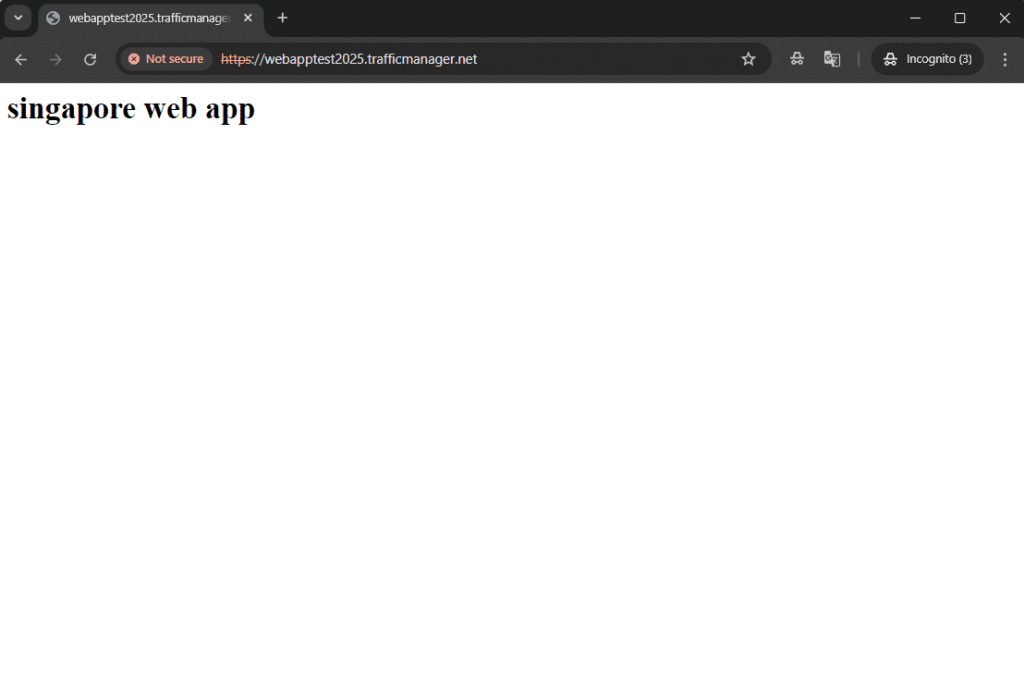
http://webapptest2025.trafficmanager.net
I tried to access the West Europe VM using the URL, but I can only see the web app running in North Europe.

Then I tried to access the same URL from my local PC (Sri Lanka location), and I saw the App Service running in Singapore.
Advanced Configurations and Best Practices
Before we wrap up, let me share some pro tips I've learned over the years:
Using Traffic Manager for SaaS Deployments
If you're running a SaaS application, Traffic Manager is your best friend. Set up geographic routing to comply with data residency requirements, use performance routing for optimal user experience, and leverage nested Traffic Manager profiles setup for complex multi-tier applications.
Azure Traffic Manager vs Front Door
People often ask me this. Here's my take:
- Traffic Manager = DNS-level routing, simple and cost-effective
- Azure Front Door = Application-level routing with WAF, more features but pricier
For most scenarios, Traffic Manager is sufficient. Consider Front Door only if you need application-layer features like URL-based routing or Web Application Firewall.
PowerShell Automation
Love automation? Me too! Traffic Manager with PowerShell makes life so much easier:
powershell
# Quick example - creating a profile
New-AzTrafficManagerProfile -Name "MyProfile" -ResourceGroupName "MyRG" -TrafficRoutingMethod Performance
Managing Failover Scenarios in Traffic Manager
Always test your failover scenarios! I learned this the hard way. Set up Azure Traffic Manager regional failovers and actually test them during low-traffic periods. Document the failover process and make sure your team knows what to do.
Conclusion
There you have it! Azure Traffic Manager isn't just another Azure service - it's your website's insurance policy against downtime, poor performance, and unhappy users. Whether you're running a small blog or a global e-commerce platform, Traffic Manager has something to offer.
Remember these key takeaways:
- Start simple with priority or weighted routing
- Always configure health monitoring
- Test your failover scenarios
- Monitor your costs and optimize accordingly
- Don't hesitate to use external endpoints for hybrid scenarios
So, what are you waiting for? Give Azure Traffic Manager a try! Start with the Azure Traffic Manager tutorial for beginners in the Azure documentation. Trust me, once you see how it improves your application's reliability and performance, you'll wonder how you ever lived without it.
Have questions? Struggling with troubleshooting Traffic Manager endpoint failures? Drop a comment below - I'm always happy to help fellow developers navigate the Azure waters!
Ready to make your applications globally resilient? Let's get started with Azure Traffic Manager today!





No comments yet. Be the first to share your thoughts!