


Ever felt like your file servers are stuck in the Stone Age while everyone's talking about "the cloud"? I get it. You're sitting there with terabytes of data on your local servers, and moving everything to the cloud feels like trying to move a mountain with a teaspoon. Well, let me introduce you to something that might just change your mind – Azure File Sync.
What Exactly is Azure File Sync (And Why Should You Care)?
Picture this: You've got file servers scattered across different offices – maybe one in Toronto, another in New York, and perhaps a third in Vancouver. Each office needs quick access to their files, but you also want the security and scalability of cloud storage. Sounds like a headache waiting to happen, right?
Azure File Sync is Microsoft's answer to this exact problem. Think of it as a magical bridge that keeps your on-premises Windows Servers perfectly synchronized with Azure Files. It's like having your cake and eating it too – you get local performance with cloud benefits.
But here's where it gets interesting. Instead of forcing you to choose between local or cloud storage, Azure File Sync lets you have both. Your frequently used files? They stay right where you need them – on your local servers. Those quarterly reports from 2019 that nobody's touched in years? They can chill in the cloud until someone needs them.
The Secret Sauce: How Azure File Sync Actually Works
Let me break down how this tech wizardry happens without getting too nerdy about it.
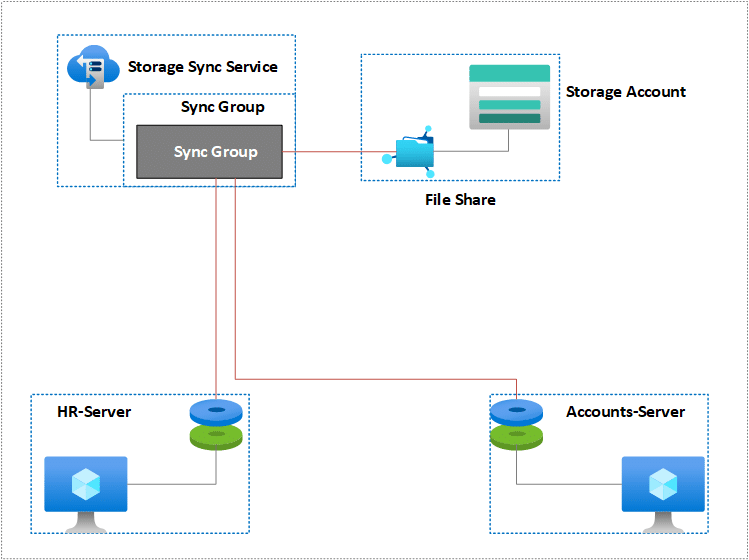
At its core, Azure Storage Sync Service acts like a conductor in an orchestra. You install the Azure File Sync agent on your Windows Servers, and this little helper does all the heavy lifting. It watches for changes, manages uploads and downloads, and makes sure everything stays in perfect harmony.
Here's the really cool part – cloud tiering. Imagine your server as a smart closet that automatically knows which clothes you wear often and which ones are just taking up space. Cloud tiering works the same way. Files you use daily stay on your server for lightning-fast access. Files you rarely touch? They get replaced with tiny pointers (we're talking kilobytes instead of gigabytes), but they're still accessible whenever you need them.
Why Businesses Are Jumping on the Azure File Sync Bandwagon
Key Features That Make IT Teams Smile
Let's talk about what makes Azure File Sync special in enterprise environments:
1. Multi-Site Access Without the Drama Remember those offices in different cities I mentioned? With Azure File Sync, they can all access the same files without complicated VPN setups or slow WAN connections. Each location gets a local copy of frequently used files, while Azure acts as the central hub.
2. Built-in Disaster Recovery Your server decides to take an unexpected vacation (aka crashes)? No problem. Your files are safe in Azure, ready to be restored faster than you can say "where's my backup?"
3. Goodbye, Storage Headaches Running out of disk space used to mean panic-buying new hardware. Now? Just let cloud tiering work its magic. You can store petabytes in Azure while keeping your on-premises footprint minimal.
Real-World Use Cases That'll Make You Say "That's Brilliant!"
| Use Case | How Azure File Sync Helps | Who Benefits Most |
|---|---|---|
| Branch Office Consolidation | Replaces expensive file server infrastructure at remote locations | Retail chains, banks with multiple branches |
| Hybrid Work Environments | Provides seamless file access whether employees are in-office or remote | Companies with flexible work policies |
| Archive Management | Automatically tiers old data to cloud while keeping it accessible | Healthcare, legal firms with compliance requirements |
| Development Teams | Syncs code repositories and build artifacts across global teams | Software companies with distributed developers |
Step-by-Step Azure File Sync Deployment Guide
Alright, you're convinced. Now let's roll up our sleeves and get this thing deployed on your Windows Server. Don't worry – I'll walk you through it like we're sitting at the same desk.
Prerequisites (The Boring but Important Stuff)
Before we dive in, make sure you've got:
- Windows Server 2012 R2 or newer (2019 or 2022 recommended)
- .NET Framework 4.7.2 or later
- PowerShell 5.1 or newer
- An Azure subscription (obviously)
- About 2 GB of free space for the agent
The Actual Setup Process
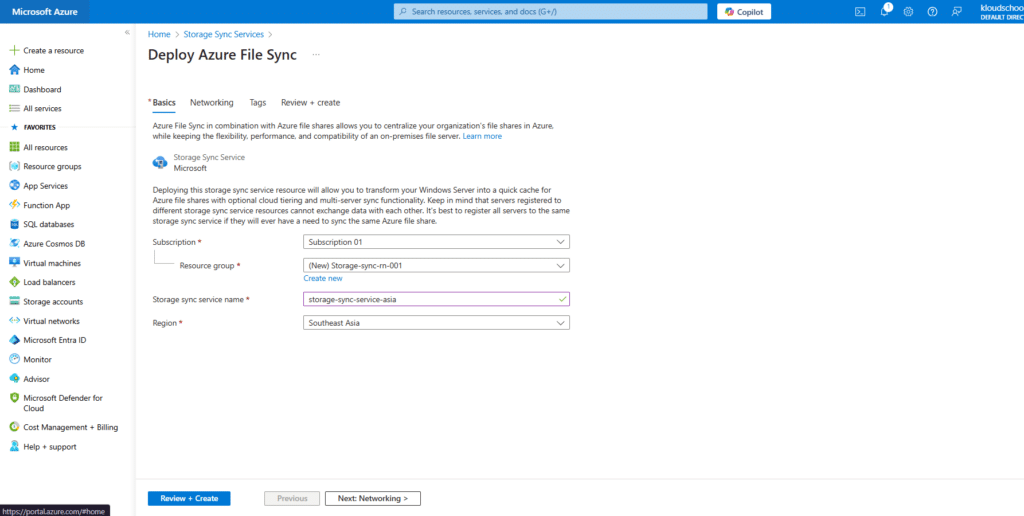
Create Storage Sync Service
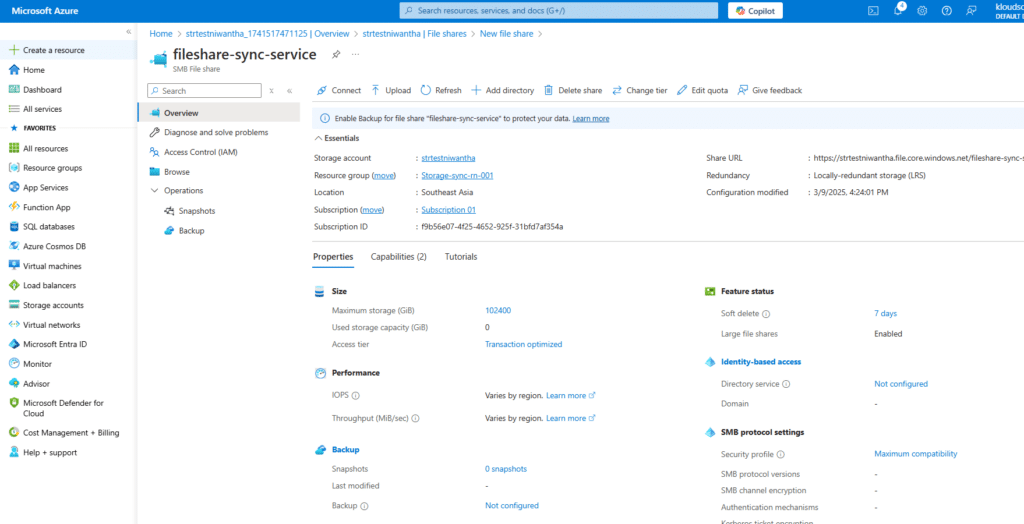
Create Storage Account and File share
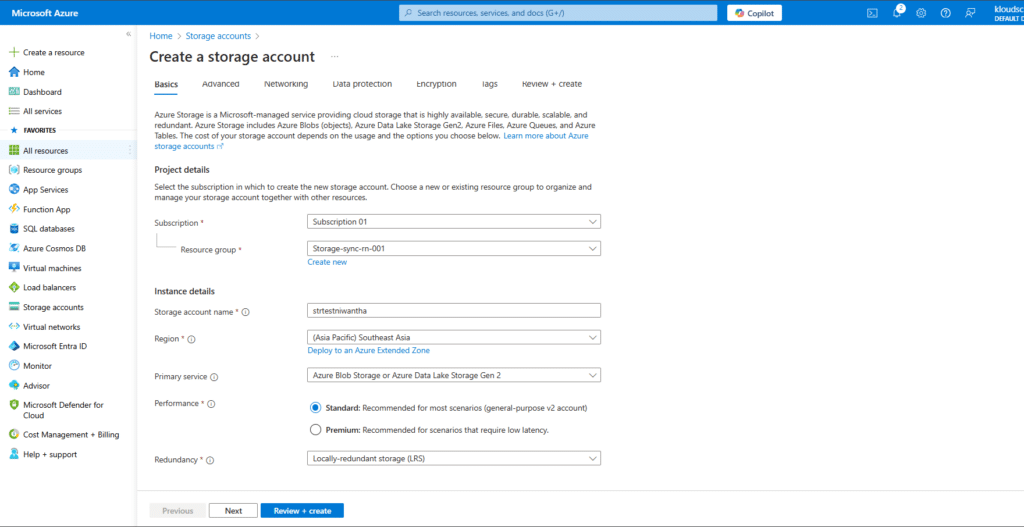
Note : Storage Sync Service and Storage account region must be a same.
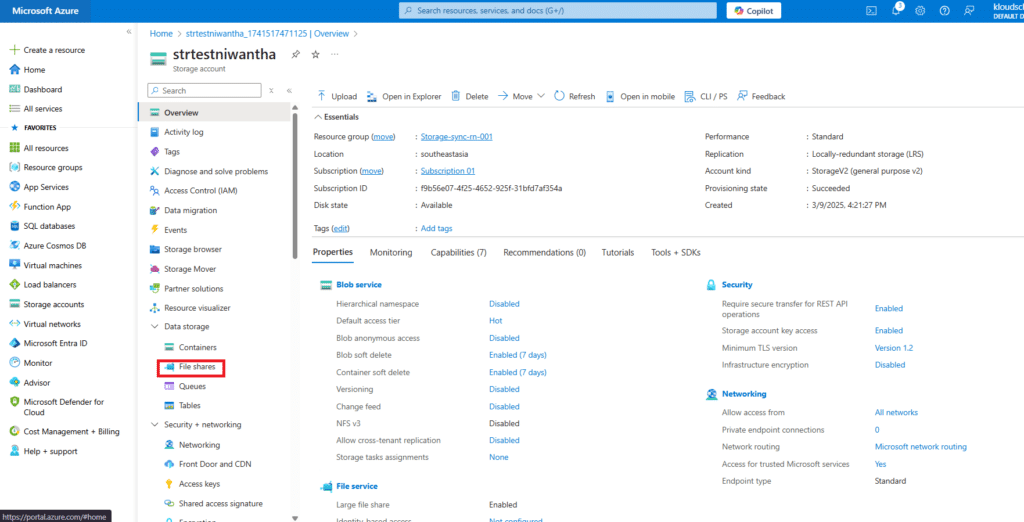
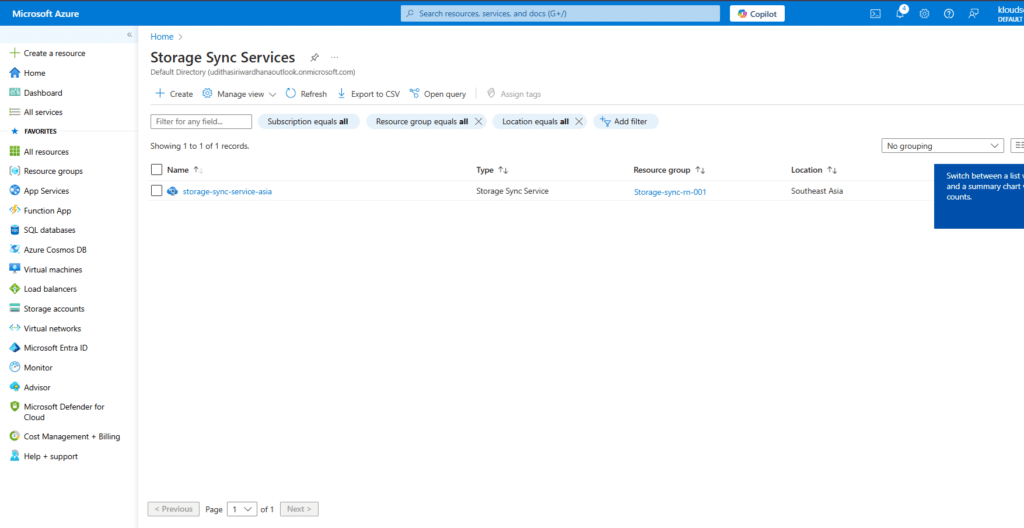
Click Storage Sync Service
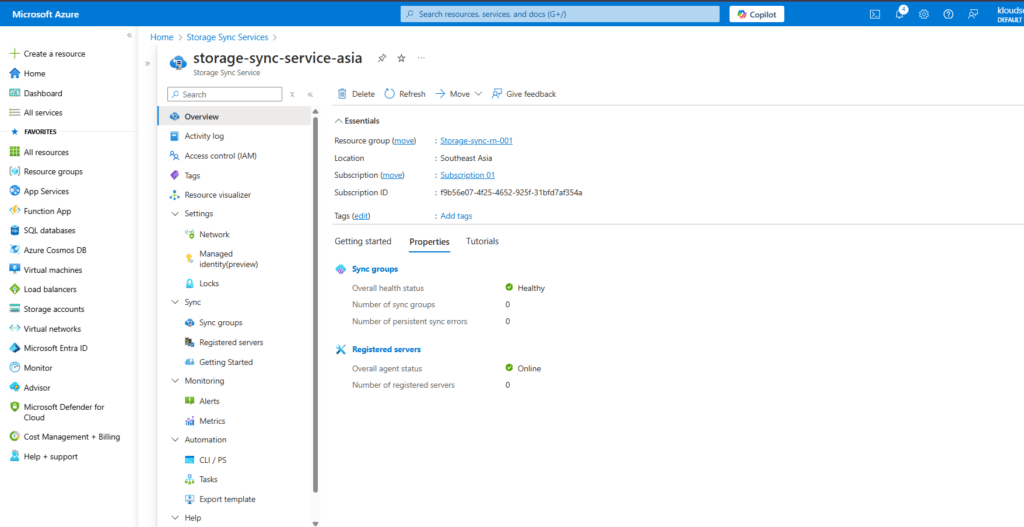
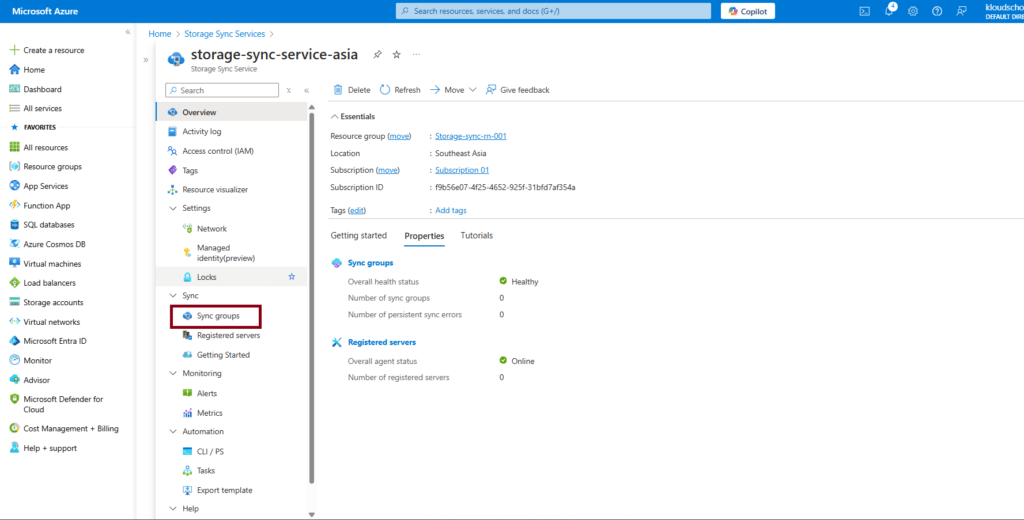
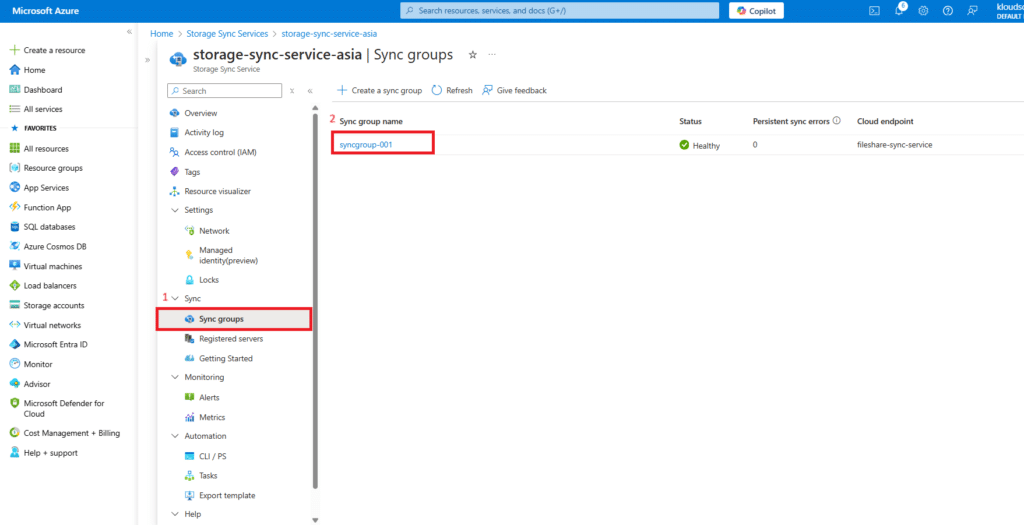
Click Sync Group & Create New Sync Group
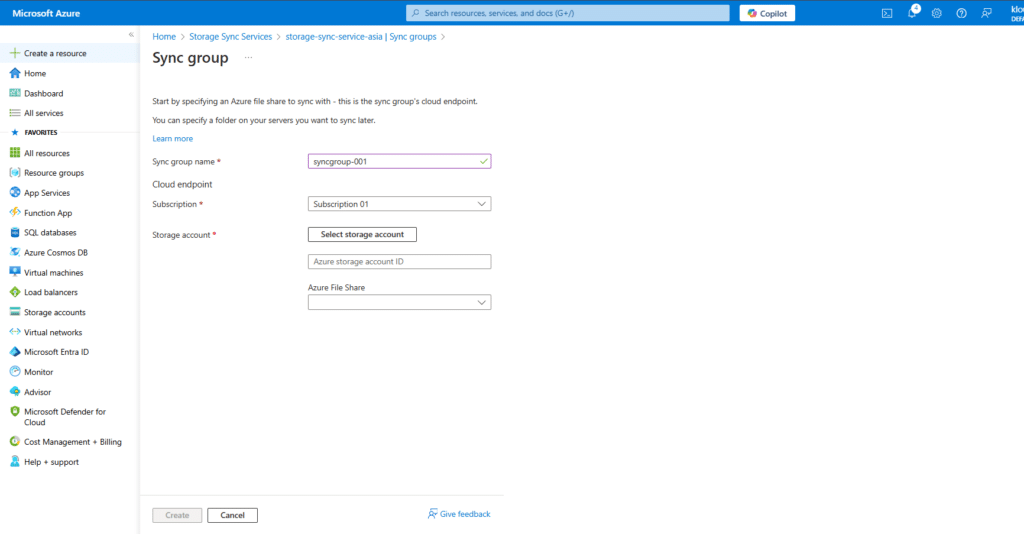
Select Storage account and File Share.

Now Sync Group is Created.
Register the Server on Storage Sync Service
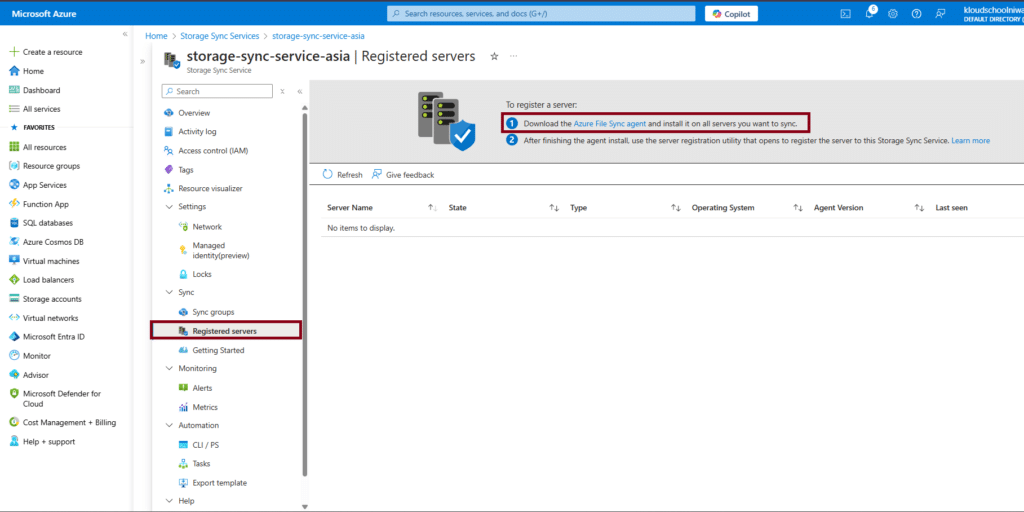
To register a server:
Download the Azure File Sync agent and install it on all servers you want to sync.
Now Logging to the Our Windows Server
In this demo we are going to registered multi region hosted on windows server. and this servers are not in this same tenant.
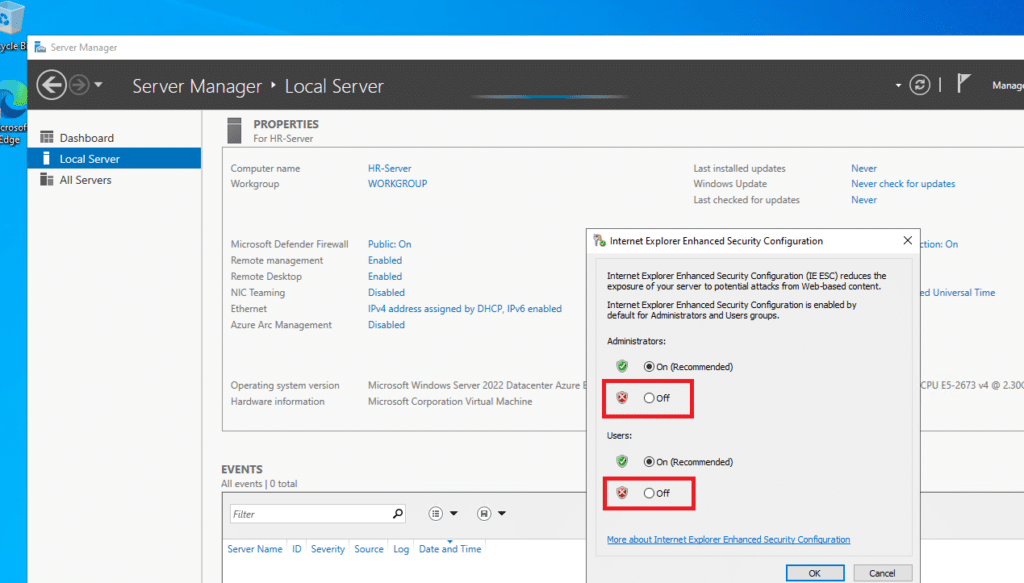
First turn off Internet Explorer Enhanced Security Configuration
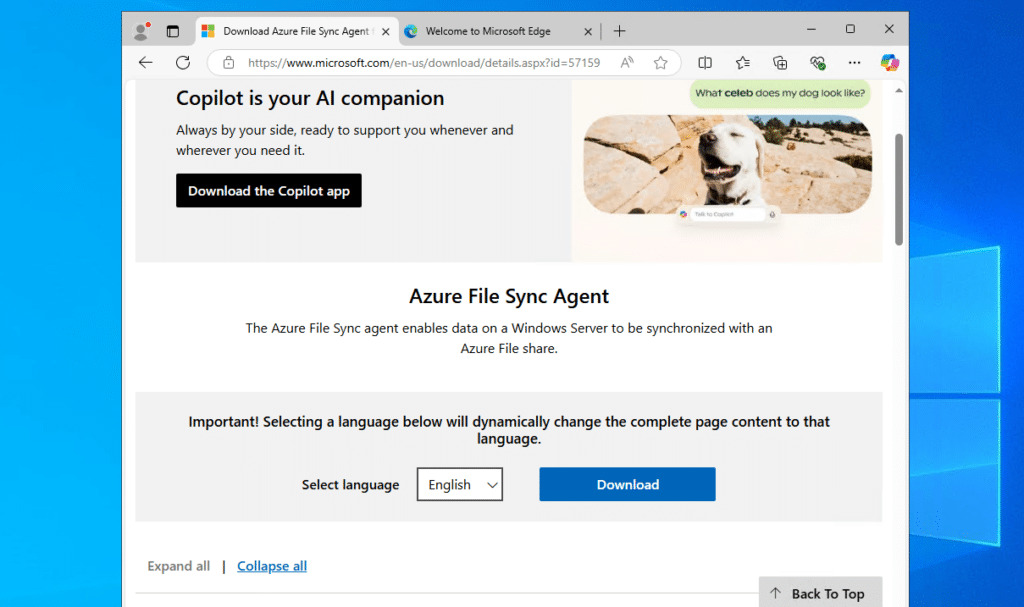
Download the Agent to the server.
Select the right window server version and download.
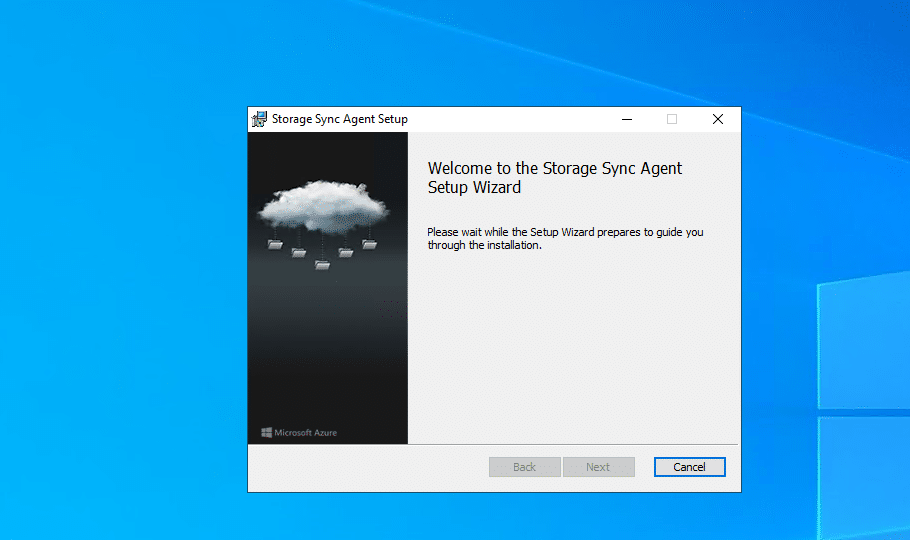
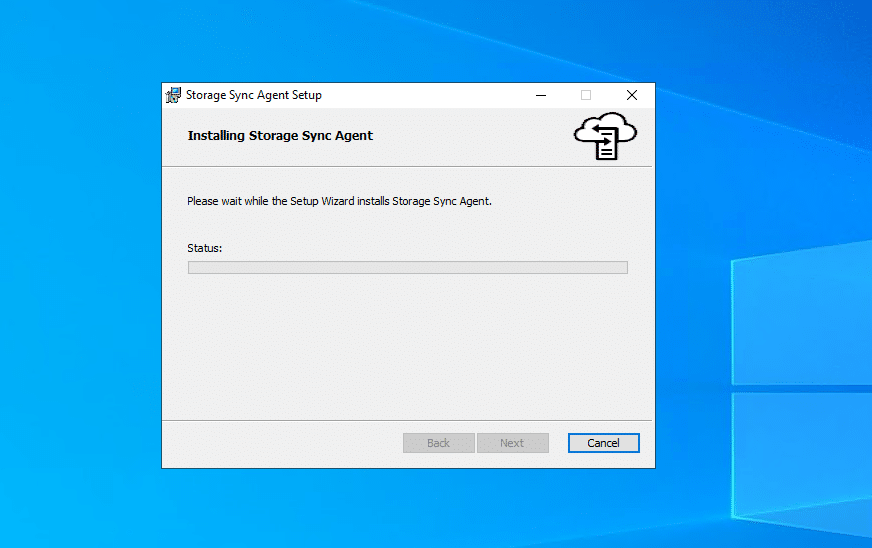
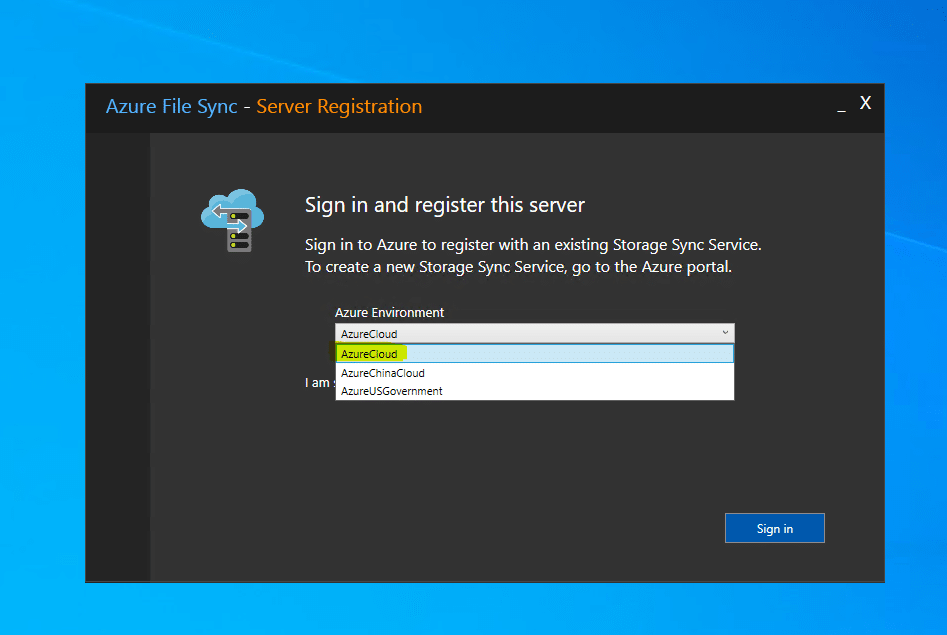
After the installation complete we can see new setup page. Select Correct cloud Env.
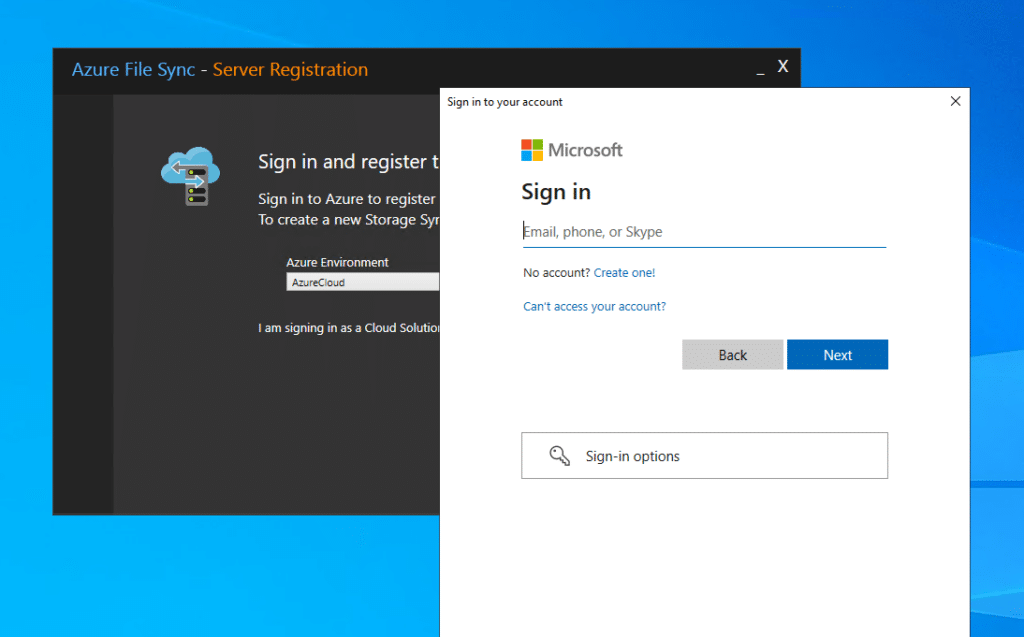
Now we need to authentication with azure account.
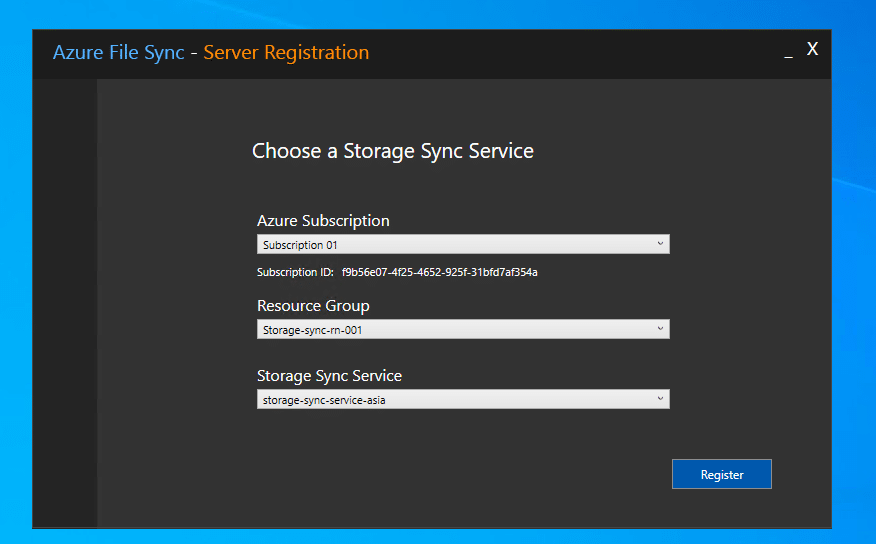
Now we have to select Subscription , RG and Correct storage sync service.
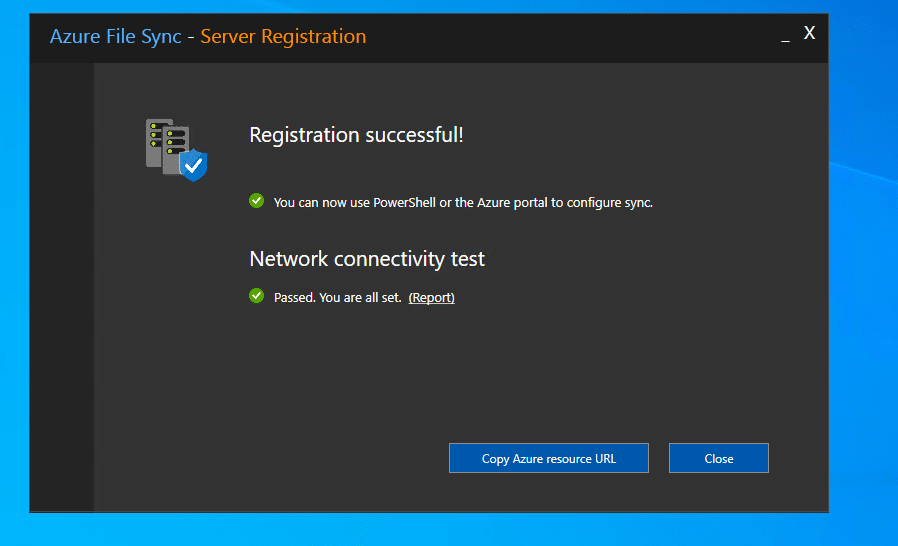
Registration Successful.
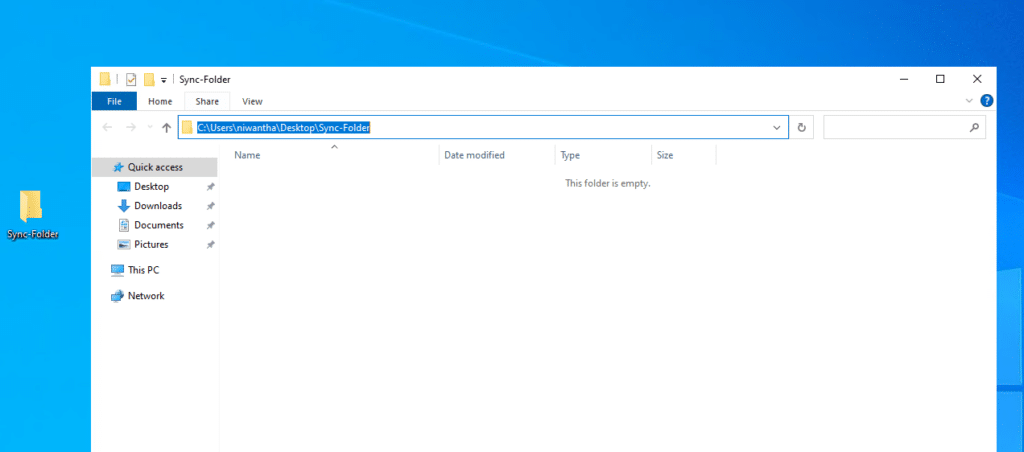
Now Create the Folder On the server and copy the folder location
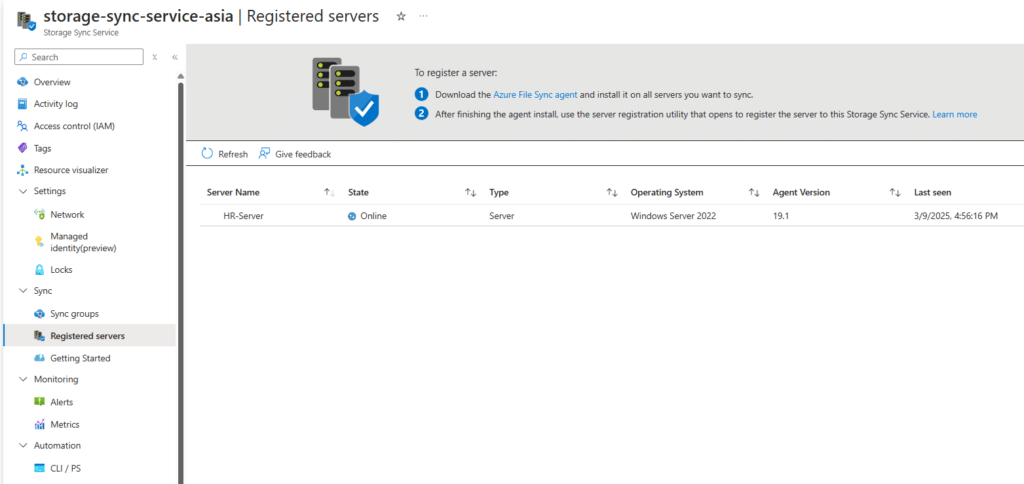
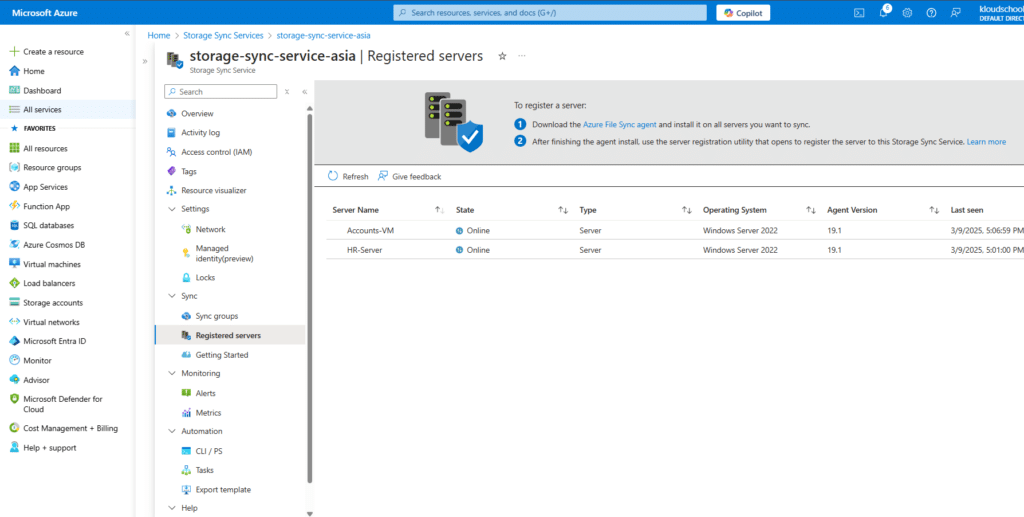
From the portal now we can see our new server is online.
Following the same steps I'm register the second server as well.
All Server are Now Online
Now Going to Sync Group
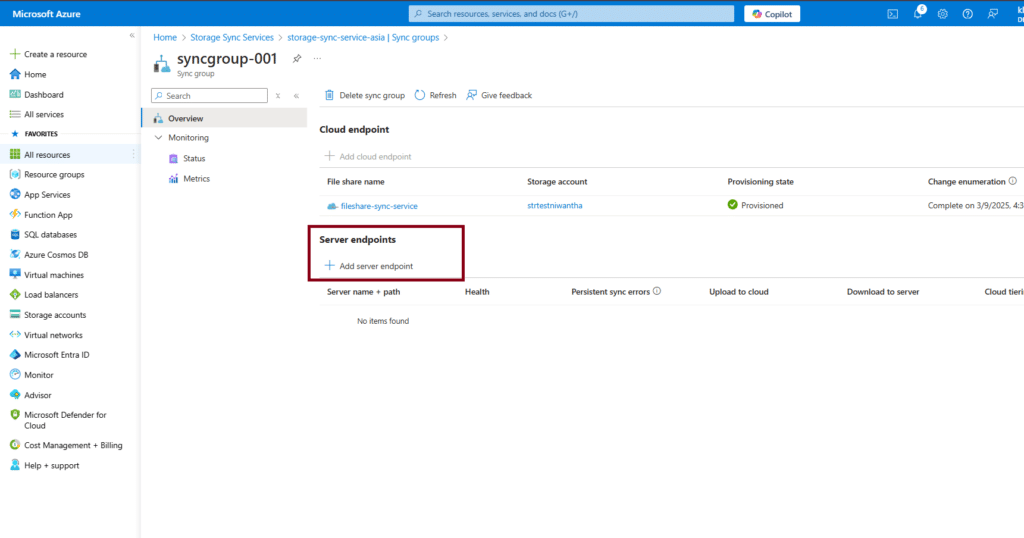
Register the Server Endpoints
Click the server and paste the previously copied each server folder path.
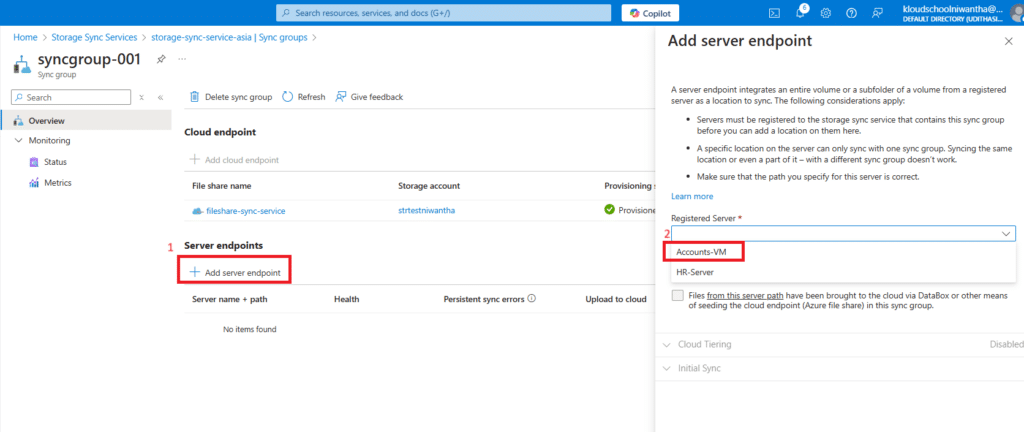
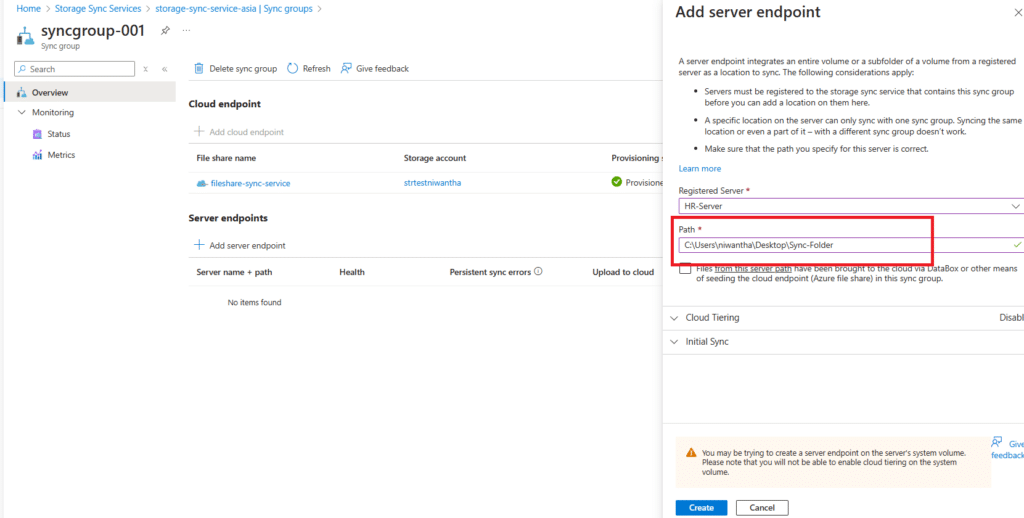
If you 'r need to tiering option in this step you can on it.
Using cloud tiering we can sync on-premise file with azure file share as a HOT/COLD method. You can save High frequently access files on on-premise and other files can sync with azure file share.
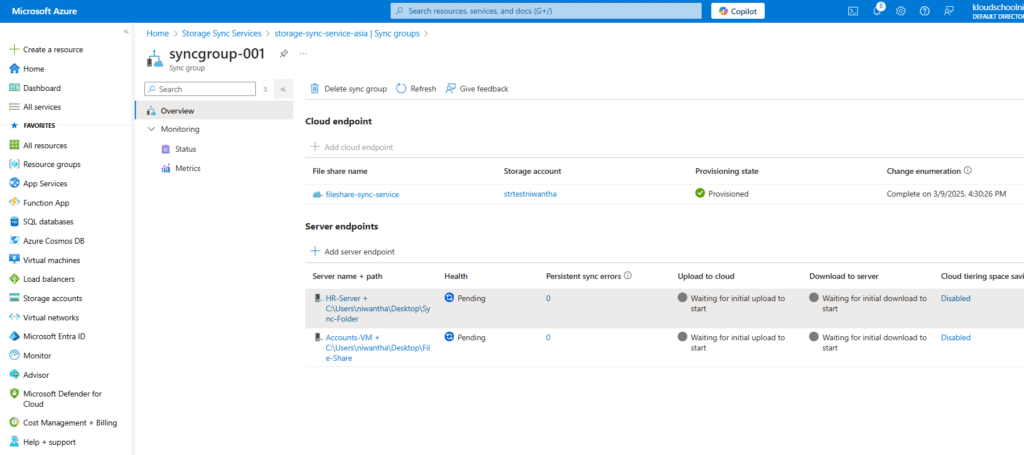
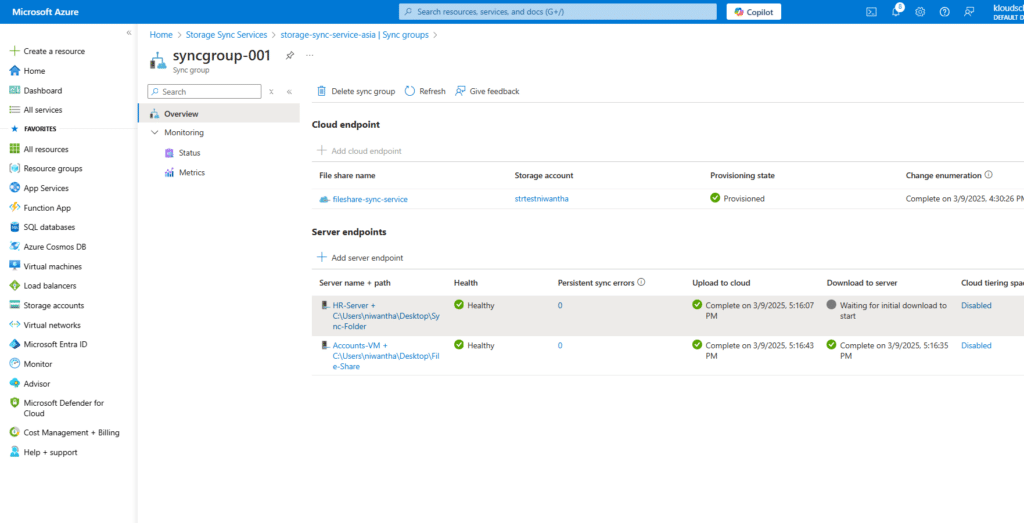
After few time we can see all Server Endpoints state is Healthy.
Test the Environment
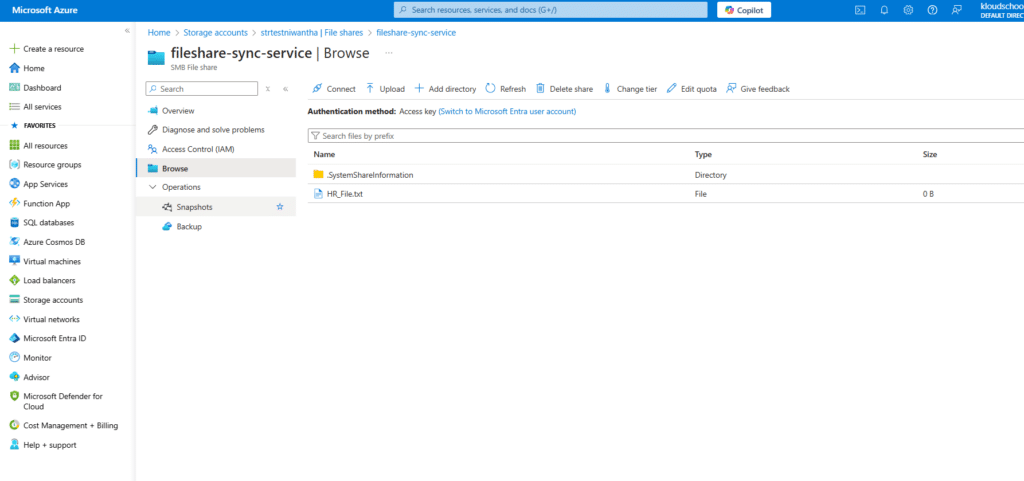
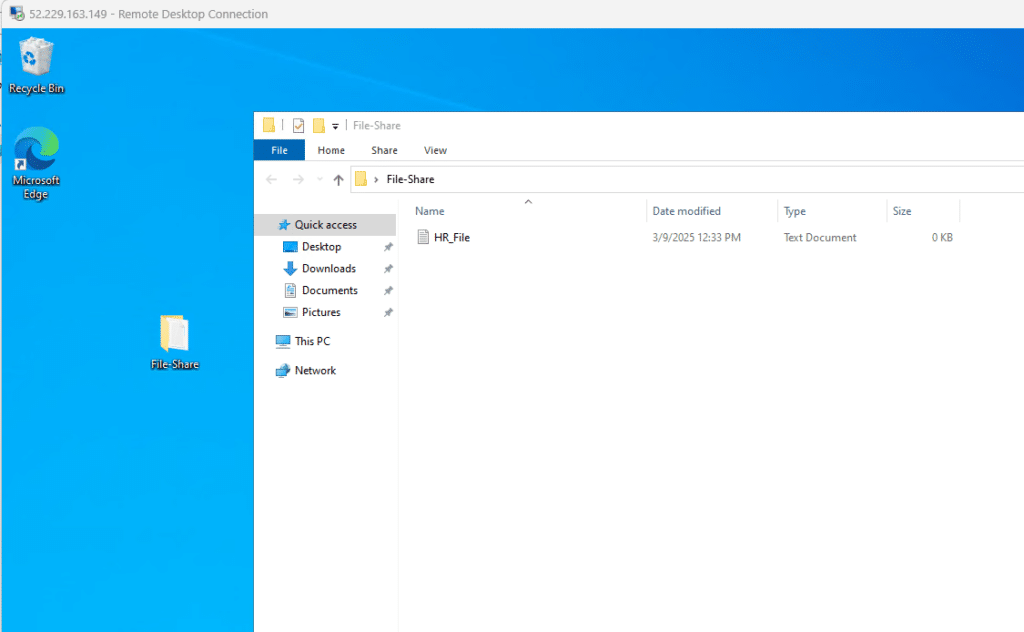
Now, we are creating a test .txt file on the HR-Server.
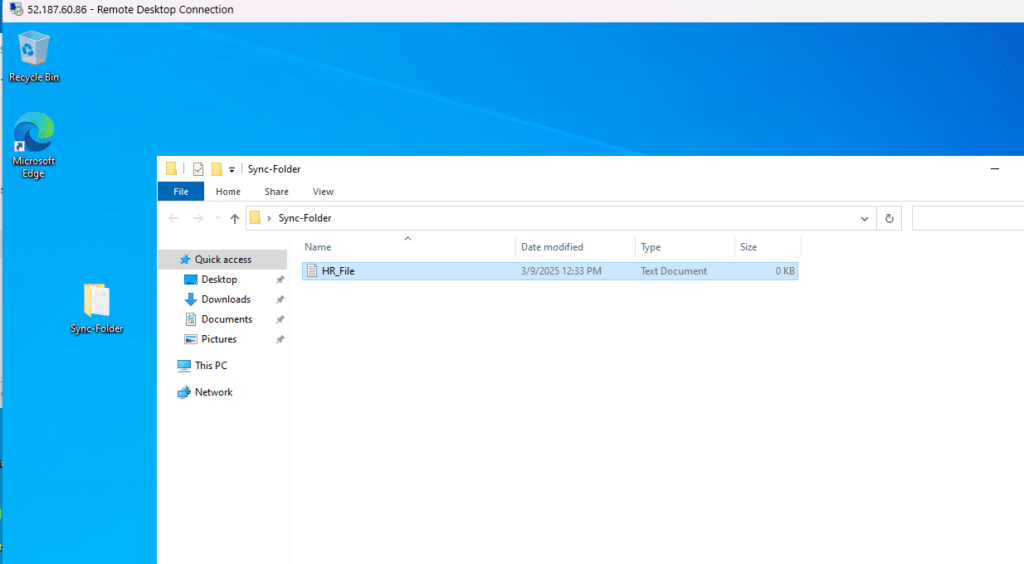
We can now see that file on the file share.
That file also shows our ACCOUNT-SERVER.
Keeping Your Azure File Sync Healthy and Happy
Monitoring and Troubleshooting Like a Pro
Nobody likes surprises in IT. Here's how to monitor Azure File Sync and catch issues before they become problems:
Check the Azure Portal Dashboard Your Storage Sync Service has a built-in monitoring section. Look for:
- Sync activity (files uploaded/downloaded)
- Server online status
- Sync errors (yes, they happen)
PowerShell Commands You'll Actually Use
powershell
# Check sync status
Get-StorageSyncServerEndpoint

# Force a sync cycle (when you're impatient)
Invoke-StorageSyncChangeDetection

# View cloud tiering stats
Get-StorageSyncFileTieringResult
Common Issues and How to Fix Them
"Why Aren't My Files Syncing?"
- Check your network requirements – Azure File Sync needs port 443 open
- Verify the server endpoint path exists and has proper permissions
- Look for file names with special characters that Azure doesn't like
"Cloud Tiering Isn't Working!"
- Make sure you've actually enabled it (I've made this mistake)
- Check if files meet the minimum size requirement (64 KB)
- Verify your volume has enough free space for the tiering process
The Money Talk: Azure File Sync Pricing
Let's address the elephant in the room – costs. Here's the breakdown in plain English:
| Component | What You Pay For | Rough Estimate |
|---|---|---|
| Storage Sync Service | Free (yes, really!) | $0 |
| Azure File Storage | Actual storage used in Azure | ~$0.06 per GB/month |
| Transactions | Read/write operations | ~$0.065 per 10,000 |
| Data Transfer | Egress charges when downloading from Azure | First 5 GB free, then ~$0.087 per GB |
Pro tip: Use cloud tiering aggressively to minimize transaction costs. Those recalled files add up!
Azure File Sync vs. The Competition
You might be wondering, "How does this compare to DFS Replication or other solutions?" Fair question!
Azure File Sync wins when:
- You want cloud integration without complexity
- Disaster recovery is a priority
- You're already invested in the Azure ecosystem
- Storage costs are eating your budget
Consider alternatives when:
- You need real-time bidirectional sync
- Your data must stay 100% on-premises
- You're dealing with non-Windows systems
Best Practices That'll Save Your Sanity
After helping dozens of companies migrate file servers to Azure File Sync, here's what I've learned:
1. Start Small Don't sync your entire file server on day one. Pick a department or project folder and test the waters.
2. Plan Your Namespace Design your sync groups and endpoints thoughtfully. Reorganizing later is painful.
3. Test Your Disaster Recovery Actually practice restoring files. Don't wait for a real emergency to figure out the process.
4. Monitor Bandwidth Usage Cloud tiering recalls can hammer your internet connection. Consider implementing QoS policies.
5. Document Everything Future you (or your replacement) will thank present you for writing down your configuration decisions.
Security Isn't an Afterthought
Let's talk about how Azure File Sync handles file permissions, security, and access control – because nobody wants a data breach on their resume.
Your NTFS permissions travel with your files to Azure. That means your carefully crafted access controls stay intact. Azure File Sync also supports:
- Encryption in transit (TLS 1.2)
- Encryption at rest in Azure
- Integration with Azure Active Directory
- Audit logging for compliance requirements
Making Azure File Sync Work for Multi-Site Deployments
Configuring Azure File Sync for multi-site scenarios requires some planning. Here's your game plan:
- Create separate server endpoints for each location
- Use namespace isolation to prevent conflicts
- Consider bandwidth limitations between sites
- **Plan for latency optimization – users should access local endpoints
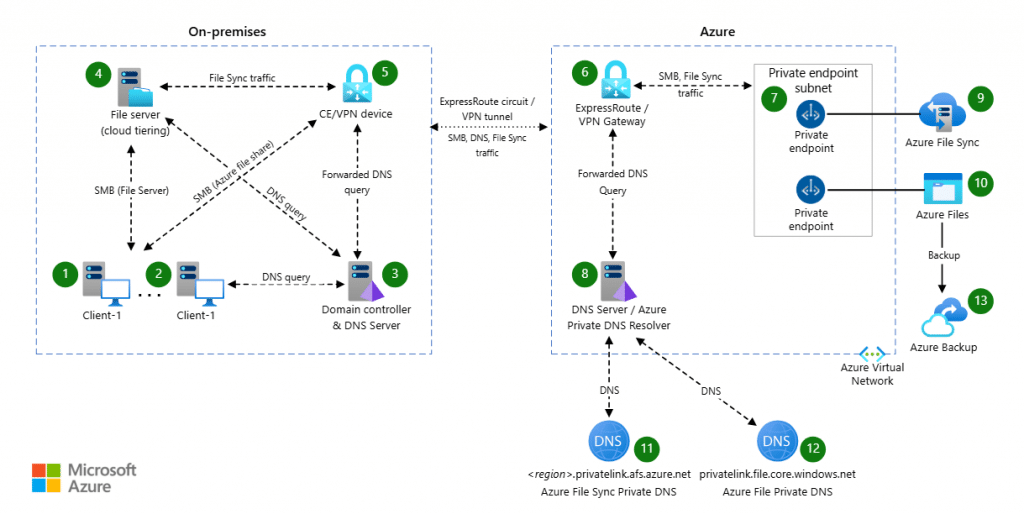
Diagram Source : https://learn.microsoft.com/en-us/azure/architecture/hybrid/azure-files-private
Backup Solutions That Play Nice
Azure File Sync isn't a backup solution (I can't stress this enough). You still need proper backup solutions like:
- Azure Backup for cloud endpoints
- Traditional backup software for server endpoints
- Snapshot schedules in Azure Files
The Bottom Line
Look, I've thrown a lot at you here. But here's what you really need to remember: Azure File Sync is like having a smart assistant for your file servers. It knows what to keep close, what to store away, and how to keep everything in perfect sync.
Is it perfect? No. You'll need supported platforms (sorry Linux fans), and there are limitations on file sizes and special characters. But for most Windows-centric organizations looking to dip their toes into hybrid cloud? It's a game-changer.
Ready to give it a shot? Start with a proof of concept. Pick a non-critical workload, follow the setup guide above, and see how it feels. The cloud isn't as scary as it seems – especially when you've got a bridge like Azure File Sync to help you cross over.
And hey, if you run into trouble, remember those PowerShell commands I shared. They're your best friends for troubleshooting. Or better yet, drop me a line in the comments. I've probably hit the same snag and can point you in the right direction.
Welcome to the hybrid cloud world – your file servers will thank you!





No comments yet. Be the first to share your thoughts!