


Picture this: You're juggling files between your laptop, your colleague's Mac, and that Linux server in the corner. Sound familiar? Yeah, I've been there too. That's exactly where Azure File Share swoops in like your favorite superhero – minus the cape, but with all the power.
What is Azure File Share and How Does It Work?
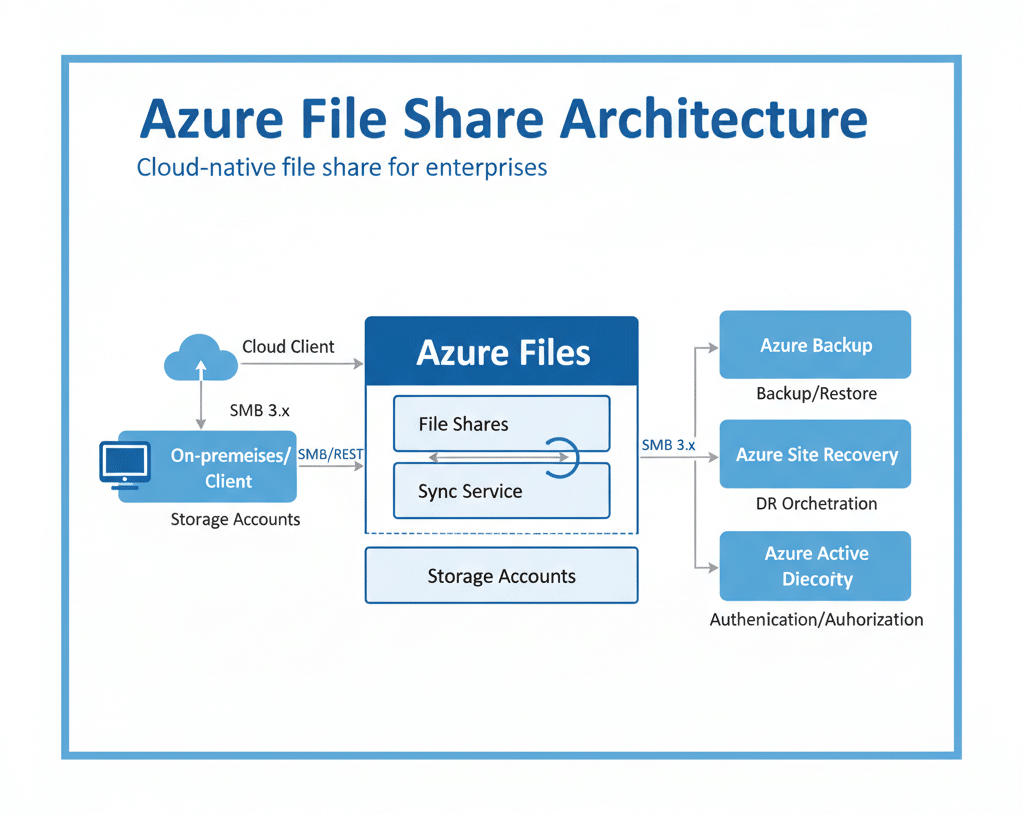
Let me break it down for you. Azure File Share is basically your office file server, but living in Microsoft's cloud instead of that dusty closet down the hall. Think of it as a shared folder that everyone on your team can access, no matter where they are or what computer they're using.
Here's the cool part – it works just like any network drive you've used before. You know that Z: drive at work? Same thing, except this one never crashes, never needs you to call IT at 3 AM, and scales up whenever you need more space.
The magic happens through something called SMB (Server Message Block) protocol – don't worry about the fancy name. It just means your Azure files play nice with Windows, Linux, and macOS without any drama. Pretty neat, right?
Getting Your Azure File Share Up and Running
How to Create Azure File Share (The Easy Way)
Creating an Azure file storage setup isn't rocket science. Here's how I do it: Bottom of this article we included Demo part for this implementation.
- Jump into the Azure portal – it's that blue website where all the magic happens
- Create a storage account – think of it as your filing cabinet in the cloud
- Add a file share – this is your actual shared folder
- Set your size – start small, you can always grow later
- Pick your performance tier – standard for most stuff, premium if you're feeling fancy
Want a pro tip? Start with the standard tier. You can always upgrade later if you need Ferrari-level speeds.
Mounting Your Share: Windows, Linux, and macOS
The Windows Way
Remember when I said it's easy? On Windows, it's literally:
- Open File Explorer
- Right-click "This PC"
- Choose "Map network drive"
- Paste in your Azure file share mount path
- Done!
Linux Adventures
For you Linux folks (I see you there with your terminal open), here's the deal. You'll use the good old mount command with CIFS. Something like:
sudo mount -t cifs //youraccount.file.core.windows.net/yourshare /mnt/azure
Yeah, you'll need to mount Azure file share Linux style with credentials, but once it's set up, it's smooth sailing.
Let's Talk Money: Azure File Share Pricing
Okay, the part everyone cares about – what's this going to cost me? The Azure file share pricing calculator is your best friend here, but let me give you the basics:
| Storage Type | Best For | Price Range |
|---|---|---|
| Standard | Regular files, backups | $ - Cheapest option |
| Premium | Databases, busy apps | $$$ - Faster but pricier |
| Transaction Optimized | Lots of small operations | $$ - Middle ground |
You pay for:
- Storage space (per GB)
- Transactions (reading/writing files)
- Data transfer (if moving between regions)
Here's my advice: start standard, monitor your usage, then adjust. I've saved companies thousands by right-sizing their shares.
Keeping Things Secure: Permissions and Access Control
Azure File Share Permissions Best Practices
Security isn't optional, folks. Here's how Azure file share permissions best practices actually work in the real world:
The Three Layers of Protection:
- Share-level permissions – Who can even see this share?
- NTFS permissions – What can they do once they're in?
- Azure RBAC – Who manages the whole thing?
Want to integrate Azure file share with Active Directory? Smart move! It means your existing user accounts just work. No new passwords to remember, no angry emails from Karen in accounting.
How Is Data Secured and Encrypted?
Your data gets the VIP treatment:
- Encryption at rest – Your files are scrambled when stored
- Encryption in transit – They're protected while traveling
- Private endpoints – For when you want that extra privacy
Setting up an Azure file share private endpoint keeps your data off the public internet entirely. It's like having a private tunnel between your office and Azure.
The Technical Stuff You Actually Need to Know
What Protocols Are Supported?
Azure SMB file share uses SMB 3.0 by default (the good, secure version). But here's where it gets interesting – Azure also supports NFS for you Linux lovers. Choose based on your needs:
- SMB: Windows-friendly, works everywhere
- NFS: Linux-native, great for specific workloads
Maximum Storage Size Limits
How big can you go?
- Standard shares: Up to 100 TiB (that's huge!)
- Premium shares: Up to 100 TiB too, but faster
I mean, if you're hitting those limits, you're probably Netflix or something.
Backup and Disaster Recovery: Because Things Happen
How to Back Up and Restore Files
Azure file share backup and restore isn't just important – it's essential. Here's your game plan:
- Azure Backup integration – Set it and forget it
- Snapshots – Quick point-in-time copies
- Geo-redundancy – Your files in multiple locations
The best part? Snapshots are practically instant. Accidentally deleted that important presentation? Restore it in seconds. You're welcome.
Azure File Share Disaster Recovery
Planning for Azure file share disaster recovery doesn't have to be scary. Think of it like insurance:
- Keep copies in different regions
- Test your restore process (seriously, do this)
- Document everything
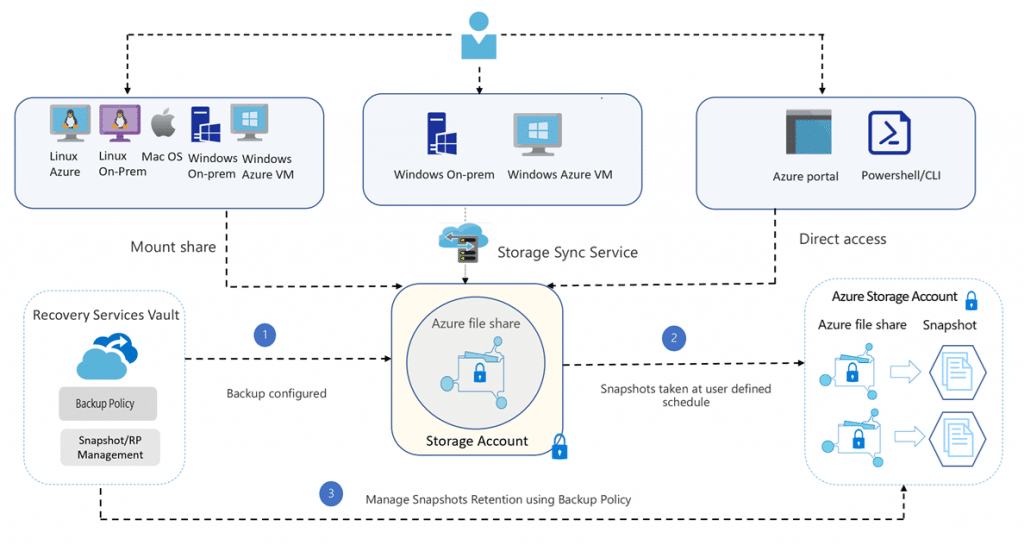
Diagram source : https://learn.microsoft.com/en-us/azure/backup/azure-file-share-backup-overview?tabs=snapshot
Azure File Share vs. The Competition
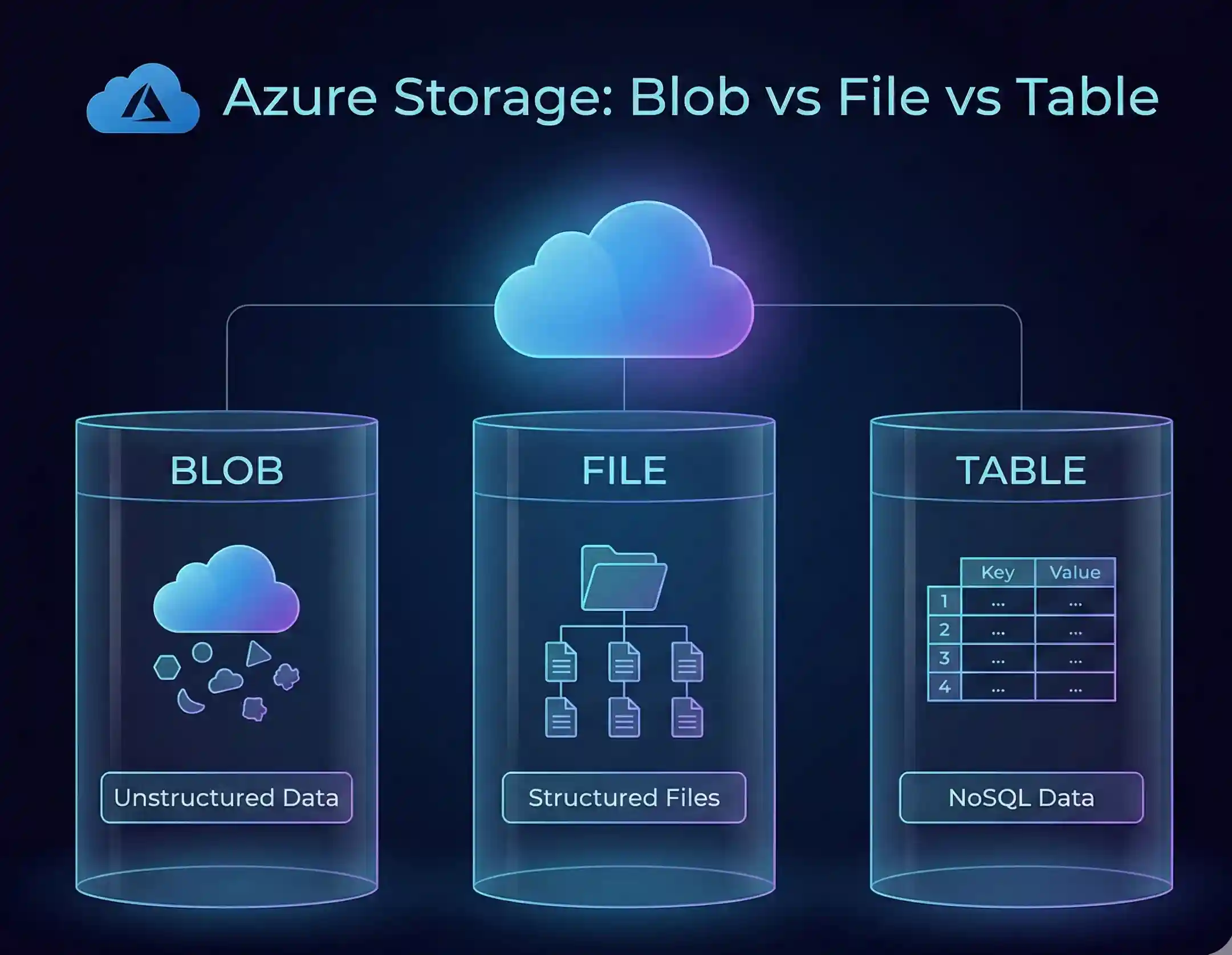
What's the Difference Between Azure File Share and Blob Storage?
Ah, the classic question! Azure file share vs blob storage – let me settle this once and for all:
| Feature | Azure File Share | Blob Storage |
|---|---|---|
| Use Case | Shared folders, lift-and-shift | Web content, backups |
| Access Method | SMB/NFS mount | REST API, HTTP |
| File System | Yes, real folders! | Nope, just objects |
| Best For | Apps that need a file system | Storing massive amounts of unstructured data |
Think of File Share as your shared network drive and Blob as your infinite storage bucket. Different tools for different jobs.
Supercharging with Azure File Sync
How Azure File Sync Changes Everything
Here's where things get really interesting. Azure File Sync is like having your cake and eating it too:
- Keep frequently used files local (fast!)
- Store everything in the cloud (safe!)
- Sync across multiple locations (convenient!)
I've seen companies cut their on-premise storage needs by 80% with this. No joke.
Performance Tuning: Making It Fly
Azure File Share Performance Tuning Tips
Want to make your Azure file share performance tuning actually work? Here's what I've learned:
The Quick Wins:
- Use premium tier for database files
- Enable large file shares (up to 100 TiB)
- Place your share close to your users (geography matters)
- Monitor your metrics (boring but crucial)
The Advanced Moves:
- Optimize your file sizes
- Batch your operations
- Use parallel connections
Real-World Success Stories
Let me tell you about this startup I worked with. They were drowning in external hard drives and email attachments. We set up Azure File Share, and suddenly their designers in New York could collaborate with developers in Austin like they were in the same room. File conflicts? Gone. Version confusion? History.
The best part? Their IT guy actually got to take a vacation.
Creating an Azure File Share
Setting Up an Azure Storage Account:
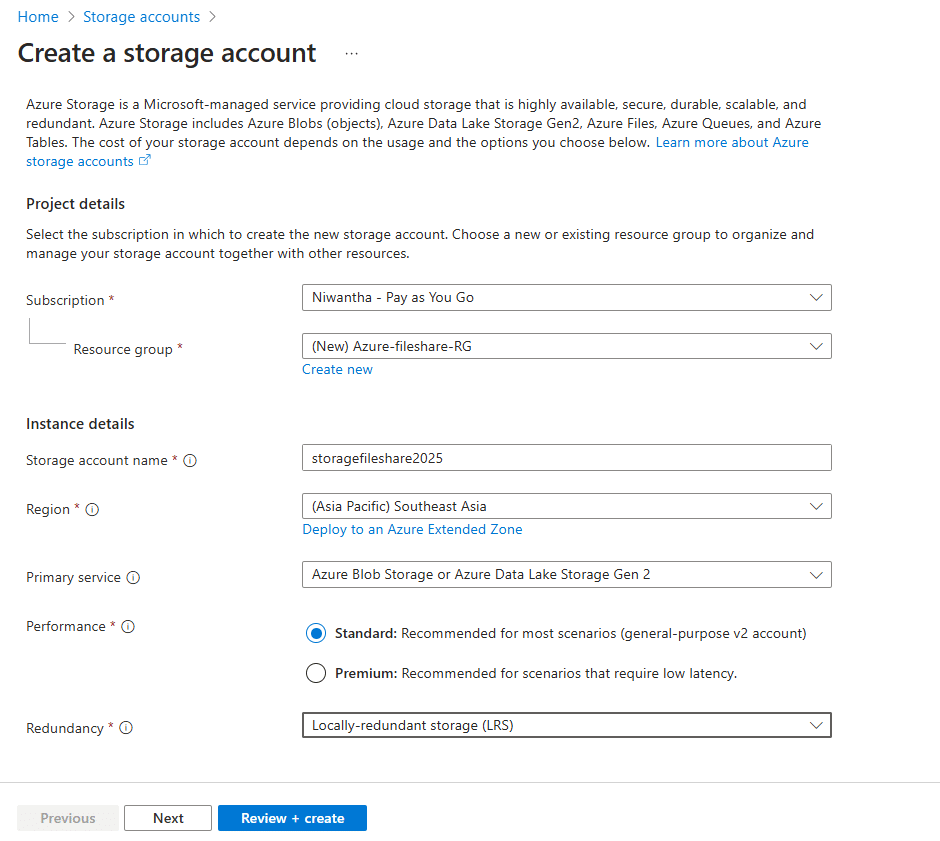
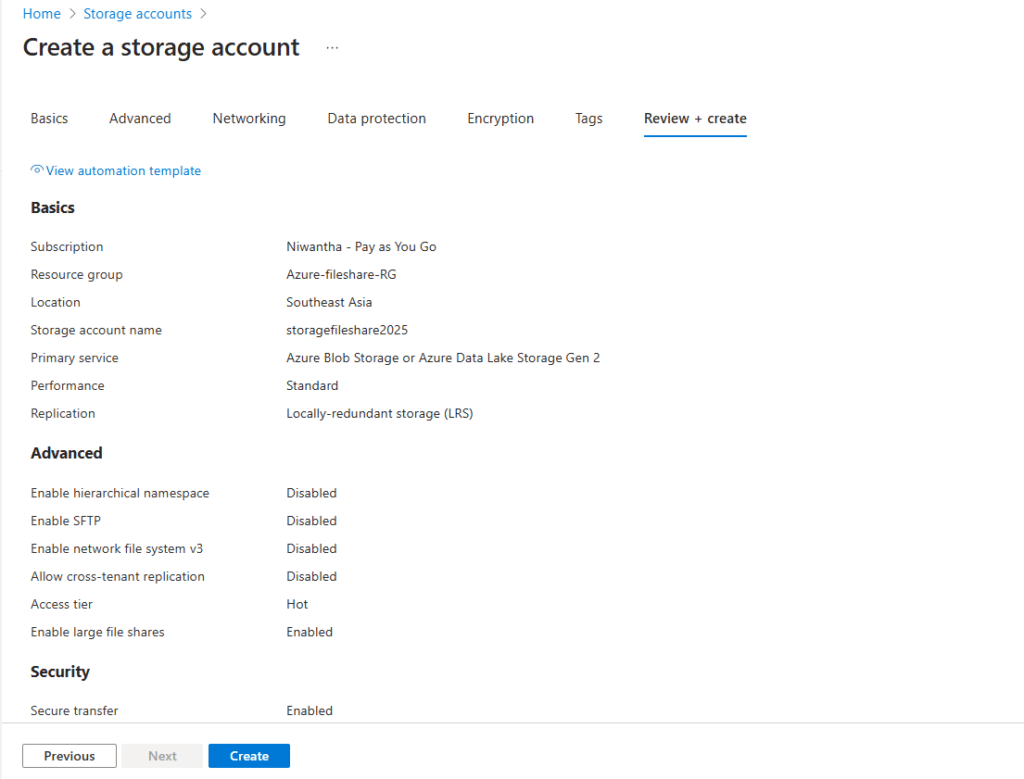
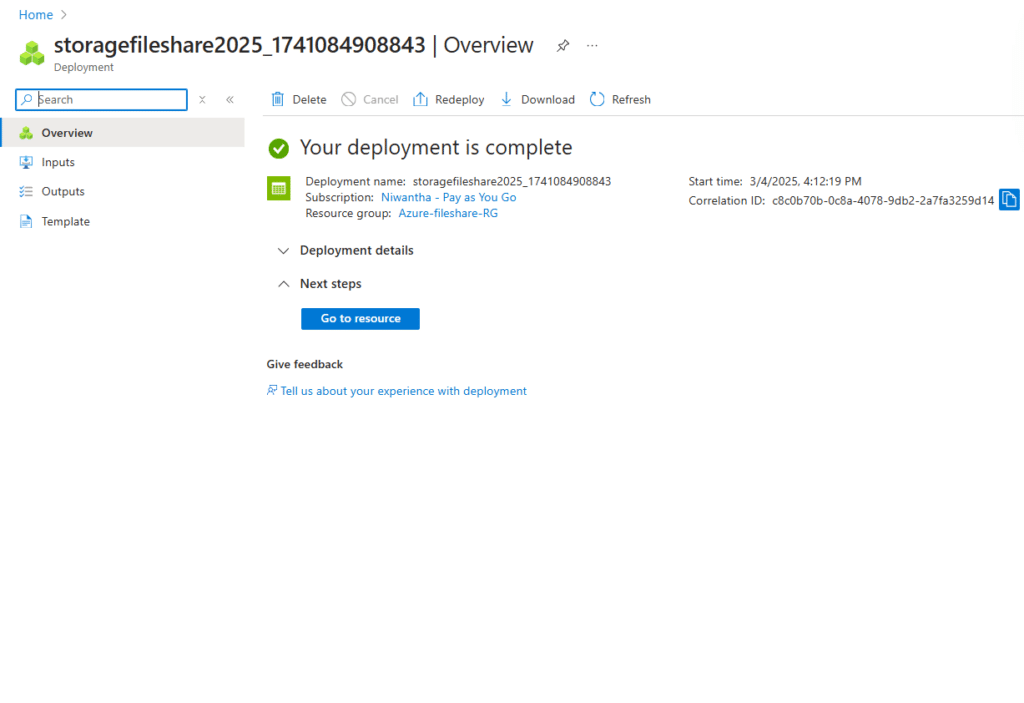
Creating the File Share:
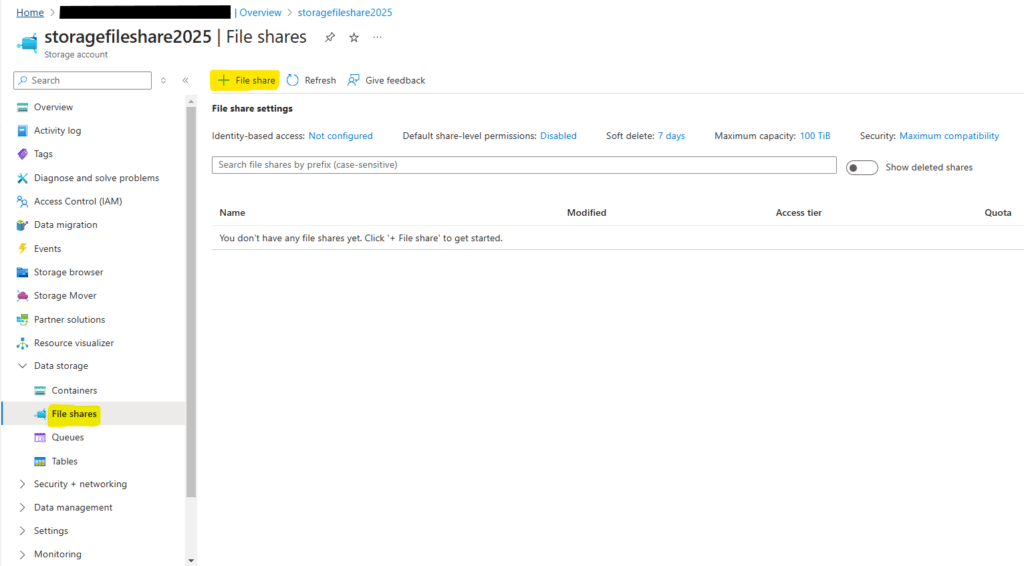
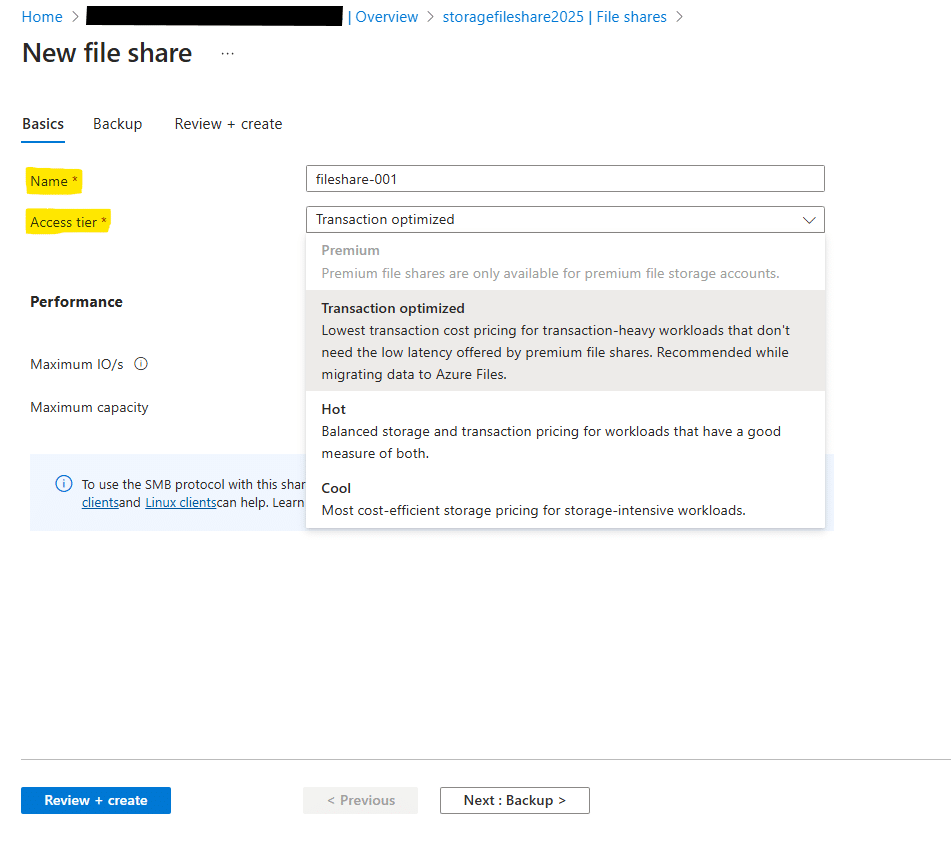
In this page we have to give Name for the File share (not valid capitalized letters).
In Access tier section we can define our file share requirement. Ex: if we are high actively used this file share we can continue with Transaction optimized option.
Note : After the creating this File Share also we can change this tier.
If we need to configure backup , We can do it 2nd step or after the creating this File Share , we can do this.
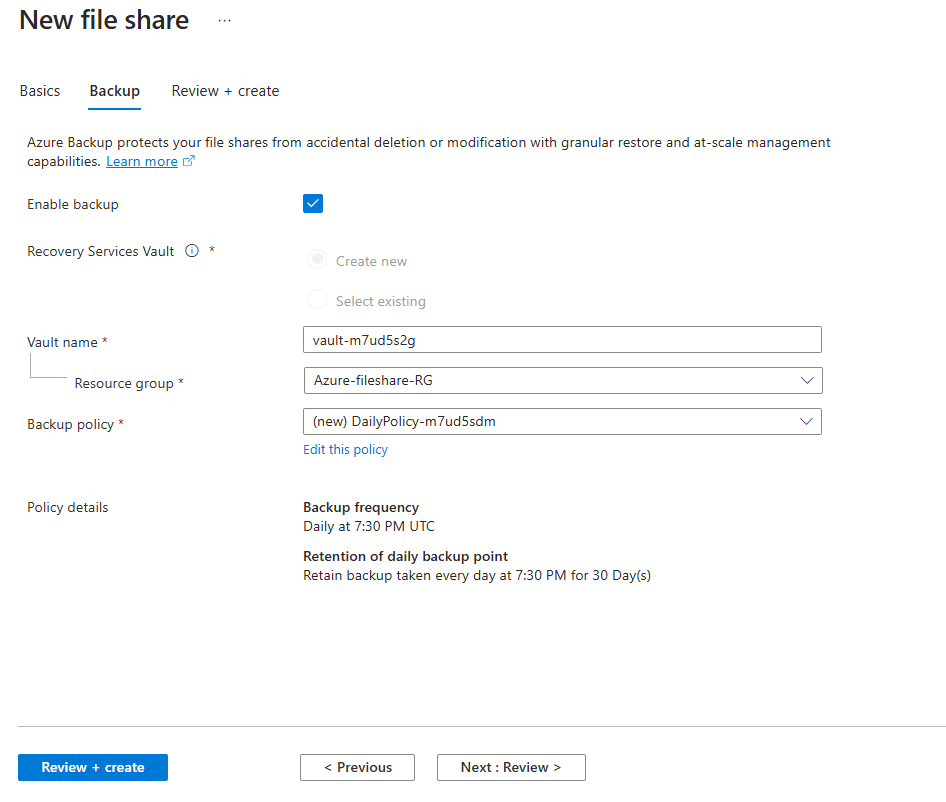
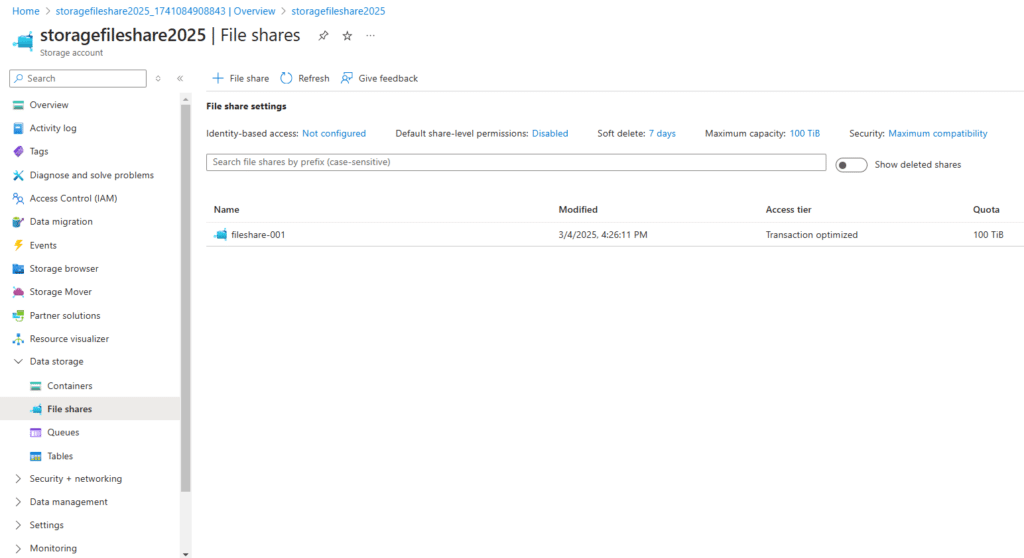
After clicking Review and create , we can see our new file share on the storage account.
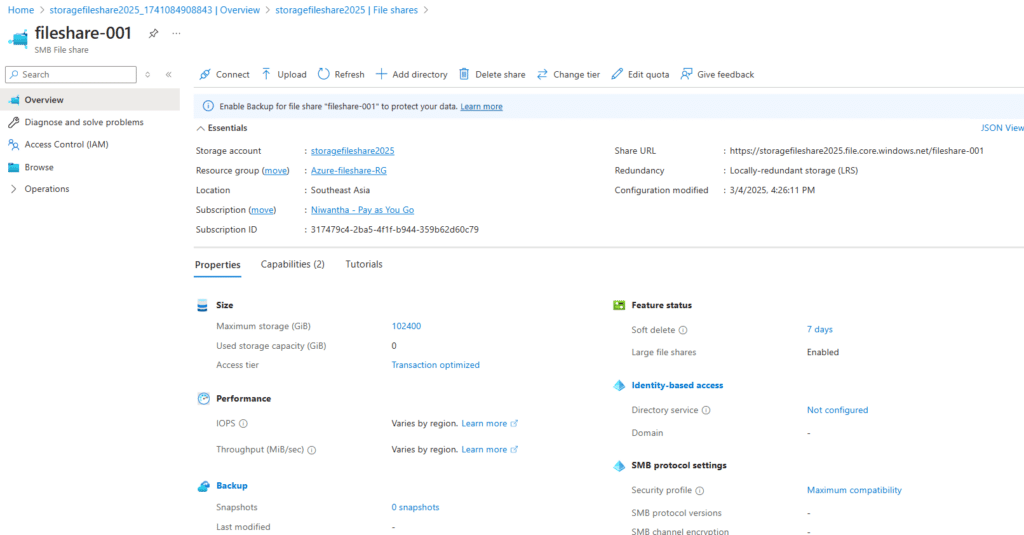
Going to the inside of the our new file share , we can see many options.
Change Tire : This option we can change our File share access tier
Upload: In here we can upload local file's to the file share
Add Directory: In here we can create new directories (Folders).
Edit quota: In here we can upgrade or downgrade our file share capacities.
Connect :
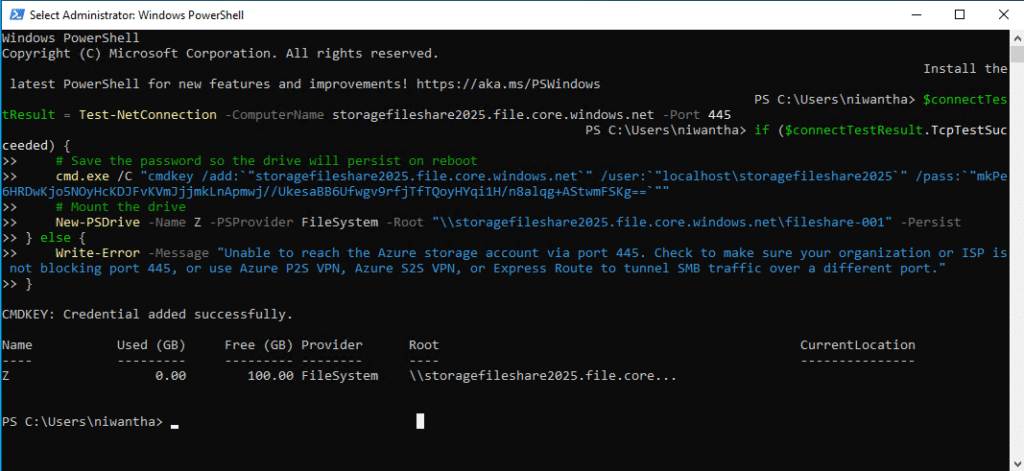
After clicking the Connect button, we can get the script for our on-prem PC or server that needs to attach to the file share.
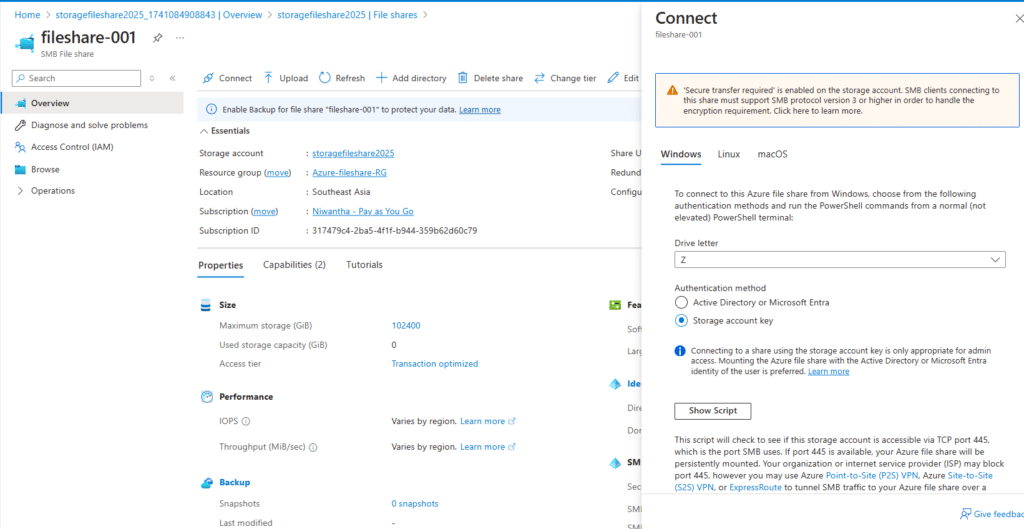
If you are going with windows, you can select authentication method and then can generate script. Sample Script below.
Note: Before attaching the file share, you must verify whether port 445 is open on both your PC or server firewall and your organization's firewall. If not, open the port in the firewall before connecting to the file share.
$connectTestResult = Test-NetConnection -ComputerName storagefileshare2025.file.core.windows.net -Port 445
if ($connectTestResult.TcpTestSucceeded) {
# Save the password so the drive will persist on reboot
cmd.exe /C "cmdkey /add:"storagefileshare2025.file.core.windows.net" /user:"localhost\storagefileshare2025" /pass:"mkPe6HRDwKjo5NOyHcKDJFvKVmJjjmkLnApmwj//UkesaBB6Ufwgv9rfjTfTQoyHYqi1H/n8alqg+AStwmFSKg==""
# Mount the drive
New-PSDrive -Name Z -PSProvider FileSystem -Root "\storagefileshare2025.file.core.windows.net\fileshare-001" -Persist
} else {
Write-Error -Message "Unable to reach the Azure storage account via port 445. Check to make sure your organization or ISP is not blocking port 445, or use Azure P2S VPN, Azure S2S VPN, or Express Route to tunnel SMB traffic over a different port."
}
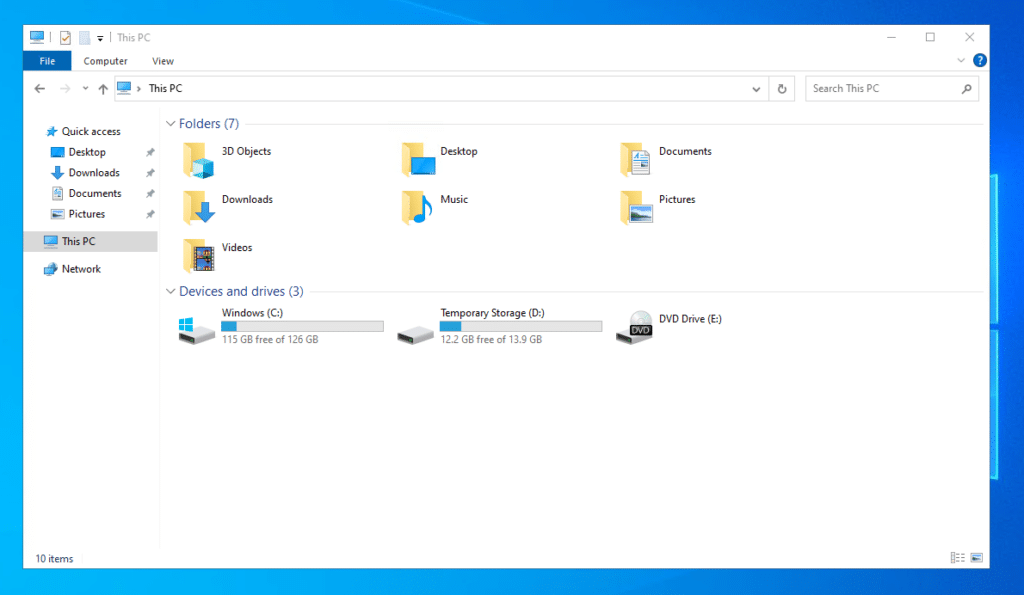
Currently we haven't any file share attached.
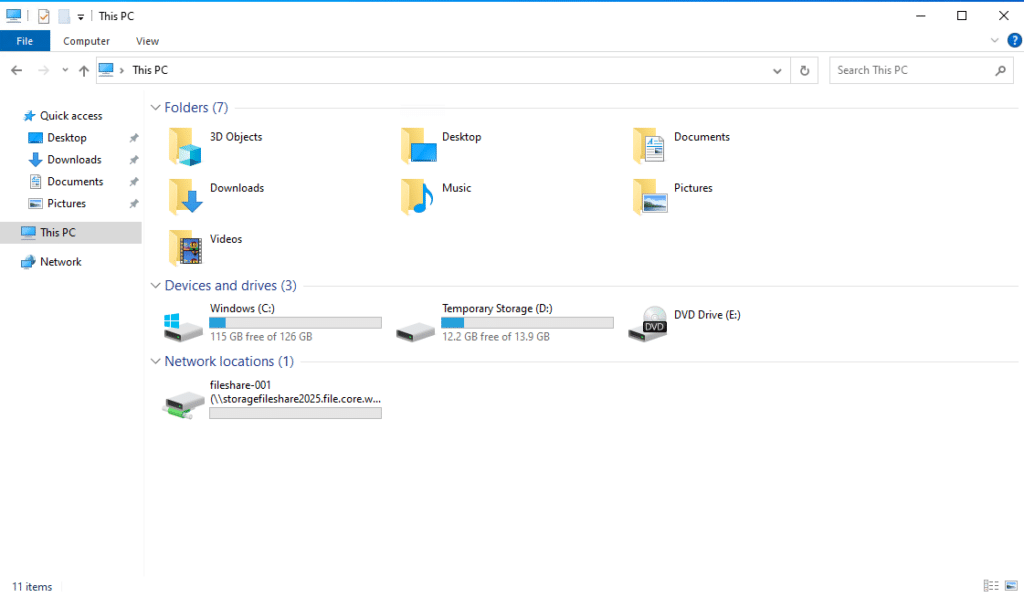
After the run above script we can see our file share is attach successfully.
Now testing File Share
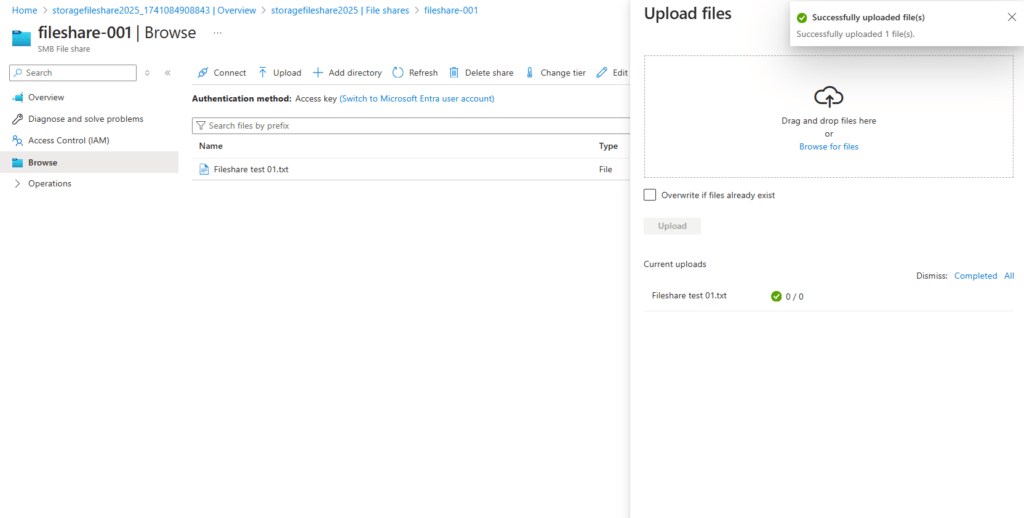
We have upload small text file to Azure File Share.
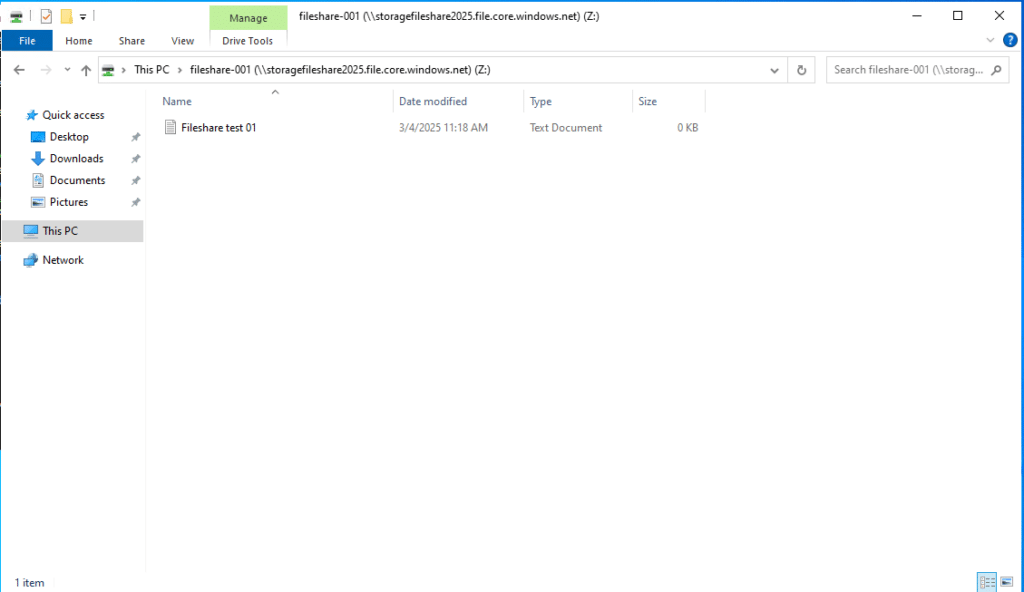
After couple of second we can see that file showing on Server.
Wrapping It Up: Your Next Steps
Look, Azure File Share isn't just another cloud storage option – it's the solution that actually works the way you do. Whether you're mounting it on Windows, wrestling with Linux permissions, or trying to figure out pricing, remember this: start simple, scale smart.
Here's what you should do right now:
- Try the free tier – Seriously, it's free to start
- Create a test share – Play around, break things
- Move one small project – Start with something non-critical
- Scale from there – Rome wasn't built in a day
Got questions? The Azure community is surprisingly helpful. And hey, if you've made it this far, you're already ahead of 90% of people trying to figure this out.
Remember, every expert was once a beginner who just kept clicking buttons until something worked. So go ahead, give Azure File Share a shot. Your future self (and your team) will thank you.
Ready to revolutionize your file storage? Start your Azure File Share journey today – your files will thank you, and so will your IT team.





No comments yet. Be the first to share your thoughts!