


Hey there! So, you’ve built a cool web app. Nice. Now you want to get it on the internet so the world can see it. You keep hearing "just put it in the cloud," and everyone in your tech circles in the world seems to be talking about Azure. But when you log in, you’re hit with words like "App Service," "VMs," "containers," and "plans."
It can feel a bit much. I get it.
When I was starting out, I just wanted to upload my code and see it work. The "Azure App Service" is the "easy button" for this. But the real secret, the part you actually need to understand, is the Azure App Service Plan.
Think of it this way:
- The App Service is your app (your code, your website).
- The App Service Plan is the house your app lives in.
You're not just buying a website; you're renting a house (or a room, or a whole mansion) on Microsoft's massive computer farm. This "house" comes with all the things your app needs to run: computer power (CPU), memory (RAM), and storage (disk space).
In this guide, I'm going to walk you through exactly what this is, how to create one step-by-step, and how to pick the right "house" for your app without wasting money.
First, What Exactly is an Azure App Service Plan?
Like I said, it’s the house. Officially, it's the set of compute resources your web app runs on. When you create an App Service Plan, you are basically reserving a virtual machine (or a piece of one) in a specific Azure region (like 'East US' or 'Canada Central').
The best part? You can put more than one app inside the same plan.
This is a game-changer for students and young devs. Think about it. Why rent a whole house for yourself if you’ve got friends?
- The Pro: You can host your blog, your portfolio site, and that university project all in one App Service Plan and only pay once. This is the ultimate cost-saving trick.
- The Con: If one of your apps (one "roommate") gets super popular or has a bug, it might use all the CPU and memory, slowing everyone else down. It’s the "noisy roommate" problem.
For your first few projects, multi-app hosting in one plan is the smart way to go. You can always move them to their own "house" later when they grow up.
How-To: Create Your First Azure App Service Plan (Step-by-Step)
Alright, let's get our hands dirty. This is the "how-to" part. It’s actually really easy, and you do it at the same time you create your web app.
Step 1: Log in to the Azure Portal
This one's easy. Go to portal.azure.com and log in with your account.

Step 2: Click "Create a resource"
It's usually in the top-left corner. In the search bar, type "Web App" and select the "Web App" service from Microsoft. Click "Create."

Step 3: Fill in the "Basics" Tab
This page asks for the first details about your app.

- Subscription: Choose your subscription (e.g., "Free Trial" or "Pay-As-You-Go").
- Resource Group: Think of this as a folder. You can create a new one, like "MyBlog-RG".
- Name: This will be your app's public URL. It has to be unique, so something like
chathushkas-cool-blog.azurewebsites.netis what you're aiming for. - Publish: Are you deploying code or a Docker Container? Let's stick with "Code" for this example.
- Runtime stack: Choose your app's language (e.g., .NET, Node.js, Python).
- Operating System: You have two choices: Linux or Windows. My advice? If your app is .NET (not .NET Core), you need Windows. For almost everything else (Node, Python, .NET Core), Linux is cheaper, faster to start, and generally the modern choice.

Step 4: The Important Part - The App Service Plan
Scroll down on that same "Basics" tab. You'll see a section called App Service Plan.

This is it! This is the "house" we’re creating.
You will probably see an existing plan selected or a default new one. We want to create our own to see the options.
- Click on "Create new" right under the plan name.
- A small box will pop up. Give your plan a name, like "My-First-Plan".
Step 5: Choose Your Plan Size (SKU and size)
Right below the plan name, you'll see a link for "SKU and size." It might say something like "Premium V2 (P1v2)". Click on this.
This is where you choose the size of your house. You'll be taken to a new screen called "Spec Picker." This is where everyone gets confused.
Don't panic. I'll break it down in the next section. For now, just know that this is where you pick your tier. For a simple first project, the "Basic B1" or "Standard S1" is a great starting point.
Select a plan, click "Apply," and then "Review + create" on the main page. Azure will build your "house" (the plan) and put your "app" (the Web App) inside it.
That's it! You've made an App Service Plan.

Choosing Your Tier: A Guide to the App Service Plan Menu
Okay, so you saw that "Spec Picker" screen and it looked... expensive and confusing. Let's demystify it.
You can group the plans into three main categories:
- Hobby/Test (Free & Shared): This is for playing around.
- Production (Basic, Standard, Premium): This is for real apps.
- Super-Secure (Isolated): This is for banks and big companies.
Here’s a simple table to help you choose.
| Plan Tier | Good For... | Key Features | Custom Domain? |
| Free (F1) | Learning, hobbies, tiny experiments. | Runs on shared computers with other people. Very limited power. | No |
| Shared (D1) | Learning, hobbies. | A tiny step above Free. Still on shared computers. | Yes |
| Basic (B1, B2, B3) | Best starting point for real apps. Dev/Test environments. Simple production apps. | Your first dedicated machine. No "noisy neighbors." | Yes |
| Standard (S1, S2, S3) | The workhorse for most production apps. | Autoscaling! (More on this later). Staging Slots (a must-have for safe deployments). | Yes |
| Premium (P1V3, P2V3) | High-traffic websites, business-critical apps. | More power, faster storage, VNet integration, more staging slots. | Yes |
| Isolated (I1, I2, I3) | Maximum security & performance. Banks, finance, government. | Your own private network and "house." This is part of an App Service Environment (ASE). | Yes |
My personal advice?
- Use the Free (F1) tier to just play around. It costs nothing.
- The moment you want to run a "real" project for a class or your portfolio, use Basic (B1). It's the cheapest dedicated tier.
- The moment your app is for a real customer or you expect real traffic, start with Standard (S1). The features are worth it.
Let's Talk Scaling: Growing Your App Without the Headaches
So your app is live on a "Basic" plan. Suddenly, your project goes viral. It's on Hacker News, everyone in your university is using it, and... it's... so... slow.
You need a bigger house. This is called scaling, and it's where App Service Plans shine. You have two simple options:
- Scale Up (Vertical Scaling):
- What it is: You buy a bigger house.
- How you do it: You go from a "B1" plan to a "B2" or an "S1" plan. You get more CPU and more memory instantly.
- The Catch: It's like moving furniture. Your app has to restart, which means a few seconds of downtime.
- Scale Out (Horizontal Scaling):
- What it is: You build identical copies of your house.
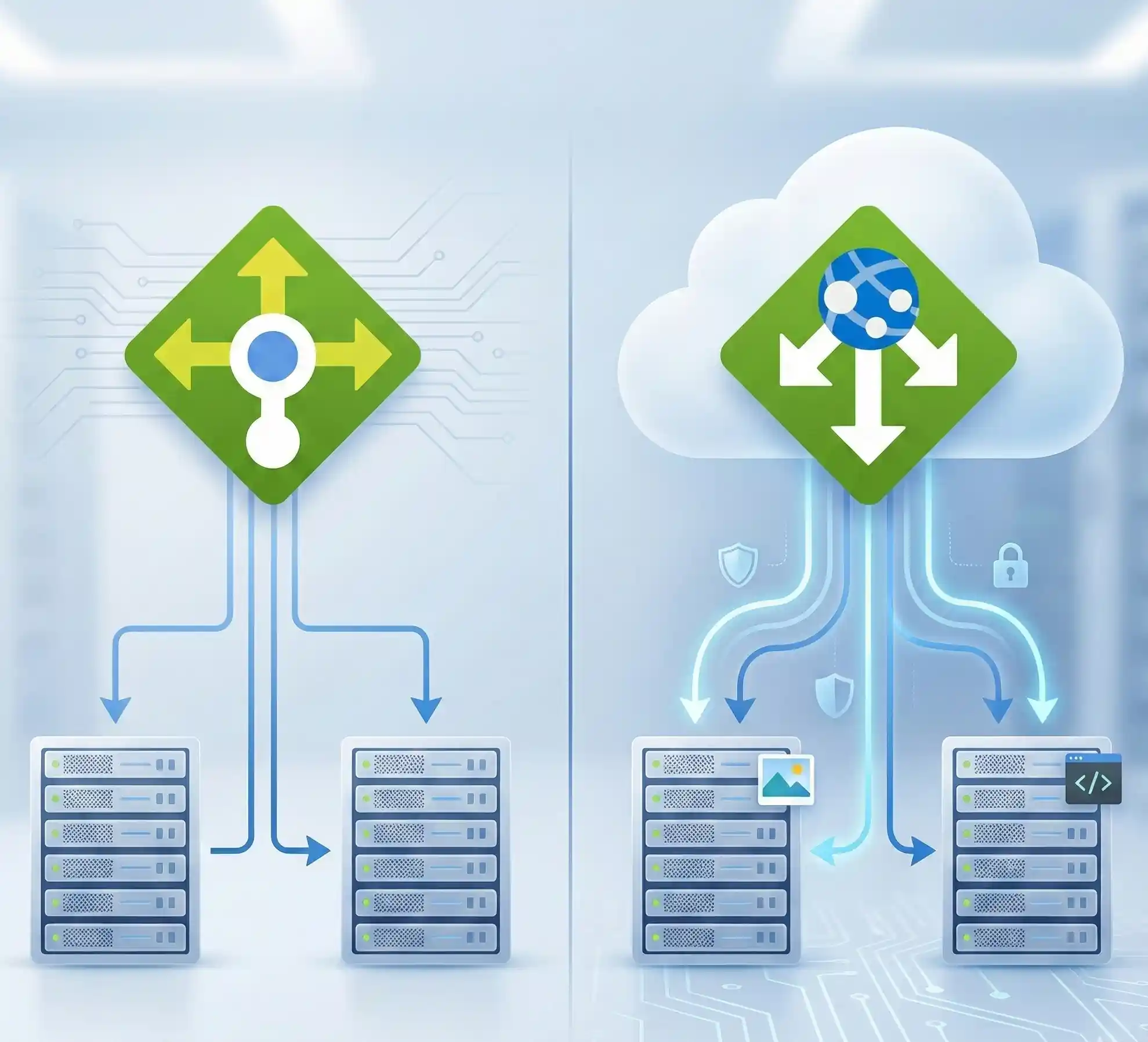
- How you do it: Instead of one "S1" machine, you tell Azure, "Give me three S1 machines." A "load balancer" (a traffic cop) magically appears and spreads the visitors out between them.
- The Catch: This only works on Standard tier and up. But it's amazing.
The coolest feature, and the main reason to use the Standard tier, is Autoscaling.
You can set a rule. A real rule, in plain English. Like this:
"Hey Azure, watch my app. If the CPU usage is over 70% for more than 5 minutes, 'Scale Out' and add another machine. When the traffic dies down, scale back in so I stop paying for it."
This is magic. It’s how you handle sudden traffic spikes without waking up in the middle of the night. It's also a great way to optimize costs—you only pay for the power you're actually using.
The Rest of Your Questions (The Rapid-Fire Round)
I know you still have questions. These are the ones I get all the time.
- How is pricing calculated? Simple. You pay for the App Service Plan, not the number of apps. You pay for the "house," remember? An S1 plan costs the same whether you have 1 app or 10 apps in it. You're billed per hour for the plan you've reserved.
- How do I monitor my plan's health? In the Azure portal, go to your App Service Plan. There's a "Metrics" blade. You can see easy-to-read charts for CPU, memory, and network traffic. You can even set up alerts to email you if the CPU gets too high.
- How do I move an app to a different plan? It's super easy. Go to the app (not the plan) in the portal. Find "Change App Service Plan" in the menu. You can move your "noisy roommate" app to its own "house" in about 30 seconds with (usually) no downtime.
- What about Docker and CI/CD? Yes and yes. You can deploy Docker containers directly to an App Service Plan (choose "Docker Container" in Step 3 instead of "Code"). And this whole thing is built for CI/CD pipelines. Your GitHub Actions or Azure DevOps pipeline just points to your "Web App" as the deployment target. It's seamless.
My Final Advice & Takeaway
Look, I've seen a lot of students and young developers waste money on a "Premium P3V3" plan for a blog that gets 10 visitors a day. I've also seen people try to run a serious e-commerce site on the "Free" tier and wonder why it crashes.
The App Service Plan is the foundation.
My honest, personal tip? Start with a Basic B1 plan. It's the perfect balance of cost and power. When your app is ready for the world, move it to a Standard S1 plan in one click. That's it. That's the secret.
Choosing the right plan is the first step to building a fast, reliable, and cost-efficient application on Azure. You've got this.
Want to Get Certified?

If you enjoyed this and want to prove your Azure skills, I highly recommend looking at the official Microsoft certifications. These are a huge boost for your resume.
- AZ-900: Microsoft Azure Fundamentals: Start here. This is the "what is the cloud" exam.
- AZ-104: Microsoft Azure Administrator: This proves you can manage Azure resources, including App Service Plans, day-to-day.
- AZ-204: Azure Developer Associate: This is for the coders. It shows you know how to build and deploy apps to services like this one.
What's your go-to plan for new projects? Got a scaling story or a cost-saving tip you want to share? Drop a comment below! I'd love to hear it.


No comments yet. Be the first to share your thoughts!