

Introduction: Why Linux is Your Next Big Adventure
Picture this: You're scrolling through tech forums, and everyone's raving about Linux. Your developer friend won't shut up about it. Even your grandma's asking if she should switch from Windows. But here you are, wondering, "What's all this Linux fuss about?"
Well, my friend, you've just stumbled upon the most exciting rabbit hole in tech. I remember when I first dipped my toes into Linux – felt like I was Neo seeing the Matrix code for the first time. Overwhelming? Sure. Worth it? Absolutely!
Here's the thing – learning Linux isn't just about joining the cool kids' club (though that's a nice perk). It's about taking control of your computer, understanding how things really work under the hood, and opening doors to career opportunities you didn't even know existed.
What is Linux and How Does It Work?
Okay, let's break this down like we're chatting over coffee. Linux is basically the rebel cousin of Windows and macOS. It's an operating system – you know, the software that makes your computer actually do stuff instead of being an expensive paperweight.
But here's where it gets interesting. Unlike Windows (made by Microsoft) or macOS (Apple's baby), Linux is open-source. What does that mean? Imagine if KFC shared their secret recipe and said, "Here, make it better if you can!" That's Linux. Thousands of developers worldwide contribute to it, tweak it, improve it, and share it – all for free!
How Linux Actually Works:
Think of Linux as a three-layer cake :
- The Kernel (the sponge base) - This is the actual "Linux" part, handling all the boring-but-crucial stuff like memory management and talking to your hardware
- The Shell (the filling) - Your translator between human language and computer language
- Applications (the frosting) - All the programs you actually use, from browsers to games

The beauty? You can customize every single layer. Want chocolate instead of vanilla? Go for it! That's the Linux philosophy.
Which Linux Distribution Should I Choose as a Beginner?
Ah, the million-dollar question! Choosing your first Linux distribution (or "distro" as the cool kids say) is like picking your first Pokemon starter. They're all good, but some are definitely easier to handle when you're just starting out.
Here's my honest take on the best Linux distribution for beginners:
Top Beginner-Friendly Distros
| Distribution | Why It's Great | Who Should Use It | Learning Curve |
|---|---|---|---|
| Ubuntu | Most popular, tons of support | Complete beginners | ⭐⭐ Easy |
| Linux Mint | Looks like Windows | Windows refugees | ⭐ Super Easy |
| Pop!_OS | Gaming-ready out of the box | Gamers & creators | ⭐⭐ Easy |
| Zorin OS | Beautiful, familiar interface | Design lovers | ⭐⭐ Easy |
| Elementary OS | macOS-like experience | Mac users switching | ⭐⭐⭐ Moderate |
My personal recommendation? Start with Ubuntu. Why? Because when you inevitably break something (and trust me, you will – I once deleted my entire desktop trying to change an icon ), you'll find a bajillion tutorials and forum posts to save your bacon.
How Do I Install Linux on My Computer?
Alright, ready to take the plunge? Installing Linux is easier than assembling IKEA furniture, I promise! Here's your Linux installation guide for beginners:
What You'll Need:
- A USB drive (at least 4GB)
- About an hour of free time
- A backup of your important files (just in case!)
- Coffee or your beverage of choice☕
The Step-by-Step Installation Dance:
Step 1: Download Your Chosen Distro Head to the official website (like ubuntu.com) and grab the ISO file. Think of it as a digital installation disc.
Step 2: Create a Bootable USB Use a tool like Rufus (Windows) or Etcher (any platform) to turn your USB into a Linux installer. It's literally just clicking a few buttons – even I managed it on my first try!
Step 3: Boot from USB Restart your computer, mash that F12 or Delete key (depends on your computer model), and tell it to boot from USB. Feel like a hacker yet?
Step 4: Try Before You Buy Most distros let you test-drive Linux without installing. Play around, make sure everything works!
Step 5: Install That Bad Boy Click install, choose your language, time zone, and whether you want to dual-boot with Windows or go full Linux warrior.

Pro tip: Ubuntu installation tutorial videos on YouTube are your best friend here. Sometimes seeing someone else do it first makes all the difference!
Understanding the Linux Terminal: Your New Superpower
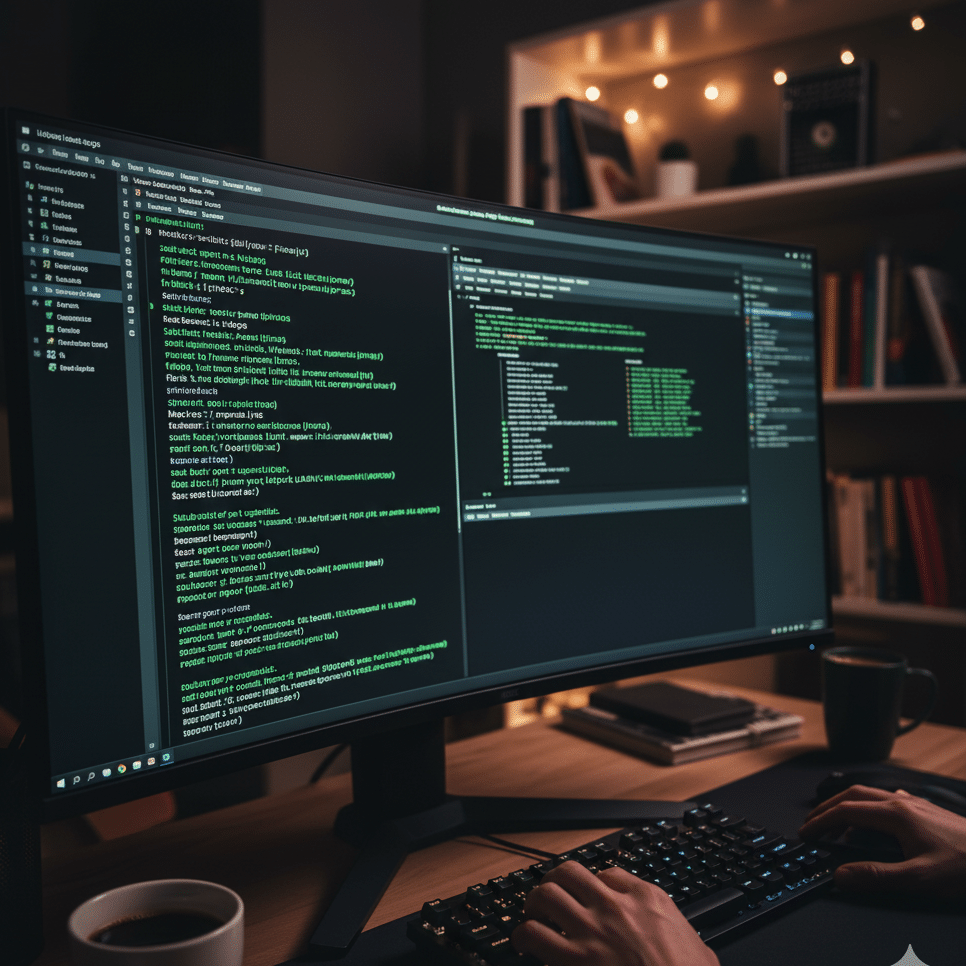
I know what you're thinking – "The terminal? That scary black screen with green text like in hacker movies?" Well, yes and no. The Linux terminal is actually your best friend disguised as your worst nightmare.
What is the Linux Terminal and How Do I Use It?
The terminal (also called the command line) is basically texting with your computer. Instead of clicking around like a lost tourist, you're giving direct orders like a boss. Once you get the hang of it, you'll wonder how you ever lived without it!
Terminal vs Shell: What's the Difference?
Quick clarification because this confused the heck out of me initially:
- Terminal: The actual window you type in (like the phone)
- Shell: The program interpreting your commands (like the person on the other end)
The most common shell is Bash, but there's also Zsh, Fish, and others. Don't worry about this now – Bash is perfect for beginners!
Basic Linux Commands for Beginners: Your Starter Pack
Time for the fun part! Here's your Linux terminal commands cheat sheet – the essential spells every Linux wizard needs to know:
Navigation Commands (Moving Around Like a Pro)
pwd         # "Where am I now?" - Shows current directory
ls          # "What's here list?" - Lists files and folders
cd          # "Let's go to there..." - Changes directory
cd ..       # "Take me back!" - Go up one level
File Management Commands (Organizing Your Digital Life)
mkdir newfolder001    # Creates a new folder "newfolder001"
touch newfile.txt  # Creates a new file "newfile"
cp file1 file2     # Copies stuff
mv oldname newname # Moves or renames
rm filename        # Deletes (careful with this one!)
rm -f filename      # Delete forcedly (careful with this one!)
The Power Commands (Feel Like a Hacker)
sudo            # "I'm the boss!" - Admin powers
apt update      # Updates your software list (Ubuntu/Debian)
apt-get update      # Updates your software list (Ubuntu/Debian)
apt install     # Installs new software
grep            # Searches for text
man [command]   # Shows manual for any command
Pro Survival Tip: Can't remember a command? Type man [command] for the manual. It's like having a cheat sheet built right in!
What is the Linux Directory Structure?
Imagine Linux's file system as a tree – everything branches out from the root (/). Unlike Windows with its C:, D: drives, Linux keeps it simple with one big happy tree.
Linux File System Explained:
Here's the Linux directory structure explained in human terms:
| Directory | What Lives There | Think of It As |
|---|---|---|
| / | Root - everything starts here | The trunk of the tree |
| /home | Your personal stuff | Your bedroom |
| /etc | System configuration files | The control panel |
| /usr | User programs and files | The app store |
| /bin | Essential commands | Your toolbox |
| /tmp | Temporary files | Your computer's scratch paper |
| /var | Variable data, logs | The diary/journal |
When I first started, I treated everything outside /home like a "Do Not Touch" museum. That's actually not a bad strategy for beginners!
Linux File Permissions Explained: The Security Guard System
Here's something Windows users find weird at first – in Linux, every file has a bouncer checking IDs. These are Linux file permissions, and they're actually pretty clever once you get them.
Understanding the Permission System:
Every file has three types of permissions:
- Read (r): Can you look at it?
- Write (w): Can you change it?
- Execute (x): Can you run it?
And three types of people:
- Owner: The file's creator (you, usually)
- Group: Your squad
- Others: Random strangers
When you type ls -l, you'll see something like: -rwxr-xr--
Breaking it down:
- First chunk (rwx): Owner can do everything
- Second chunk (r-x): Group can read and execute, not write
- Third chunk (r--): Others can only read
Quick Permission Commands:
chmod 755 myfile    # Standard permissions for scripts
chmod +x script.sh  # Make something executable
Don't worry if this feels like algebra class – you'll pick it up naturally as you use Linux more!
How Do I Manage Users and Groups in Linux?
Linux is built for sharing (unlike that kid in kindergarten who wouldn't share toys). Managing users and groups is part of Linux system administration basics.
Essential User Management Commands:
whoami              # Shows your username "Current User"(identity crisis solved!)
sudo adduser jane   # Creates new user Jane
sudo passwd jane    # Changes Jane's password
groups              # Shows what groups you're in
sudo usermod -aG groupname username  # Adds user to group
I remember accidentally locking myself out of sudo privileges once. Had to boot from USB to fix it. Learn from my mistakes – always have a backup admin account!
What Software Can I Install on Linux?
Good news! Linux in 2025 can run almost everything you need. Here's the breakdown:
Native Linux Software:
- Browsers: Firefox, Chrome, Brave, Vivaldi (all work perfectly)
- Office: LibreOffice (free MS Office alternative), OnlyOffice
- Media: VLC, Spotify, GIMP (Photoshop alternative)
- Development: VS Code, IntelliJ, every programming tool ever
- Games: Steam has thousands of Linux games now!
Running Windows Software:
Wine and Lutris let you run many Windows programs. Not perfect, but getting better every day!
Installing Software the Easy Way:
Ubuntu Software Center = App Store for Linux. Click, install, done!
Or use the terminal (faster once you're comfortable):
sudo apt install firefox
sudo snap install spotify
How Do I Configure Networking in Linux?
Networking in Linux is actually easier than explaining why you need to turn it off and on again. Here's the quick and dirty guide:
Basic Network Commands:
ip a                    # Shows network interfaces
ping google.com        # Tests internet connection
sudo systemctl restart NetworkManager  # The "turn it off and on" fix
Most modern distros handle networking automatically. If your WiFi works during installation, you're golden!
How Do I Troubleshoot Common Linux Problems?
Let's be real – things will break. Here's your Linux beginner mistakes to avoid and fix guide:
Common Issues and Fixes:
"I can't install software!"
sudo apt update # Update your package list first
"My system won't boot!"
- Don't panic! Boot from USB, mount your drive, fix the issue
- GRUB Rescue mode is your friend
"Permission denied!"
- Add
sudobefore the command - Check file permissions with
ls -l
"The screen is frozen!"
- Ctrl+Alt+F2 opens a new terminal
- Kill the frozen program from there
Golden Rule: Before running any command you found online, understand what it does. rm -rf / is not a magic fix-all command (it'll delete everything – learned that the hard way in a VM, thankfully! )
Linux vs Windows for Beginners: The Real Talk
Let's address the elephant in the room. You're probably wondering if switching is worth it. Here's my honest comparison:
| Aspect | Linux | Windows |
|---|---|---|
| Cost | Free forever | $139+ for license |
| Privacy | You own your data | Microsoft sees all |
| Customization | Change literally everything | What you see is what you get |
| Gaming | Good and improving | Still king |
| Learning Curve | Steeper initially | Familiar |
| Community | Helpful nerds everywhere | Microsoft support (lol) |
My Take: Keep Windows for gaming if you need it, but give Linux a real shot for everything else. Dual-boot is your friend!
Linux Shell Scripting Basics: Automate Like a Boss
Once you're comfortable with basic commands, shell scripting is your next superpower. It's basically teaching your computer to do your chores while you grab coffee.
Your First Script:
#!/bin/bash
echo "Hello, Linux world!"
echo "Today is $(date)"
echo "You are $(whoami)"
Save it as myscript.sh, make it executable (chmod +x myscript.sh), and run it (./myscript.sh). Boom! You're a programmer now!
Linux Beginner Tutorial Step by Step: Your Learning Path
Here's my recommended Linux tutorial roadmap for going from zero to hero:
Week 1-2: The Basics
- Install Linux (dual-boot or VM)
- Learn basic navigation commands
- Explore the GUI, find your way around
Week 3-4: Command Line Comfort
- Master essential commands
- Understand file permissions
- Install and remove software
Month 2: Going Deeper
- Learn file system structure
- Basic shell scripting
- Customize your environment
Month 3: Advanced Stuff
- System administration basics
- Networking configuration
- Troubleshooting skills
Remember, everyone learns at their own pace. I took six months to feel truly comfortable, and that's okay!
Conclusion: Your Linux Journey Starts Now!
Look, I'm not gonna lie – learning Linux from scratch has its moments. You'll break things. You'll get frustrated. You'll wonder why you can't just stick with Windows like a normal person.
But then, one day, you'll solve a complex problem with a single command. You'll automate something that used to take hours. You'll realize you haven't seen a blue screen of death in months. And you'll get it – you'll understand why millions of us are absolutely in love with this quirky, powerful, endlessly customizable operating system.
The Linux beginner guide 2025 journey you're about to embark on isn't just about learning new software. It's about joining a community of tinkerers, creators, and problem-solvers. It's about taking control of your technology instead of letting it control you.
So, what are you waiting for? Download that Ubuntu ISO. Create that bootable USB. Take the red pill and see how deep the penguin hole goes!
Your Next Steps:
- Pick your distro (Ubuntu if you're still unsure)
- Back up your data
- Install Linux (dual-boot to play it safe)
- Join r/linux4noobs on Reddit
- Break something, fix it, and learn!
Got questions? Hit me up in the comments below. Remember, every Linux expert was once exactly where you are now. The only difference? They started.
Welcome to the Linux family! You're gonna love it here.
No comments yet. Be the first to share your thoughts!